How to Transfer iCloud Contacts and Calendar to Android (No iPhone Needed)
Moving from iPhone to Android? 5 ways to get your iCloud contacts and calendar onto an Android phone: vCard export, CardDAV/CalDAV, Smart Switch and more.
You bought an Android phone, and now ten years of contacts and calendar events are stuck in iCloud. The good news: you do not need the old iPhone to get them out. This guide covers five ways to move iCloud contacts and calendar to Android, from the quick manual export to a direct connection, so you can pick the one that fits your situation.
Quick answer: which method should I use?
| Your situation | Best method |
|---|---|
| I just want my contacts once, for free | Method 1: export a vCard |
| I want my iCloud calendar and contacts to stay up to date | Method 2: connect with CardDAV/CalDAV |
| I only need to see my calendar, not edit it | Method 3: subscribe to the calendar link |
| I still have the iPhone and want everything | Method 4: use a phone-switch tool |
| I want one clean copy on the phone, checked for errors | Method 5: use a one-way copy app |
Before you start
- Know your Apple ID and password. If two-factor authentication is on, you also need access to a trusted device or phone number for the verification code.
- Use a computer for the web steps. The iCloud contacts export is only offered in a desktop browser, not on a phone browser.
- Do not delete anything on the iPhone yet. Finish the move, check the result, and only then clean up the old phone.
Method 1: Export a vCard from iCloud.com and import it
This is the classic route and it needs no extra apps.
- On a computer, open iCloud.com and sign in with your Apple ID.
- Open Contacts, press Ctrl+A (Cmd+A on a Mac) to select everything.
- Click the gear icon at the bottom left and choose Export vCard. You get a
.vcffile. - Go to contacts.google.com, choose Import in the left menu, and upload the file. Your Android phone picks the contacts up on its next sync.
- Or skip Google: copy the
.vcffile to the phone and open it, then choose where to save the contacts.
Watch out: importing the same file twice creates duplicates, and Android contact apps often flatten Apple's custom labels, related names and notes. Import once and check a few cards.
Method 2: Connect iCloud with CardDAV and CalDAV
iCloud speaks two open standards, CardDAV for contacts and CalDAV for calendars. Android does not include a client for them, so you add a small connector app, for example DAVx5, and then your contacts and calendar appear in the normal Android apps.
- Go to appleid.apple.com, sign in, and create an app-specific password under Sign-In and Security. Apple requires this when two-factor authentication is on.
- In the connector app, add an account of type "Login with URL and user name" and use the server address https://contacts.icloud.com (calendars use the same iCloud login).
- Sign in with your Apple ID e-mail and the app-specific password, then tick the address book and calendars you want.
Good for: keeping contacts and calendar updated over time. Trade-off: a two-way connection can write changes back, so a mistake on the phone can reach your iCloud data.
Method 3: Subscribe to the iCloud calendar link
If you only need to look at your calendar on Android:
- On iCloud.com, open Calendar, click the share icon next to the calendar and turn on Public Calendar.
- Copy the link, then in Google Calendar on the web choose Other calendars > From URL and paste it.
- The calendar shows up on your Android phone through Google Calendar.
Watch out: it is read-only, and a public link can be opened by anyone who has it. Turn the option off afterwards if you only needed a one-time view. For a one-time copy you can instead export an .ics file and import it into Google Calendar.
Method 4: Use a phone-switch tool while you still have the iPhone
Manufacturer tools such as Samsung Smart Switch, and Google's own switch-to-Android flow, can read the iPhone directly. A wireless transfer typically moves contacts, calendar events and photos, while a cable transfer can carry more. This is the easiest path if the iPhone is still in your hands and charged.
Method 5: One-way copy with ex-Cloud
If the iPhone is gone, or you want a copy you can verify, ex-Cloud downloads your iCloud contacts and calendars straight to the Android phone.
- Install ex-Cloud and sign in with your iCloud account (an app-specific password works here too).
- Pick an address book and tap Download to phone. Contacts land in one group, events in their own calendar.
- Tap Verify. The app reads the phone back and compares every record field by field, telling you exactly which item or field differs.
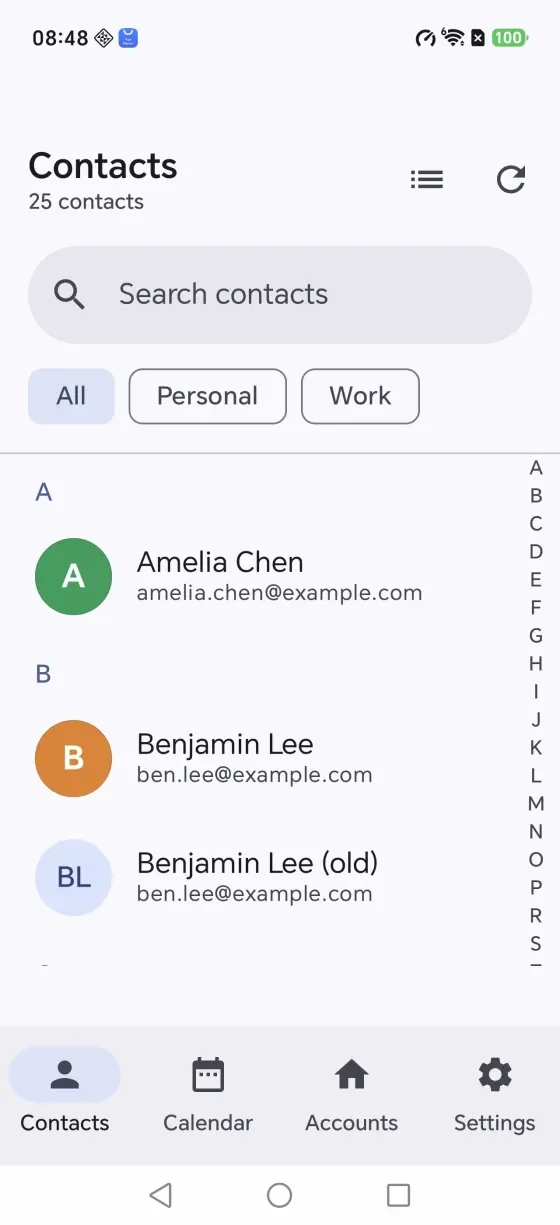
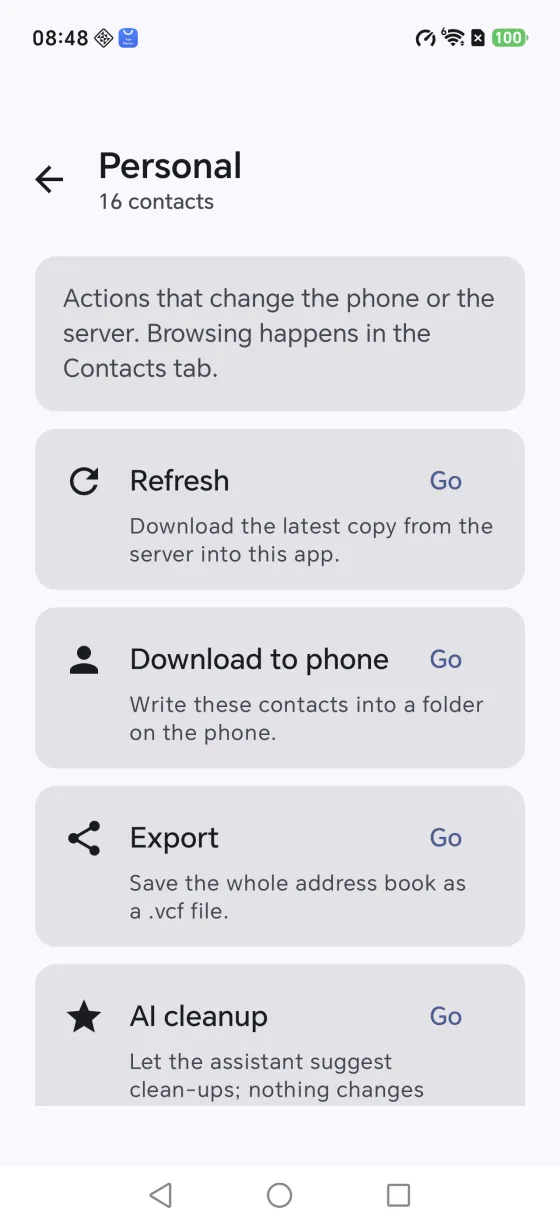
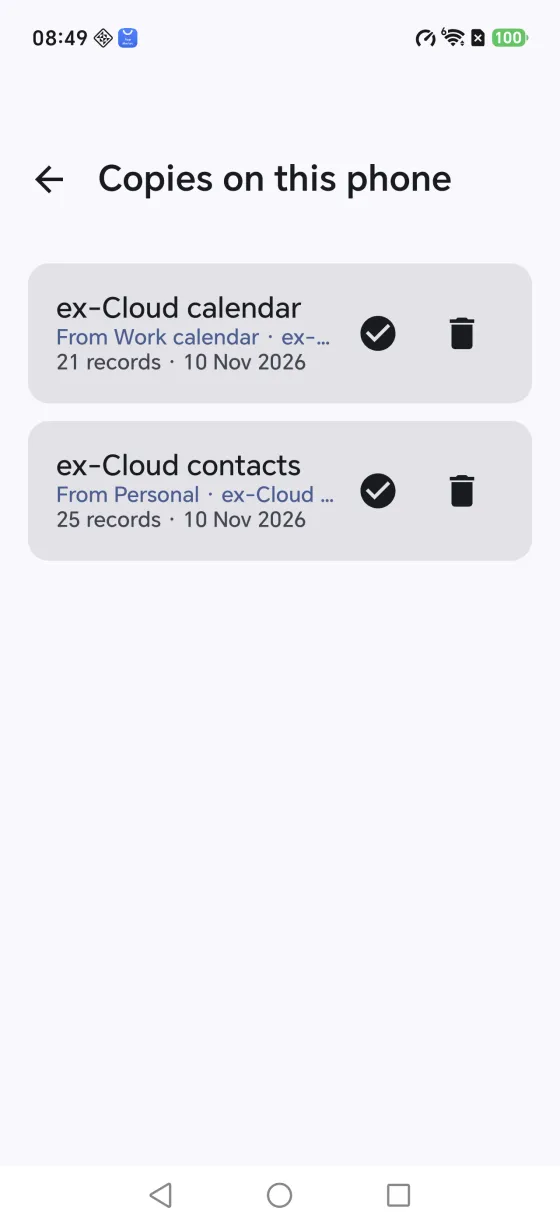
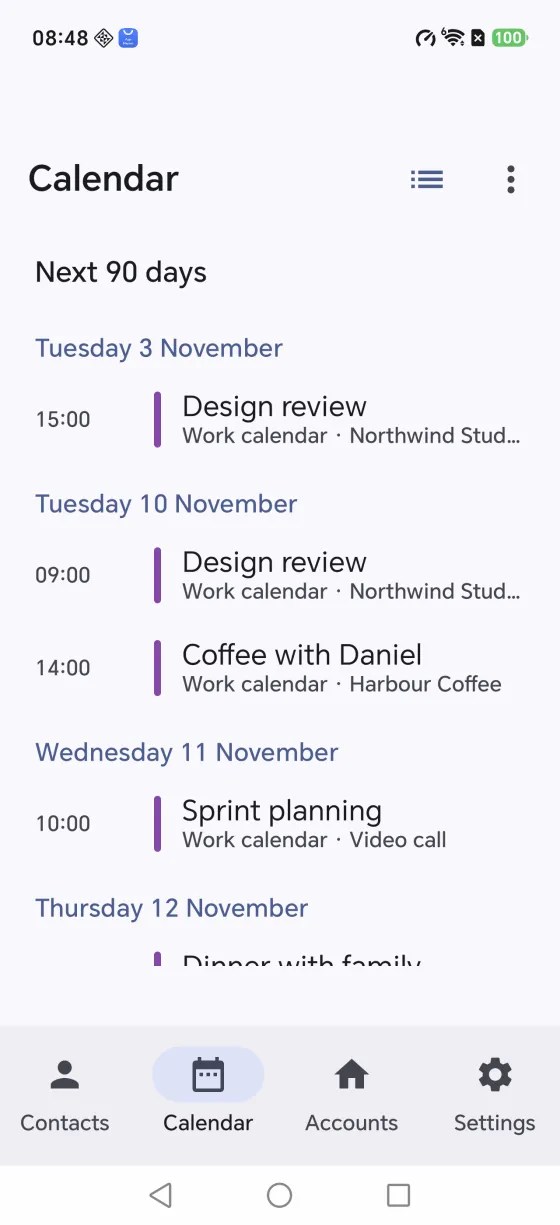
It is one-way by design, so nothing is merged or written back to iCloud, and you can run it again as often as you like and still end up with one copy. It reads vCard 2.1, 3.0 and 4.0 including Apple's item1.X-ABLabel groups, and expands recurring events with their own time zone rules so a weekly 09:00 meeting stays at 09:00 after the clocks change.
Fix the usual problems
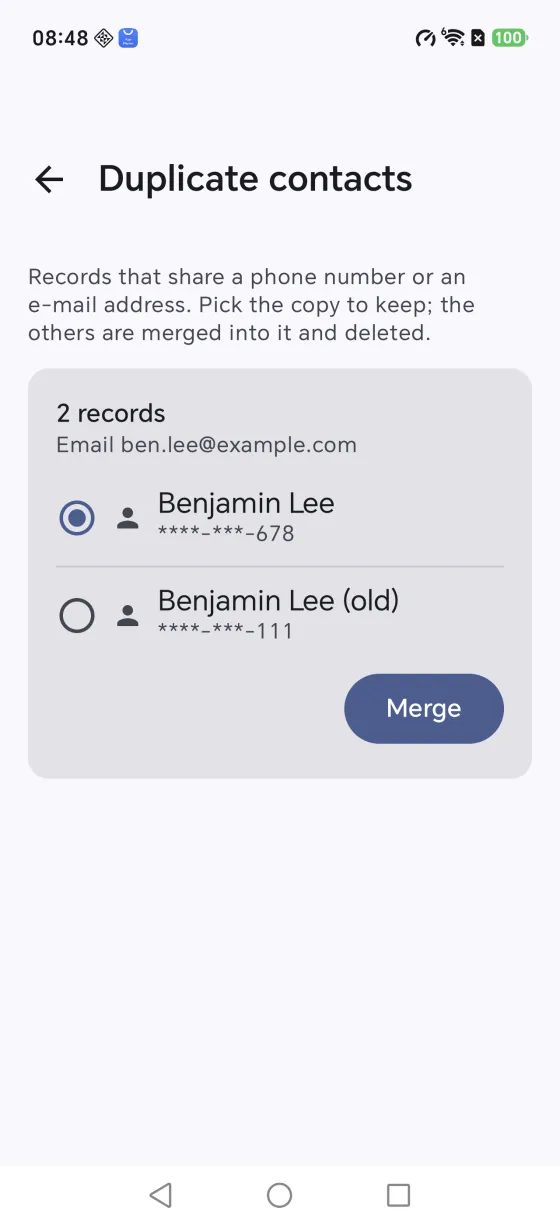
- Duplicates after import. Open your contacts app and use its merge or fix-and-manage option. ex-Cloud also finds duplicates, but only when two contacts share a phone number or e-mail, so two different people named "Alex" are not merged.
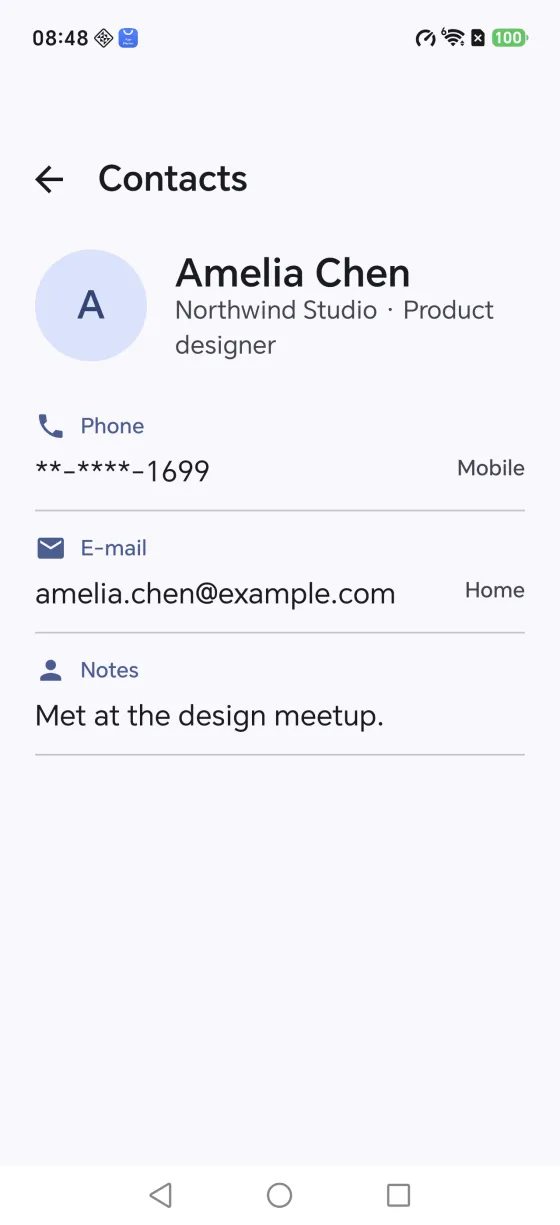
- Birthdays or labels look different. Some Android apps simplify Apple-specific fields. Check a contact that uses custom labels before you trust the whole batch.
- Calendar events at the wrong hour. This usually means time zone data was lost in a manual import. A CalDAV connection or a tool that resolves time zones itself avoids it.
- Sign-in fails. Use an app-specific password, not your Apple ID password, and make sure the e-mail is your Apple ID.
Which method do we recommend?
For a quick one-time job, Method 1 is hard to beat. For ongoing use, Method 2 works but remember it can write back. If you want a clean, checked copy without the old iPhone, Method 5 is the one we built for exactly this. Whichever you choose, keep your iCloud data untouched until you have confirmed the contacts and events on the new phone.
More detail: the illustrated guides on the ex-Cloud website cover getting started, backing up to your phone, calendars, duplicates, exporting and privacy.
Frequently asked questions
How do I transfer iCloud contacts to Android?
On a computer, sign in at iCloud.com, open Contacts, select all, choose Export vCard, then import that .vcf file into Google Contacts or open it on your Android phone. Alternatively, connect to iCloud directly with a CardDAV/CalDAV app.
Can I move iCloud contacts to Android without an iPhone?
Yes. The contacts live on Apple servers, not on the phone. All you need is your Apple ID, and a browser or an app that can log in to iCloud.
How do I get my iCloud calendar on Android?
Export the calendar as an .ics file and import it into Google Calendar for a one-time copy, subscribe to its public link for a read-only live view, or connect with a CalDAV app for ongoing sync.
Why do my iCloud contacts show up as duplicates or with missing fields after import?
Importing the same vCard twice creates duplicates, and Android contact apps may drop Apple-specific fields such as custom labels or related names. Import once, then clean up duplicates.
Do I need an app-specific password for iCloud?
If your Apple ID uses two-factor authentication, which is the default, apps that sign in with CardDAV/CalDAV need an app-specific password created at appleid.apple.com.
Is there a one-way tool that just copies iCloud contacts and calendars to the phone?
Yes. ex-Cloud, our Android app, downloads iCloud (or any CardDAV/CalDAV) contacts and calendars to your phone and checks the copy field by field. It never writes back to iCloud.
Want it done in one pass?
ex-Cloud copies iCloud contacts and calendars to your Android phone and verifies the result. Android 8.0+, about 9 MB.