← All tutorials
ex-Cloud · Tutorial 5 of 6

Exporting .vcf and moving data

Changing phones, handing contacts to someone else, or keeping an offline backup — a single .vcf file is the most portable answer.

About 4 minutes · screenshots use demo data

1Export a whole address book

Pick a book, open Manage → Export, then choose where to save it.

  • Standard vCard 3.0, one file containing every contact.
  • It exports the original cloud data, not the phone copy.
  • Photos, multiple phones and custom labels travel with the file.
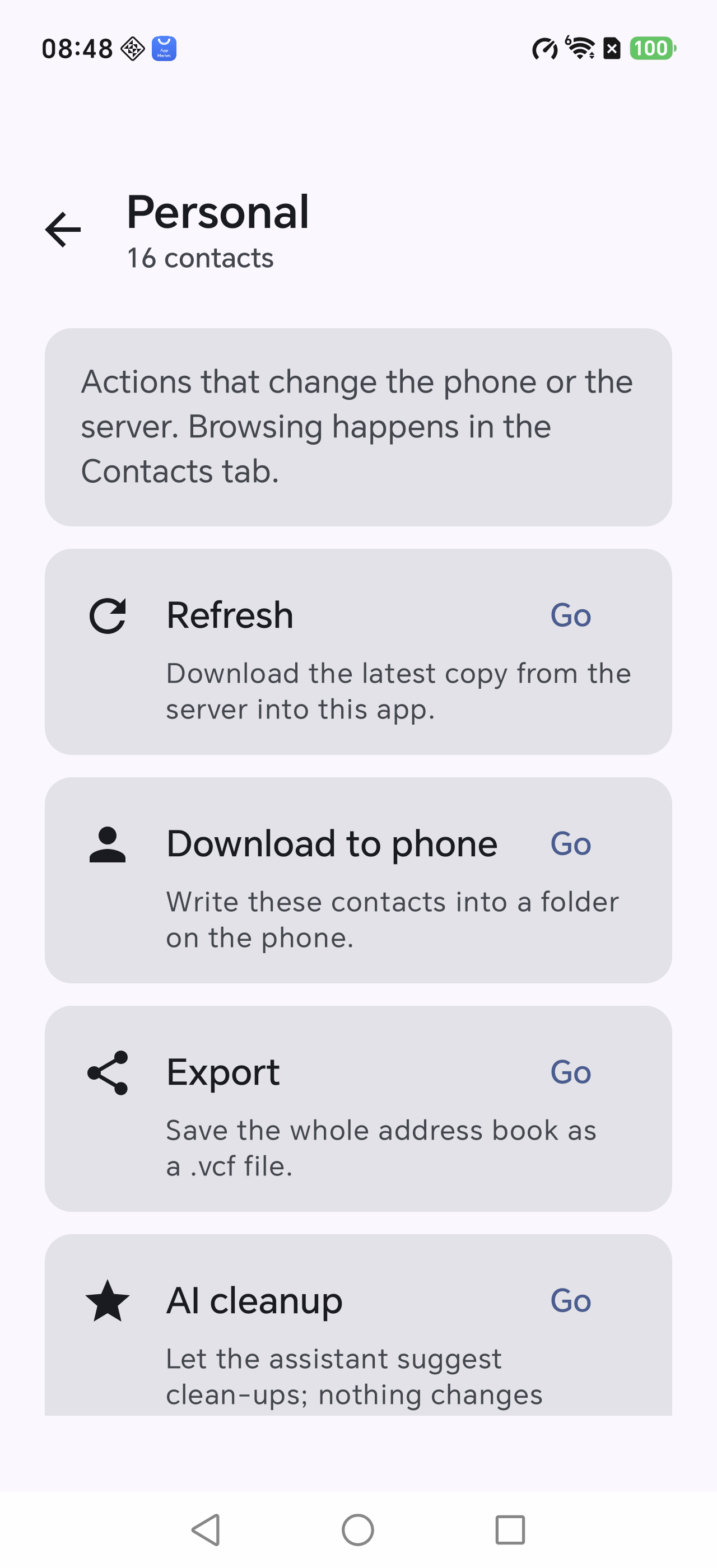
Export
Export sits with the other actions

2Where the file can go

GoalHow
Keep on the phoneSave to Files, pick a folder
Move to a computerShare → cloud drive or mail
Give to someoneShare → any messaging app
Import on another phoneOpen the .vcf there; the system offers to import
The file can be imported repeatedly. Back up the other phone's contacts first.
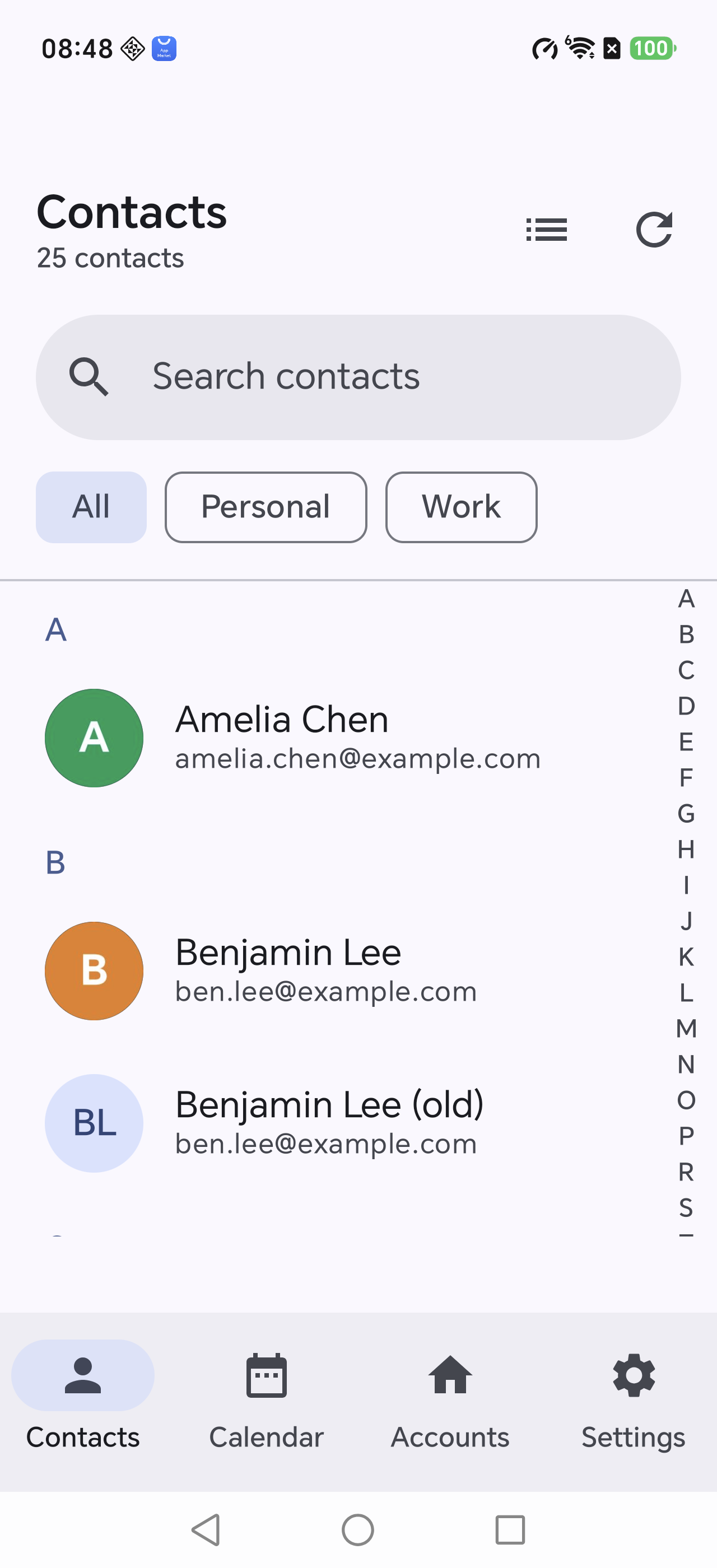
Contacts list
Check the count and scope before exporting

3Export vs download to phone

Export .vcfDownload to phone
ResultOne fileRecords inside the phone
Best forBackup, transfer, sharingMaking phone apps use the data
Can be verifiedNot directlyYes, item by item
Uses the address bookNoYes (one group)
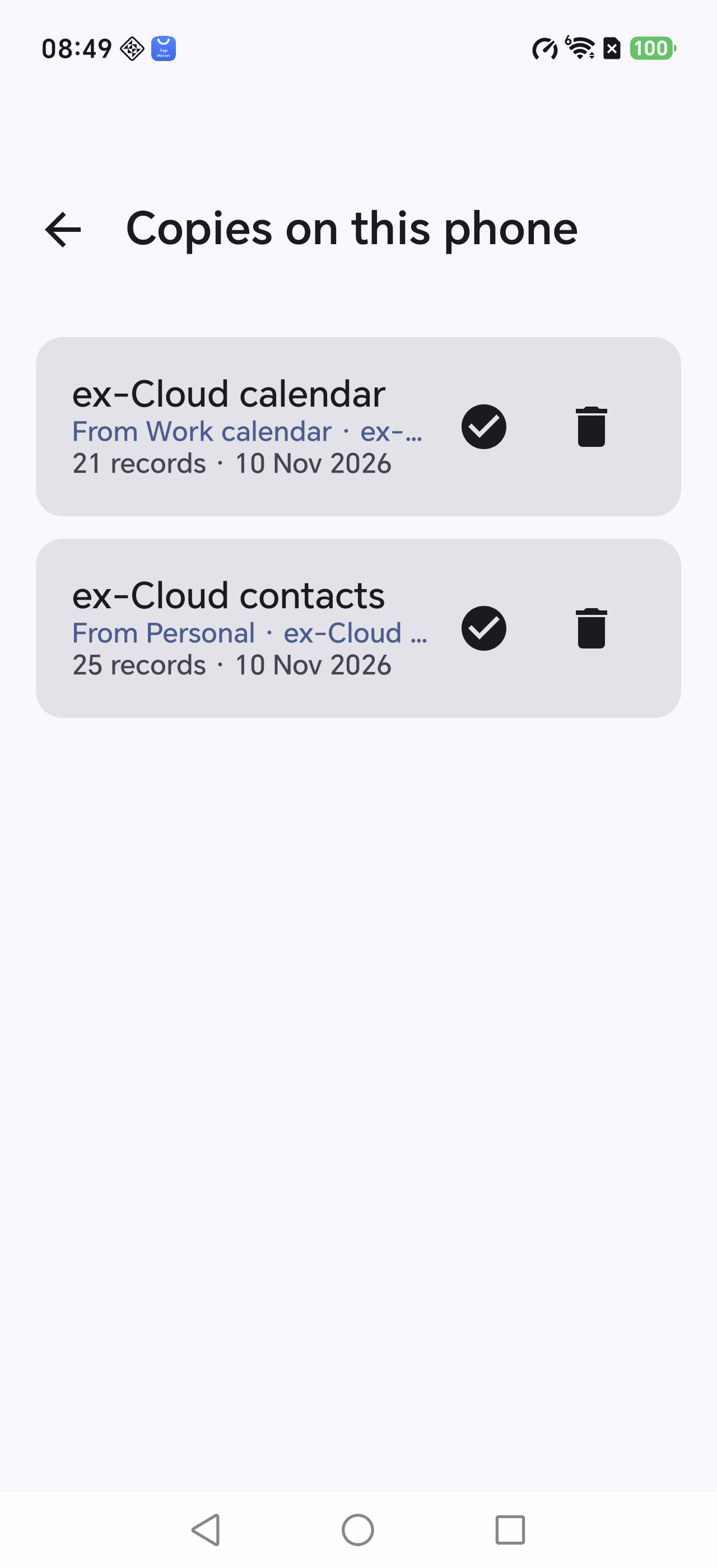
Phone copies
Need it usable → download. Need it portable → export

4Moving to a new phone

  1. Old phone: export a .vcf to a cloud drive (optional safety net).
  2. New phone: install ex-Cloud and add the same account.
  3. New phone: refresh → download to phone → verify.
Re-downloading from the account is cleaner than transferring a file: no duplicates.
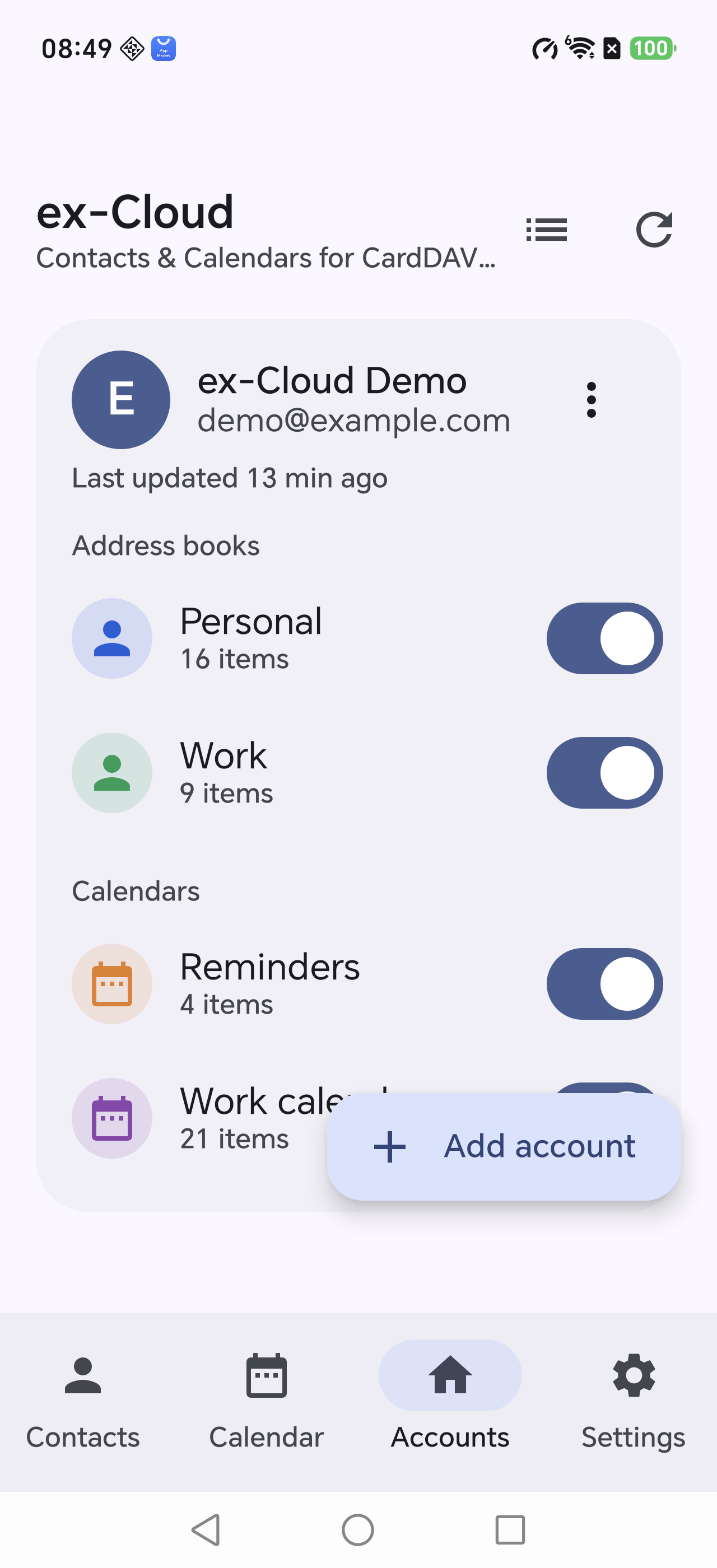
Accounts
Adding the same account on the new phone is enough