← All tutorials
ex-Cloud · Tutorial 6 of 6

Privacy, security and data flow

This app touches some of your most personal data: contacts and appointments. Here is exactly where each piece of data goes.

About 3 minutes

Data flow at a glance

DataWhere it goesWhen
Account passwordThis phone only (Android Keystore encryption)When you add an account
Contacts / calendarYour DAV server ⇄ local databaseOn refresh (download only)
Phone copiesThe phone's address book / calendarWhen you tap Download to phone
Merge resultBack to your DAV serverWhen you confirm a merge
AI cleanup contentThe AI service you configure (optional)When you run an AI task

1One-way is a safety feature

Nothing you change on the phone is pushed back to the cloud. That means:

  • Someone messing with the phone's contacts cannot pollute your iCloud.
  • Changing the cloud is possible only through Merge or AI cleanup, both of which ask first.
The trade-off: contacts added on the phone will not appear in iCloud. That is deliberate.
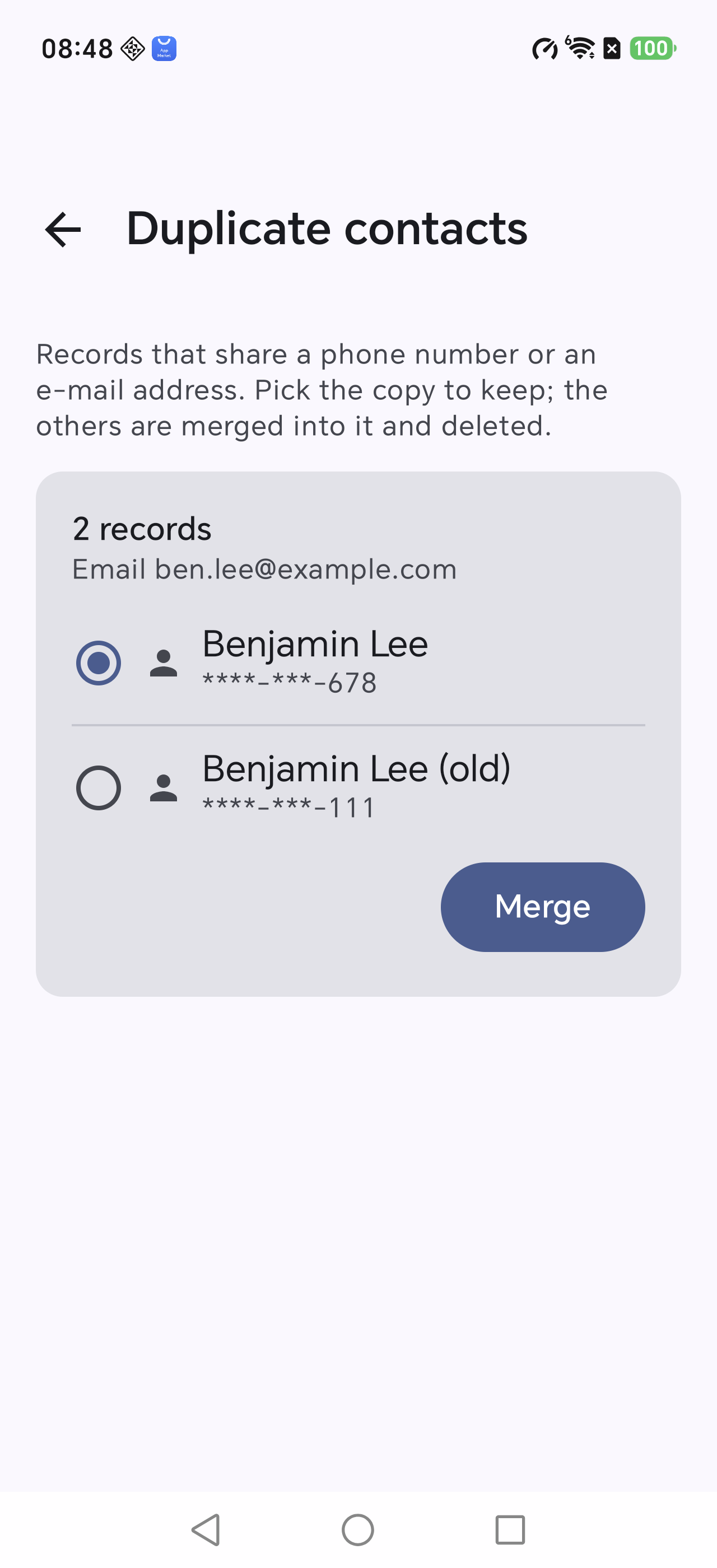
Duplicates
The only place that deletes cloud data — with a second confirmation

2How the password is stored

  • Encrypted with a key held by the Android Keystore, then written to the local database.
  • Copying the database off the device does not reveal it — the key never leaves the device.
  • Removing the account deletes the encrypted secret.

Use an app-specific password rather than your main Apple ID password: it can be revoked separately.

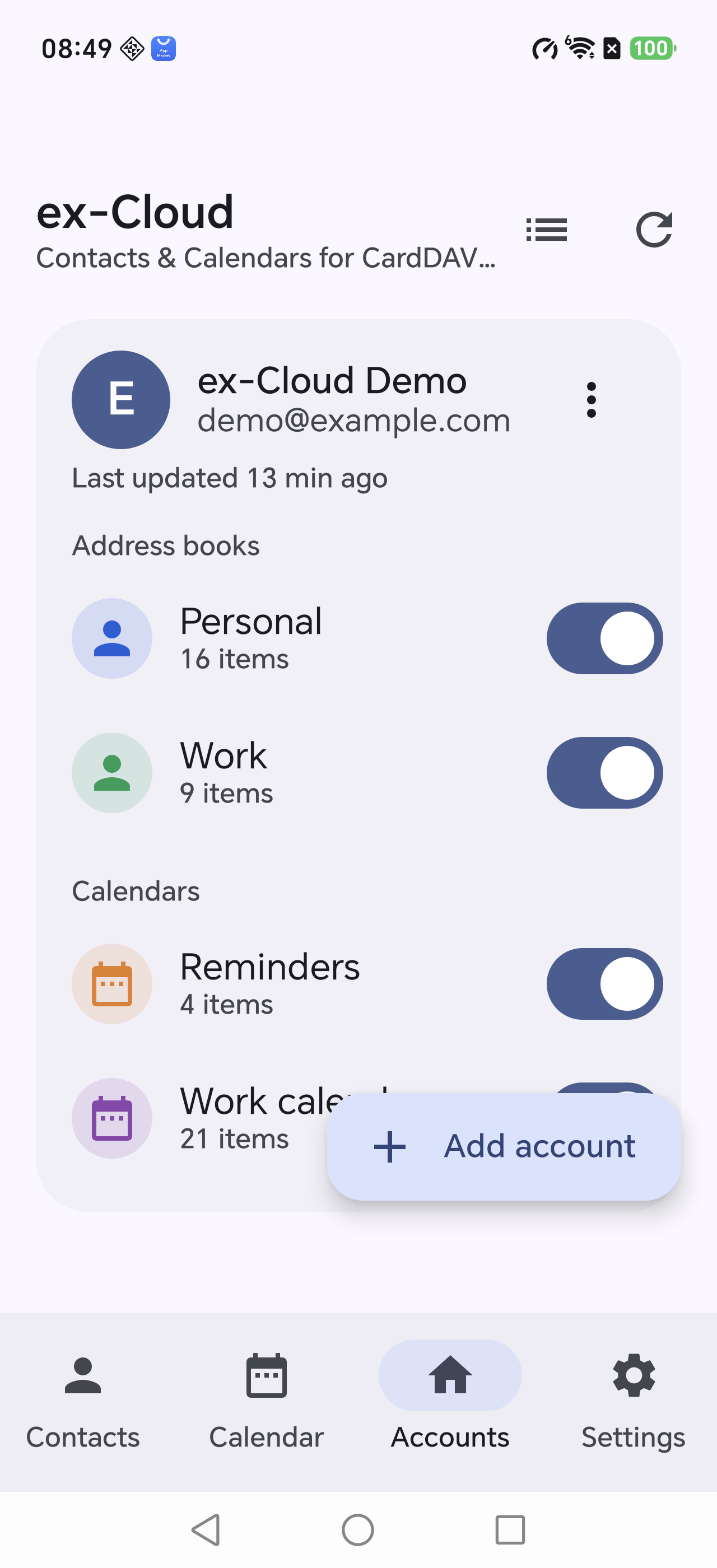
Accounts
Each account can be removed independently

3AI is optional

Without an AI configuration the app works fully: browsing, downloading, verifying, merging and exporting.

  • Content is sent to your chosen service only when you run an AI task.
  • The API key is encrypted with the Keystore as well.
  • Deterministic rules (removing sorting prefixes, etc.) run entirely on the device.
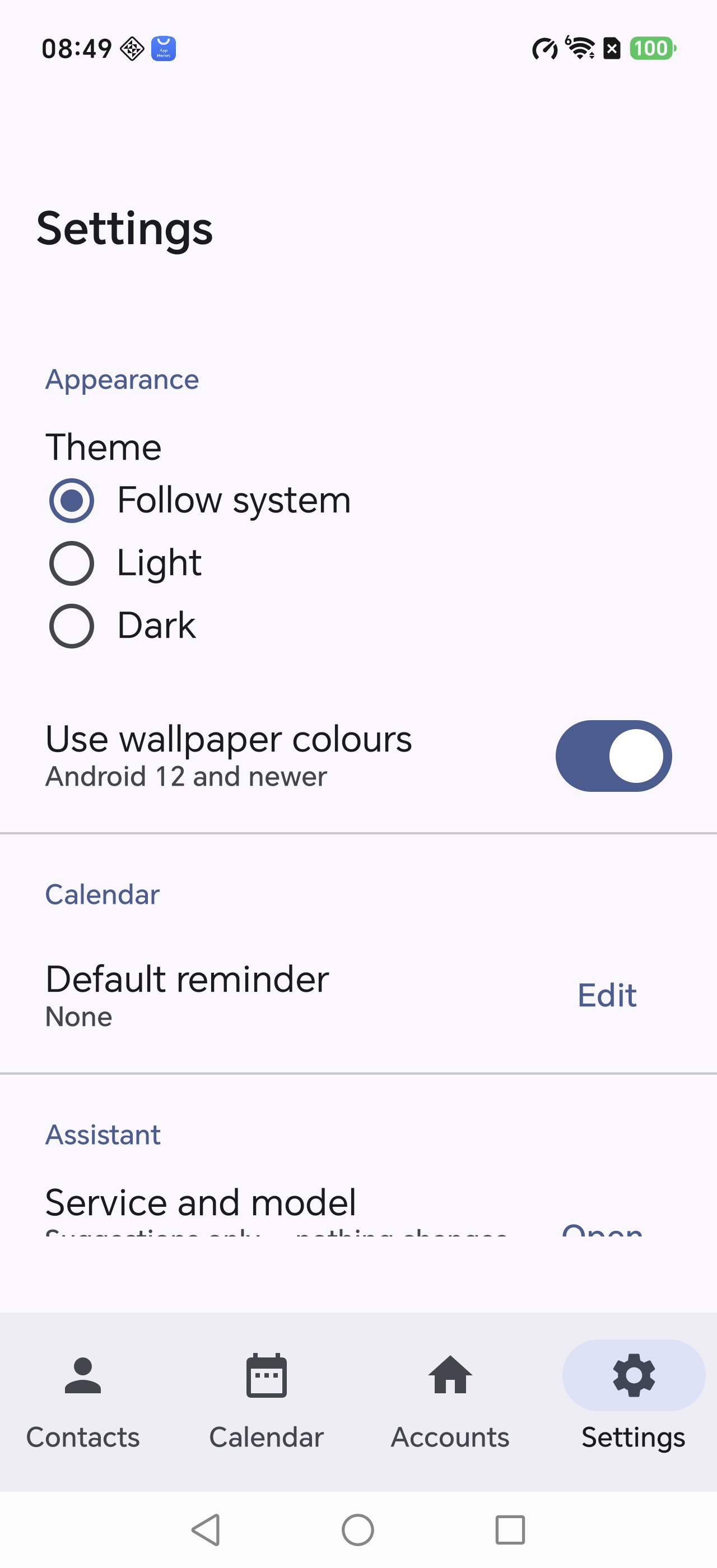
Settings
The AI service lives under Settings → Assistant

4Clearing your data

  1. Phone copies → bin icon: delete the copy written into the phone.
  2. Accounts → remove: drop the account and its encrypted secret.
  3. System settings → Apps → ex-Cloud → Storage → Clear data.
All three only affect this phone and this app. They do not delete anything in your cloud (except a deletion you explicitly confirmed during a merge).
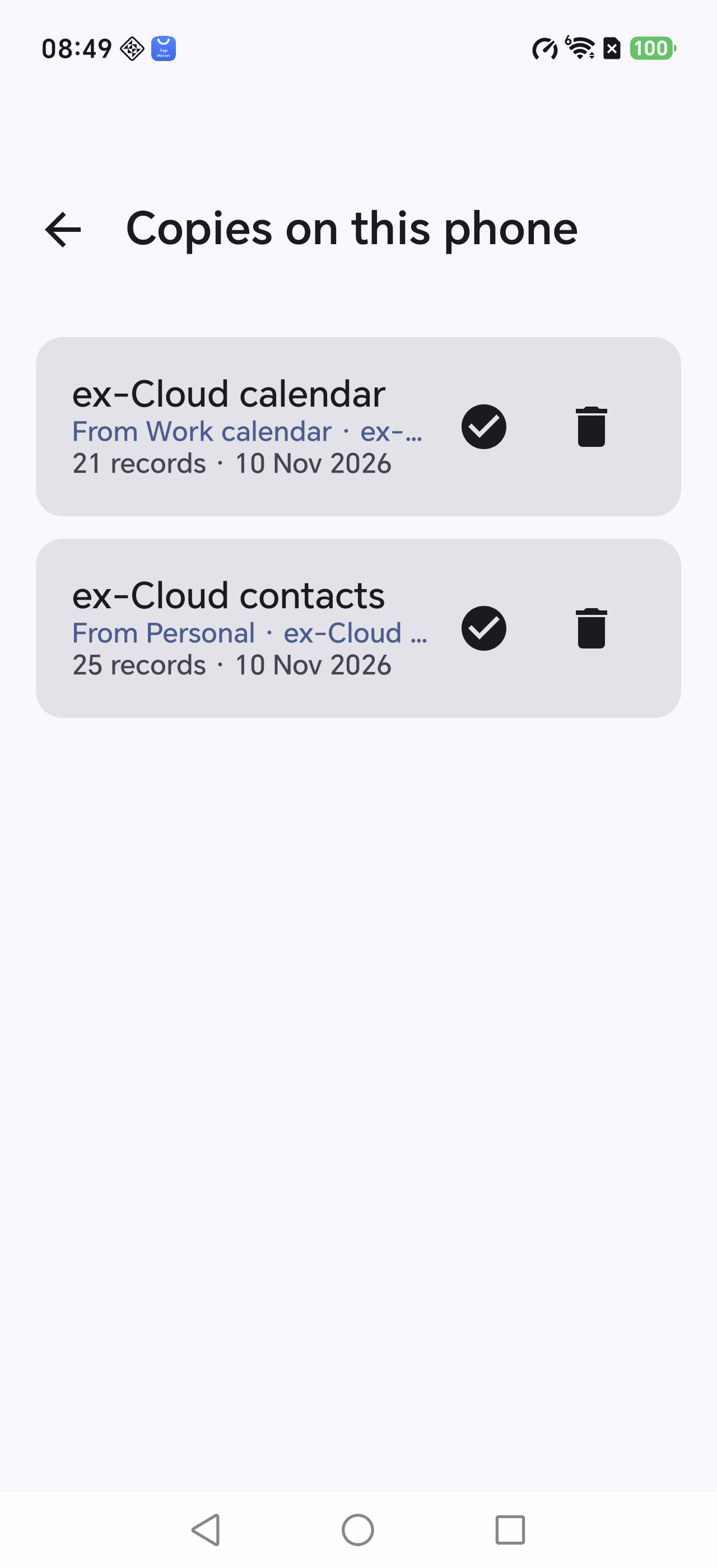
Phone copies
Deleting a copy only touches the phone