← All tutorials
ex-Cloud · Tutorial 1 of 6

Getting started: add an account, learn the four tabs

ex-Cloud does one thing: it brings your cloud contacts and calendars to your Android phone.
This guide covers the first setup and what each tab is for.

About 4 minutes · Android 8.0+ · screenshots use demo data

Three principles first

PrincipleWhat it means
One-wayIt downloads from the cloud. Your phone's edits are never pushed back.
VerifiableAfter copying to the phone, it can read the phone back and compare item by item.
Review firstAnything that writes to the cloud shows a before/after list and waits for your OK.

1Add your account

Open the Accounts tab and tap Add account. Pick iCloud or a custom CardDAV/CalDAV server.

  • For iCloud, create an app-specific password at appleid.apple.com.
  • The six-digit two-factor code will not work for DAV; you need the app-specific password.
  • The password is encrypted with the Android Keystore before it is stored.
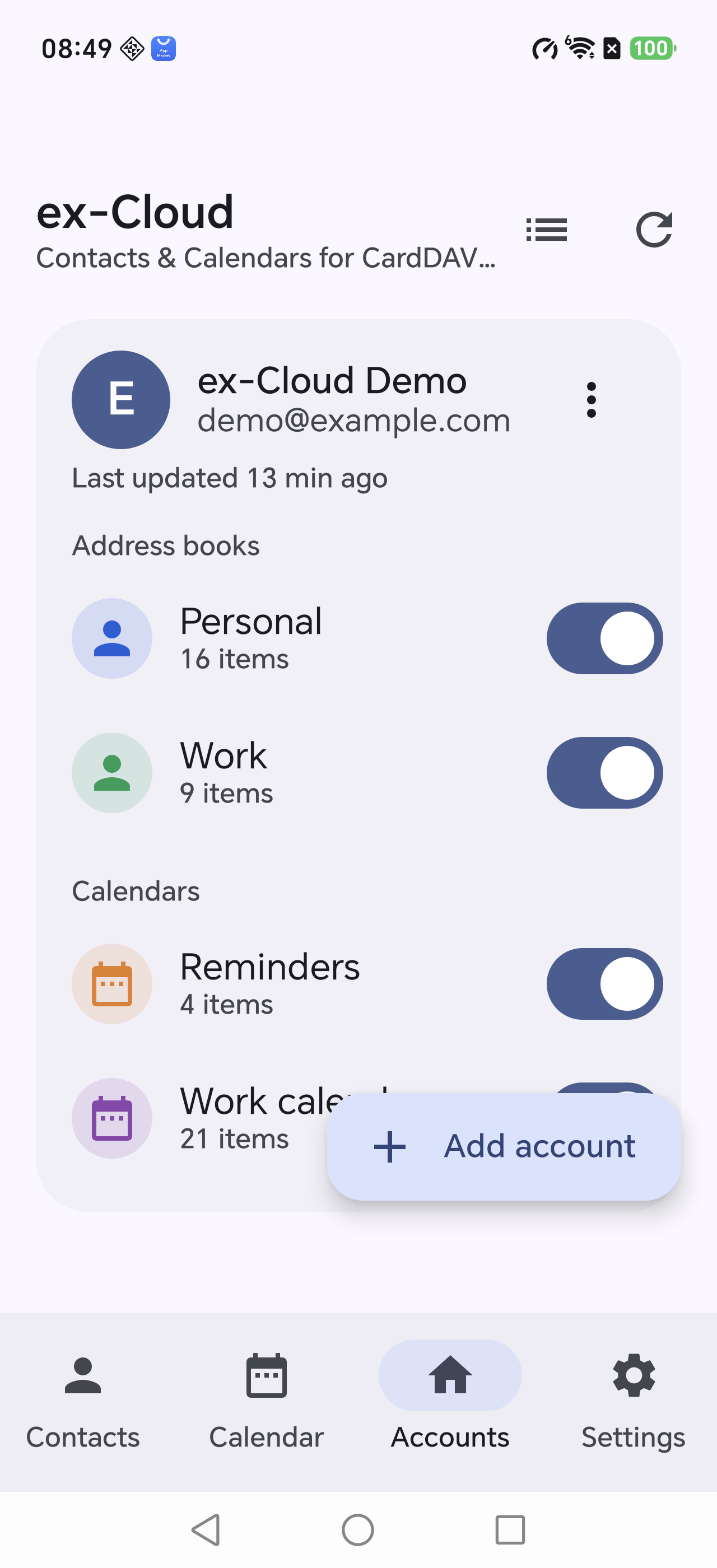
One account can hold several address books and calendars. The app lists them all and each one can be switched on or off.
Accounts tab
Each account shows the last refresh time

2What the four tabs do

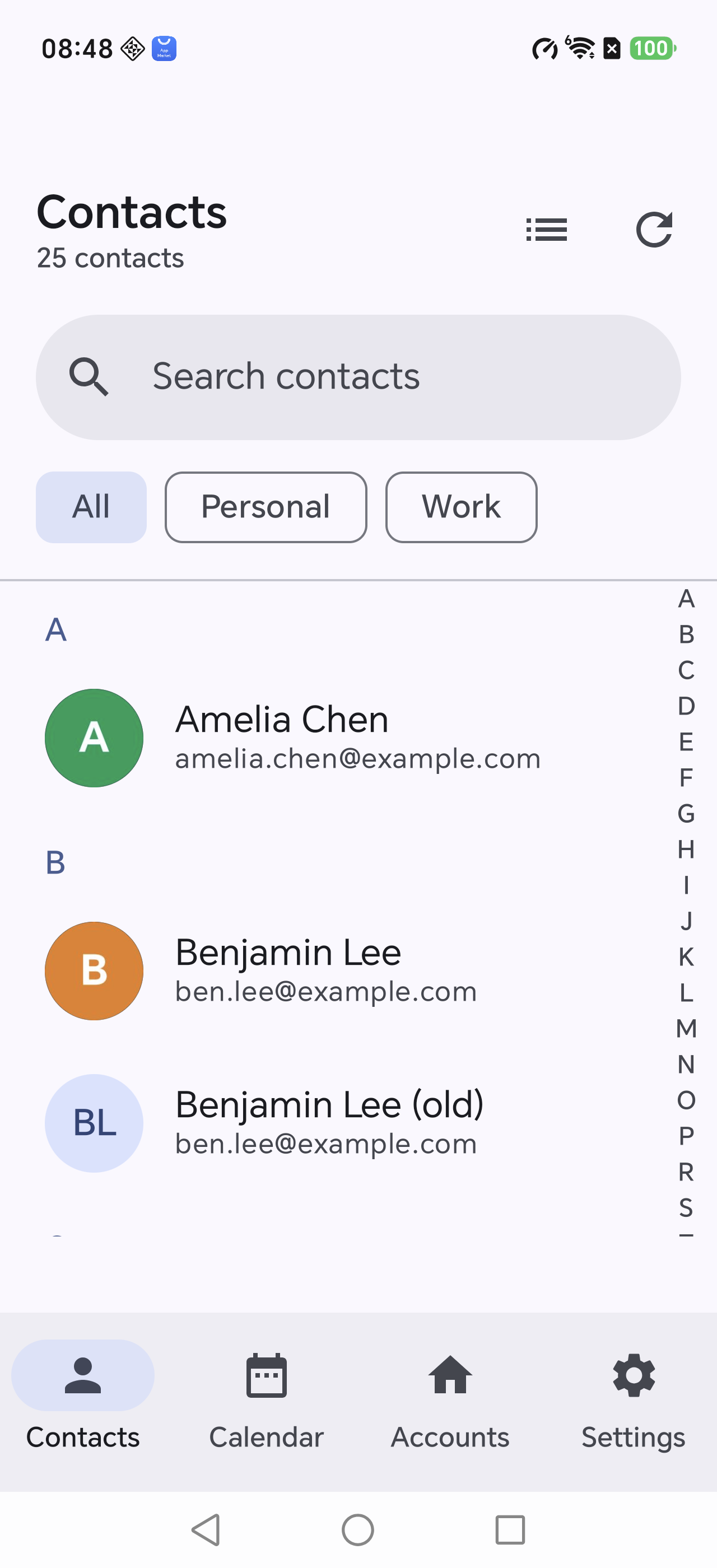
  • Contacts — browse, search, open a record. Read-only.
  • Calendar — month grid, agenda list, and insights.
  • Accounts — manage sources and see how many items each book holds.
  • Settings — appearance, default reminder, storage, about.

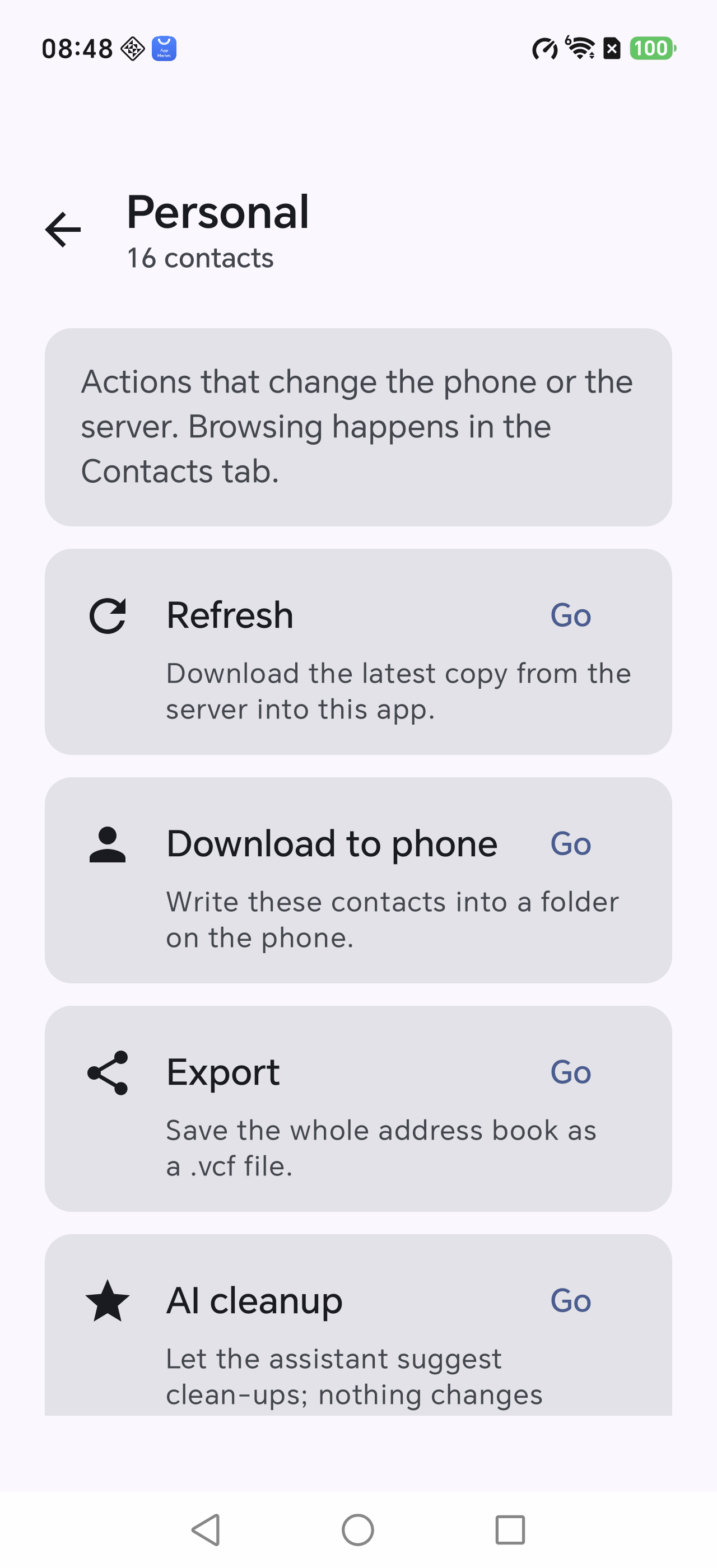
Anything that changes data lives behind Manage, not on the browsing screens.

Contacts tab
Search, address-book chips and an A–Z index

3Refresh for the first time

Tap the refresh icon on the Contacts tab, or open Manage → Refresh.

This pulls the whole address book down. Running it again gives the same result — it never creates duplicates.

The first run takes longer depending on size; later runs are quick.
Manage screen
Manage holds every action that changes data

4Make it yours

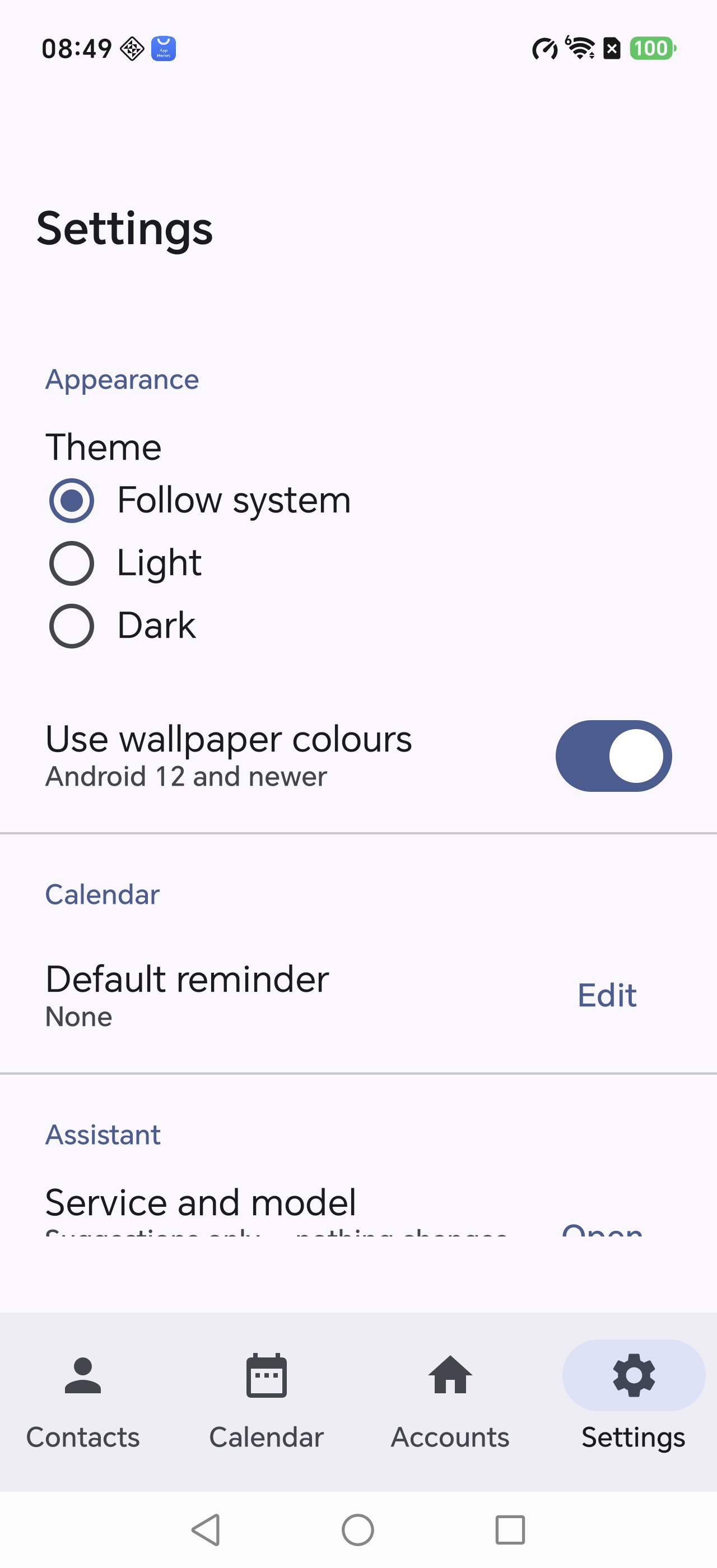
Settings → Appearance:

  • Follow system / Light / Dark
  • Use wallpaper colours (Material You, Android 12+)
  • Text size follows the system setting.
Settings
Appearance, default reminder and storage