Connect your way
Use a USB cable or Wi-Fi. Devices appear on their own; newer TVs pair once with a six-digit code and then reconnect with one click. The last device is remembered.

Manage your Google TV from your Windows PC.
GTV-toolkit connects to your Google TV, Android TV, Fire TV or Wear OS device and handles the maintenance jobs that normally mean typing into a terminal: switching launchers, installing apps, moving files, remote control and screen mirroring, all in one clean window.
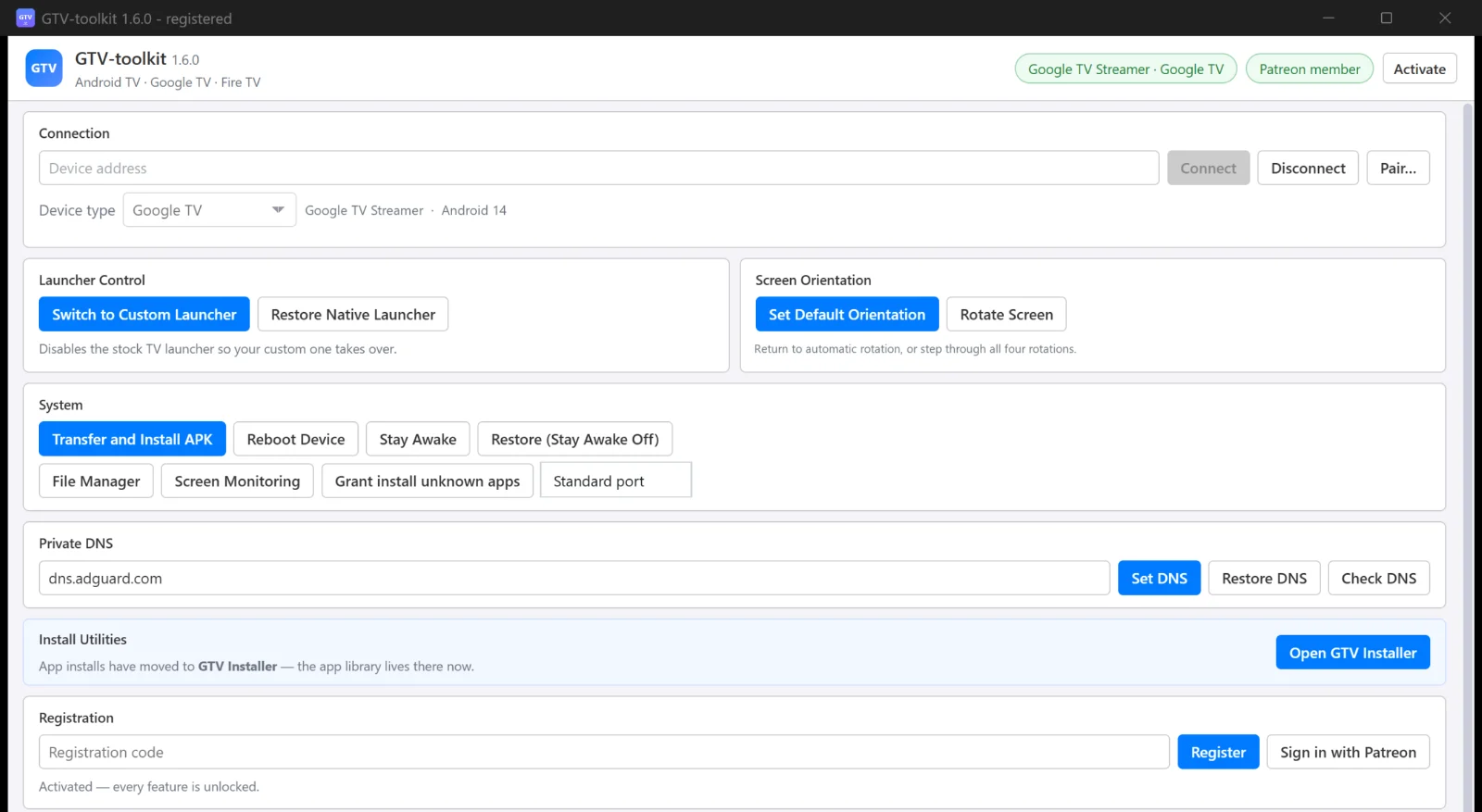
Everything you would otherwise do with a long terminal session becomes a button.
Replace the TV home screen with a custom launcher, and bring the original back whenever you like.
Install the Cloud Curry Studio apps, with their licences, straight from the built-in library.
Upload and download files, drive the TV from your PC and show its screen live, without switching tools.
Every action reports what happened in plain language, so even a non-technical user can tell what went wrong.
GTV-toolkit 1.6.0 feature by feature.
Use a USB cable or Wi-Fi. Devices appear on their own; newer TVs pair once with a six-digit code and then reconnect with one click. The last device is remembered.
Switch the TV home screen to a custom launcher in two clicks and restore the original at any time. After a reboot the TV still starts in the launcher you chose.
Return to automatic rotation or step through the four orientations. Handy for portrait signage panels and for testing apps.
Install an app from a file on your PC, including multi-file bundle formats, reboot the TV, keep the screen awake for demos, and allow a chosen app to install other apps.
Browse the TV storage, upload a file from your PC, download one to your Downloads folder, or delete files after a confirmation.
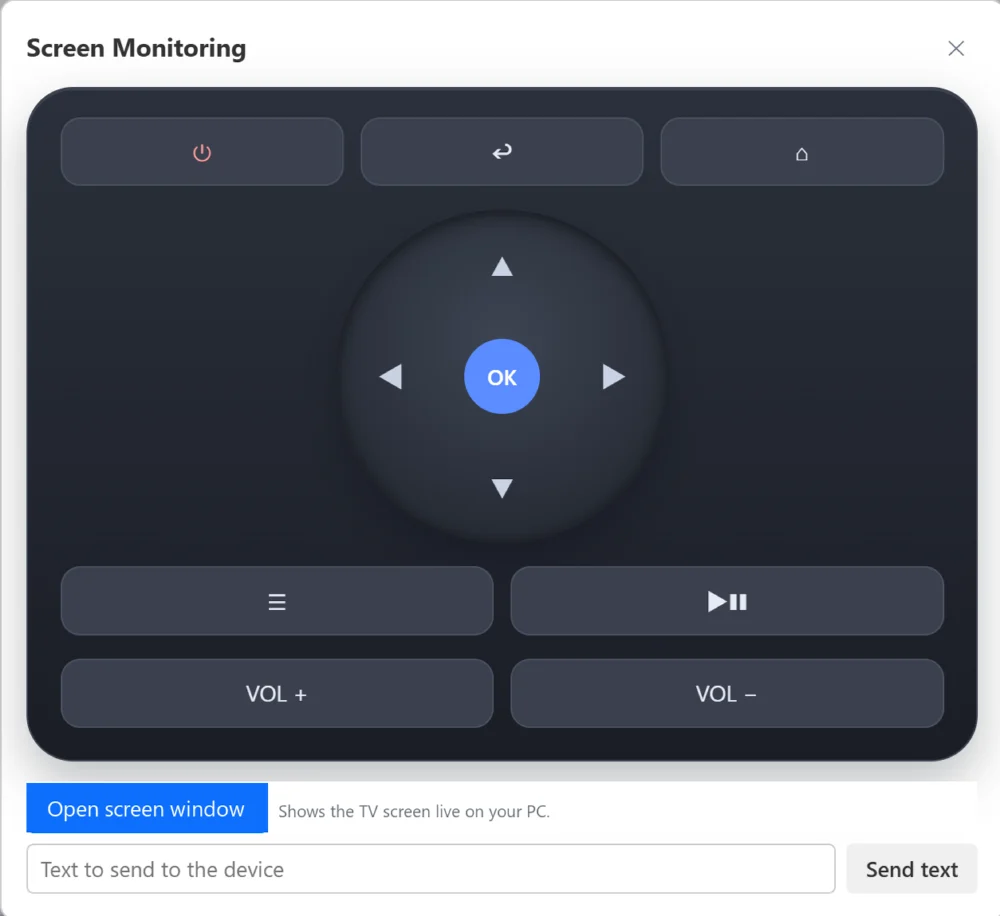
A full remote on your PC with power, back, home, direction pad, menu, play/pause and volume, plus text entry and optional live screen mirroring.
Set, check or restore a system-wide private DNS provider such as dns.adguard.com, dns.google or dns.cloudflare.com for ad blocking or a different resolver.
Each action is recorded with a timestamp in clear colours: started, details, success, failure. Easy to follow, easy to share when you need help.
A remote-shaped panel sits on your desktop: power, back, home, direction pad with OK, menu, play/pause and volume. Type into search boxes or enter a Wi-Fi password with Send text, and open a live view of the TV screen when you want to demonstrate or record.
Installed together with GTV-toolkit. Every app is a card with its icon, version and a one-click Install; an Installed badge shows what is already on the TV.
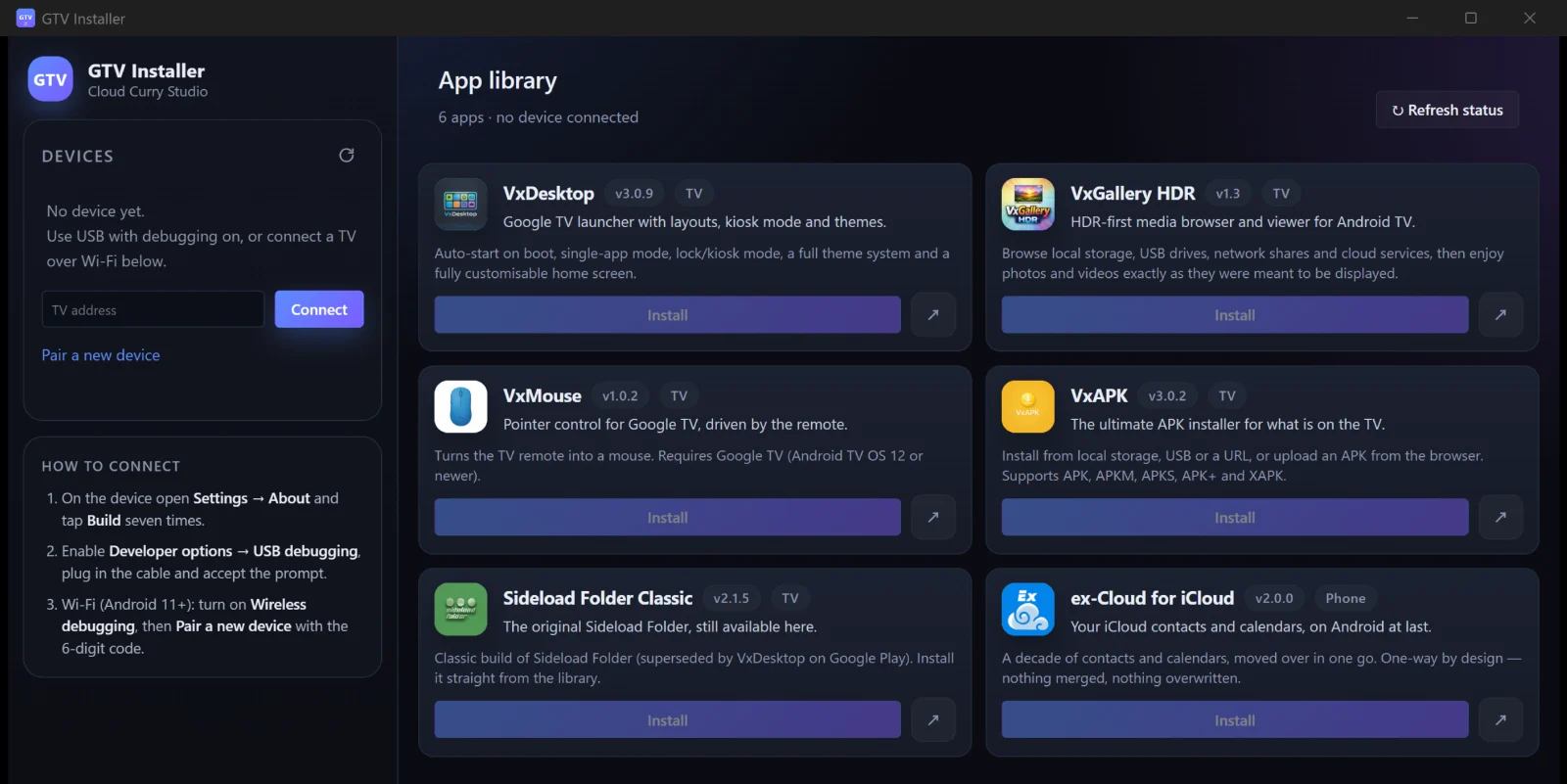
| App | What it is | For |
|---|---|---|
| VxDesktop | A custom home screen for Google TV with layouts, kiosk mode and themes. | TV |
| VxGallery HDR | A media browser and viewer built for HDR. | TV |
| VxMouse | Turns the TV remote into a mouse pointer. | TV |
| VxAPK | An APK installer for the TV itself, accepting many package formats. | TV |
| Sideload Folder Classic | The original sideloading tool, still available here. | TV |
| ex-Cloud for iCloud | Moves iCloud contacts and calendars to Android, one-way. | Phone |
No extra software to install on your PC.
Turn on Developer options and USB debugging, or Wireless debugging for Wi-Fi on Android 11 and newer.
Plug in the cable or type the TV address and click Connect. Accept the prompt on the TV if it appears.
The header shows your TV model and type, and the buttons are ready. You should now see the device name at the top of the window.
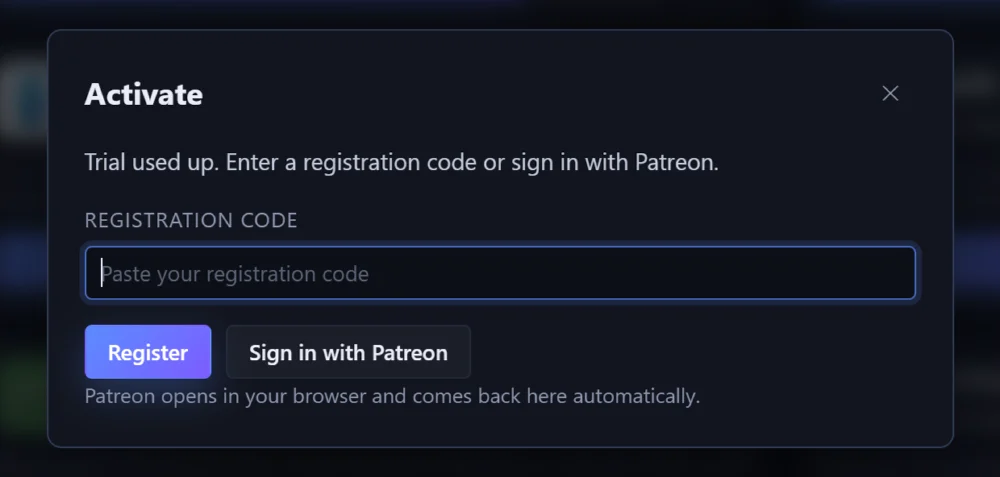
Activate once with a registration code or by signing in with Patreon; one activation covers both GTV-toolkit and GTV Installer. Before activating, every GTV-toolkit action can be tried once and GTV Installer lets you install one app. A code bought for the older GTV-toolkit keeps working unchanged.
GTV-toolkit is a Windows desktop program from Cloud Curry Studio that lets you manage a Google TV, Android TV, Fire TV or Wear OS device from your PC: switch launchers, install apps, transfer files, control the TV with an on-screen remote and mirror its screen. It comes with GTV Installer, an app library for the Cloud Curry Studio apps.
Windows 10 or 11, 64-bit. The WebView2 runtime is already present on Windows 11 and modern Windows 10. Nothing else is required: no Python, no developer tools and no extra software to install.
Enable Developer options and turn on USB debugging for a cable connection, or Wireless debugging for Wi-Fi (Android 11 and newer). Newer devices need a one-time pairing with a six-digit code.
Google TV, Android TV, Fire TV and Wear OS devices.
Yes. Restore Native Launcher is always safe and can be pressed at any time. If the screen is black after switching, restore the native launcher, install the custom launcher first from GTV Installer, then switch again.
Yes. Every GTV-toolkit action can be tried once, and GTV Installer lets you install one app before activation.
The first time you run it Windows may show a warning. Click More info, then Run anyway.
The TV already has that app from another store. Uninstall the existing copy first (this deletes that app's data) and install again.
GTV-toolkit is distributed through Patreon. The download page explains the steps and links to the Patreon post.
Get GTV-toolkit and GTV Installer for Windows.