
CastLunex › How it works
How CastLunex works
The same app is a sender and a receiver, so you do not need two apps. Pair once per session, then mirror, capture and record.
Roles
| Device | What it can do |
|---|---|
| Google TV | Receive phone and PC screens, show USB capture, share the TV screen, record |
| Android phone or tablet | Share the screen to a TV or PC, receive another screen, use a UVC device, record |
| Windows PC | Receive phones and TVs, capture USB, share the desktop to a TV, record, control |
1
Phone to TV
- On the Google TV open Receive screen. It shows a PIN and a QR code.
- On the phone or tablet choose Share this screen and pick the TV, or scan the QR code.
- Type the six digit PIN and approve screen capture. The phone appears on the TV.
- Optional: choose a quality, 30 or 60 fps, or game low-latency mode before you start.
2
Phone to PC (or TV to PC)
- Open CastLunex on the PC. It shows a PIN, a QR code and its address.
- On the phone or TV choose Share this screen.
- Scan the QR code, or connect by address and type the PIN.
- Approve screen capture. The picture appears on the PC, where you can record it.
3
PC to TV
- On the TV open Receive screen and read the PIN and address.
- On the PC open Share to TV, enter the address and the PIN, and press Start sharing.
- Press F11 on the PC for fullscreen, F to fill or fit, Esc to restore.
4
USB capture
- Connect an HDMI capture card, USB camera or endoscope.
- Open USB capture on the TV, phone or PC.
- Pick a resolution, then preview, snapshot or record.
On a TV box use the USB port that supports host mode, and a data cable rather than a charge-only cable. The diagnostics page lists what the system sees.
5
Record and control
- Recordings are MP4 files saved on the device that records. If you change the resolution or rotate while sharing, the recording continues in a new segment.
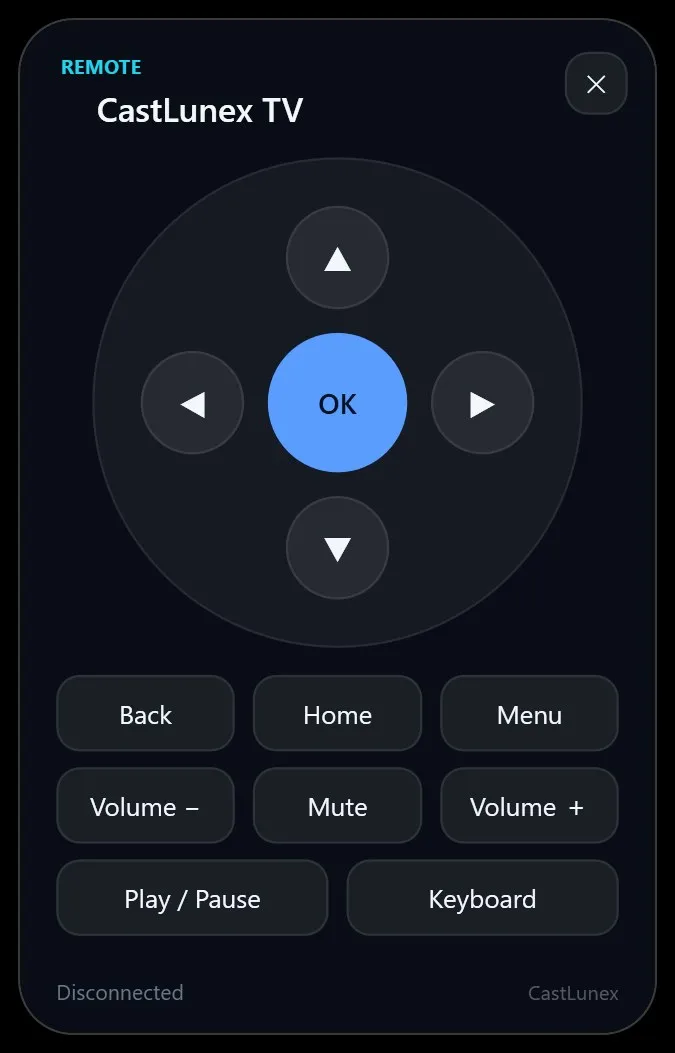
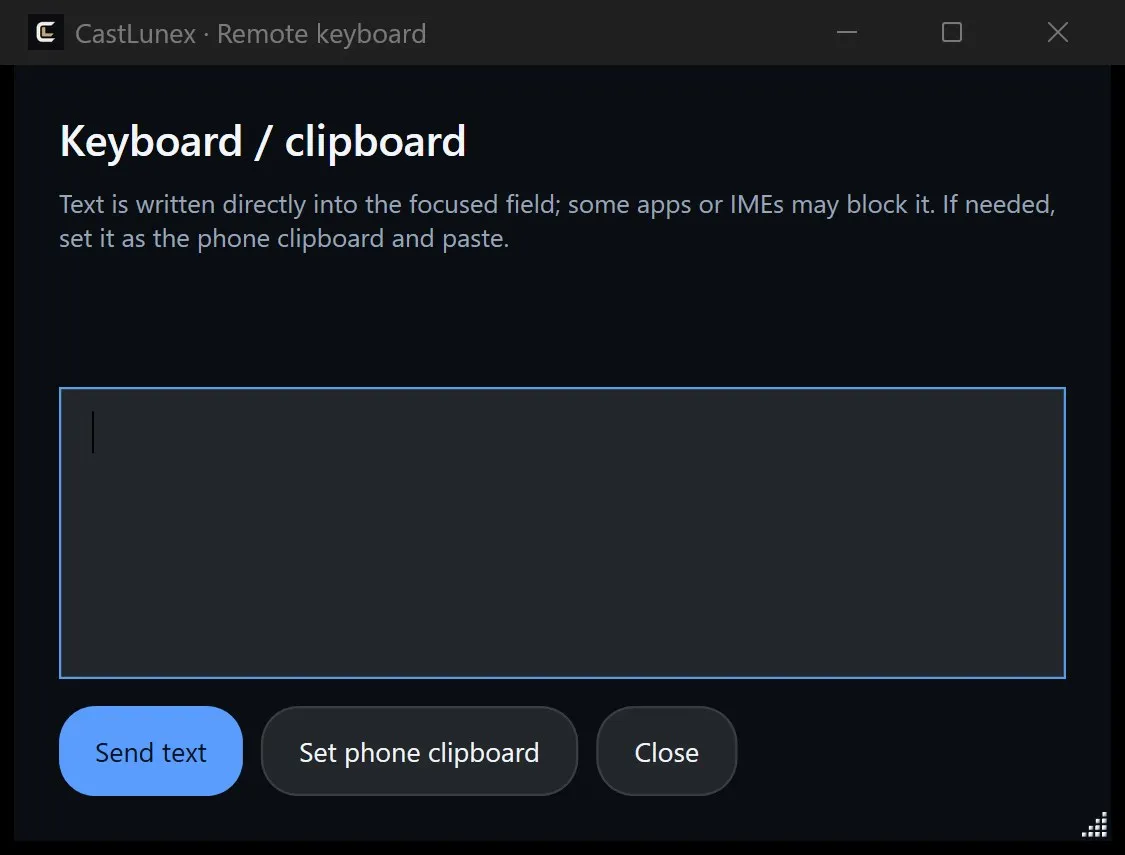
- Full edition: use the PC mouse to tap, long-press and swipe on a phone or tablet, an on-screen remote for the TV, and the PC keyboard to send text or clipboard.
Troubleshooting
When something does not connect
| Symptom | Try this |
|---|---|
| The phone cannot find the PC | Same Wi-Fi or LAN, allow CastLunex in the PC firewall, or connect by address. |
| The PC shows several addresses | VPNs and virtual adapters add addresses. Use the one of your real network. |
| The TV cannot find the phone | Both must be on the same network. If the router blocks discovery, connect by address. |
| The PIN is refused three times | Pairing locks for a minute and the receiver shows a new PIN. Wait, then type the new one. |
| The picture stays black in one app | Protected (DRM) content cannot be captured by Android. The app shows a hint when it sees this. |
| The picture lags in a game | Switch on game low-latency mode, use 720p or 1080p at 60 fps, and move closer to the router. |
| Picture but no sound | Switch on Share audio. Some apps block audio capture on Android. |
| USB capture shows nothing | Use a host-mode USB port and a data cable, then check the diagnostics page. |
Coming soon
Be there on release day
Follow Cloud Curry Studio on Patreon for release news. The Full edition and the Windows edition are posted there.