
CastLunex for Google TV
A ten-foot app built for the remote. Plug in a capture card, mirror a phone or send your TV screen to a PC, and record it.
Three big cards, one remote
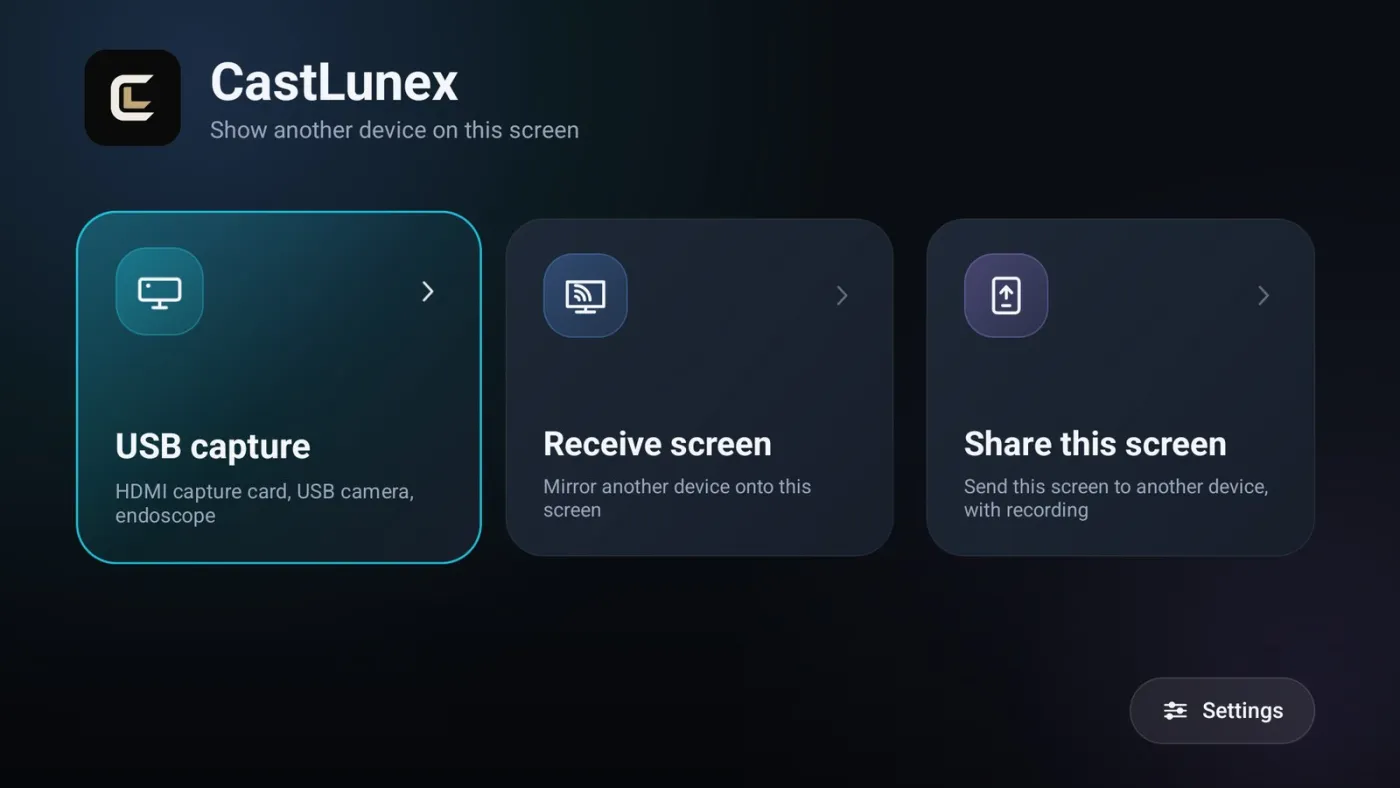
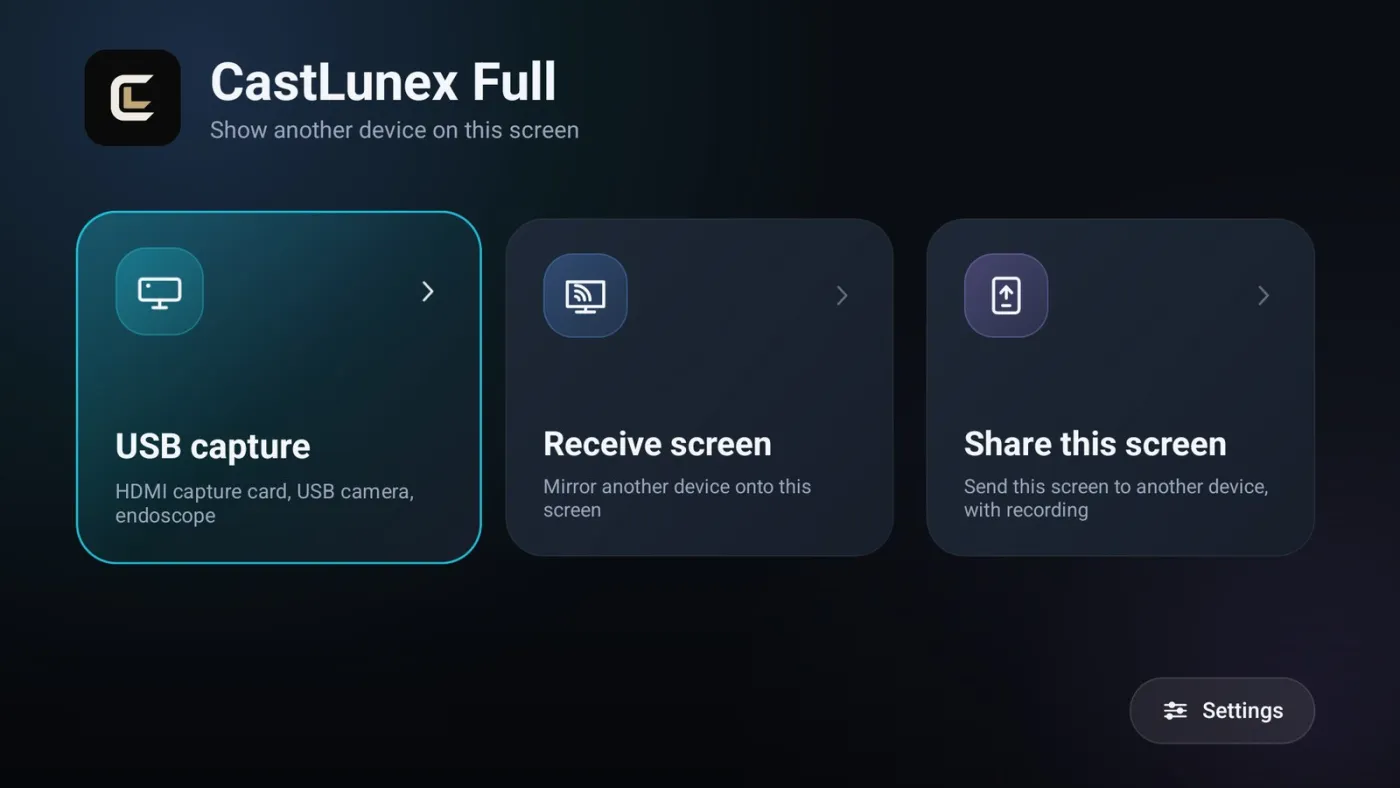
The home screen has one card for each job. Move with the arrow keys, press OK, and use Back to return. Nothing needs a mouse or a touch screen.
- USB capture: HDMI capture card, USB camera, endoscope
- Receive screen: mirror a phone, tablet or PC onto the TV
- Share this screen: send the TV picture to a PC, with recording
Mirror a phone onto the TV
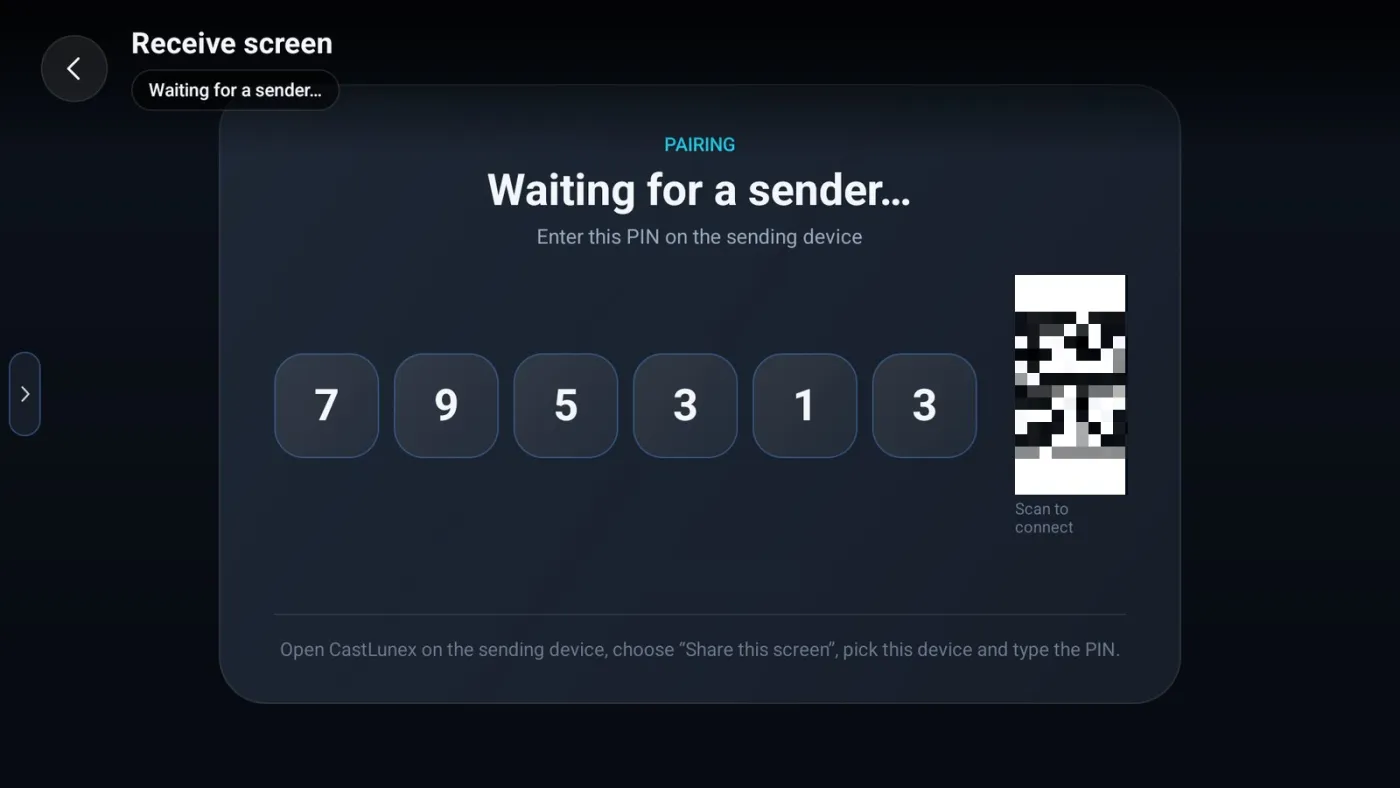
- On the TV open Receive screen. It shows a PIN and a QR code.
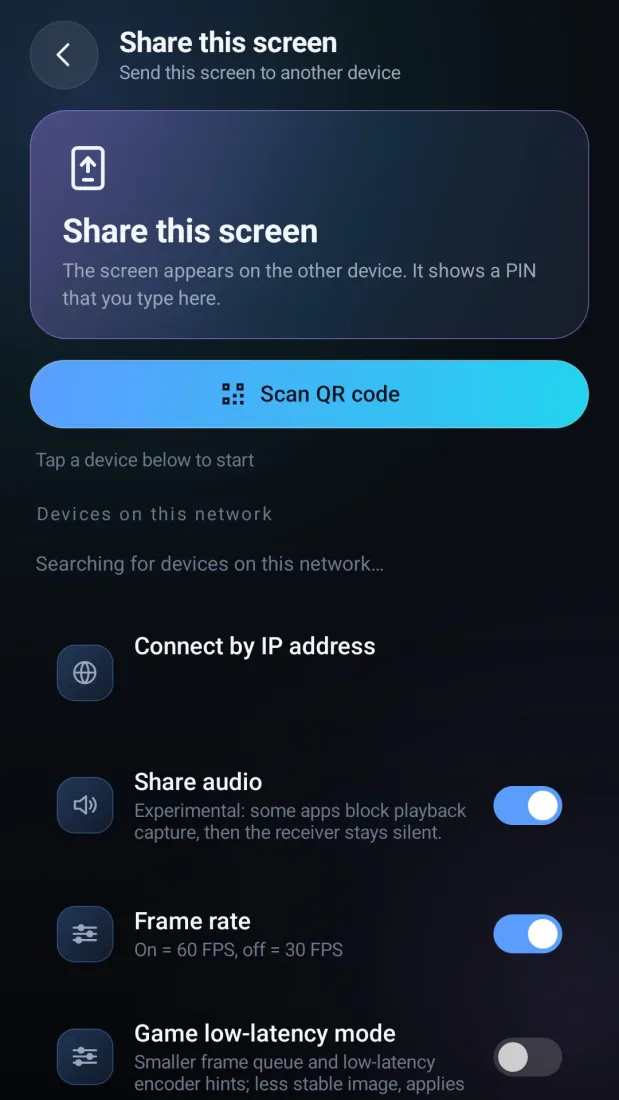
- On the phone choose Share this screen, pick the TV or scan the QR code, and type the PIN.
- Allow screen capture on the phone. The phone appears on the TV.
Capture cards, cameras and endoscopes
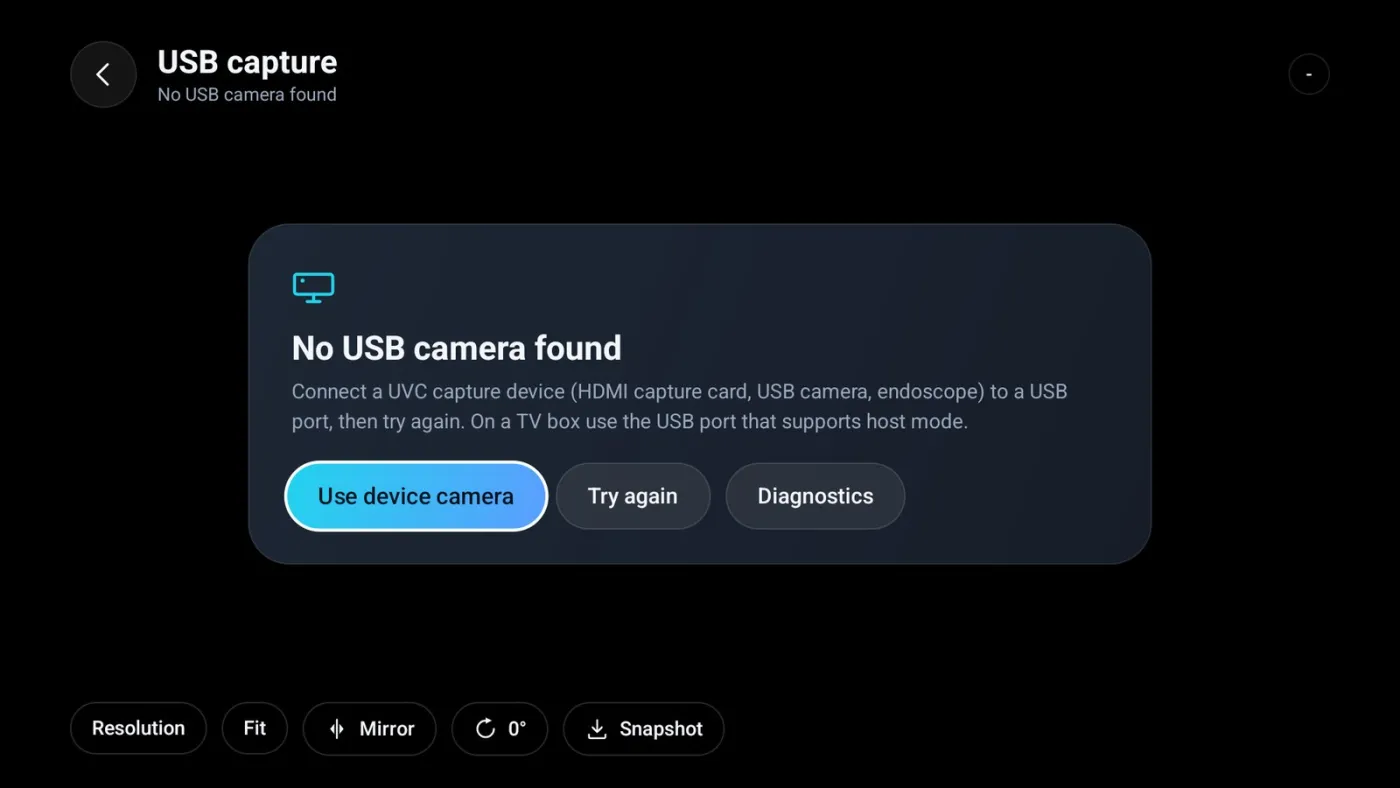
Connect a UVC device to a USB port that supports host mode and open USB capture. Pick a resolution, fit or fill the screen, mirror or rotate the picture, take a snapshot and record. If the system does not expose the device, a diagnostics page shows what it sees.
- Game consoles and set-top boxes through an HDMI capture card
- Webcams, document cameras and microscopes
- Endoscopes and inspection cameras on a large display
Send the TV screen to a PC
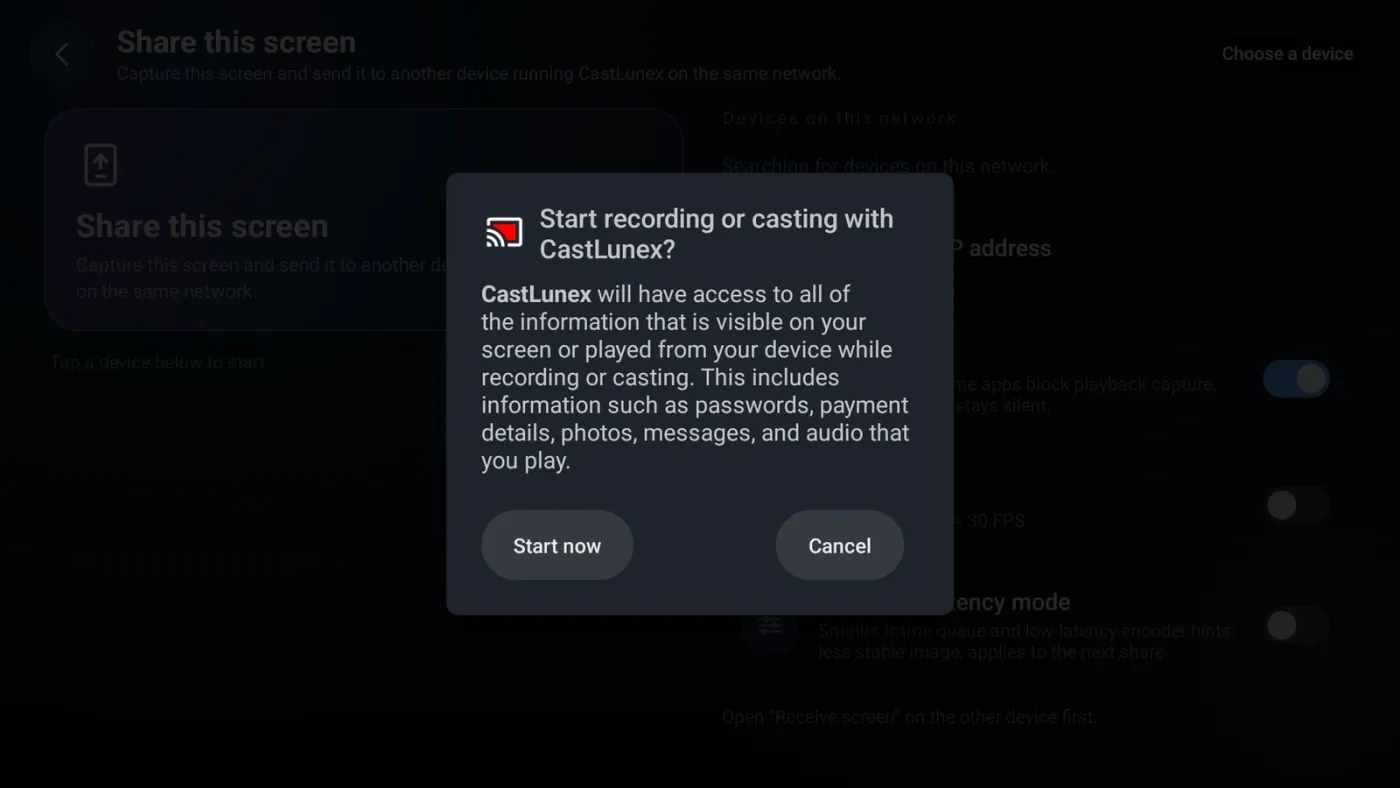
Choose a device on the network or connect by address, type the PIN, and approve screen capture on the TV. Turn on Record to MP4 in Settings to keep a copy on the TV.
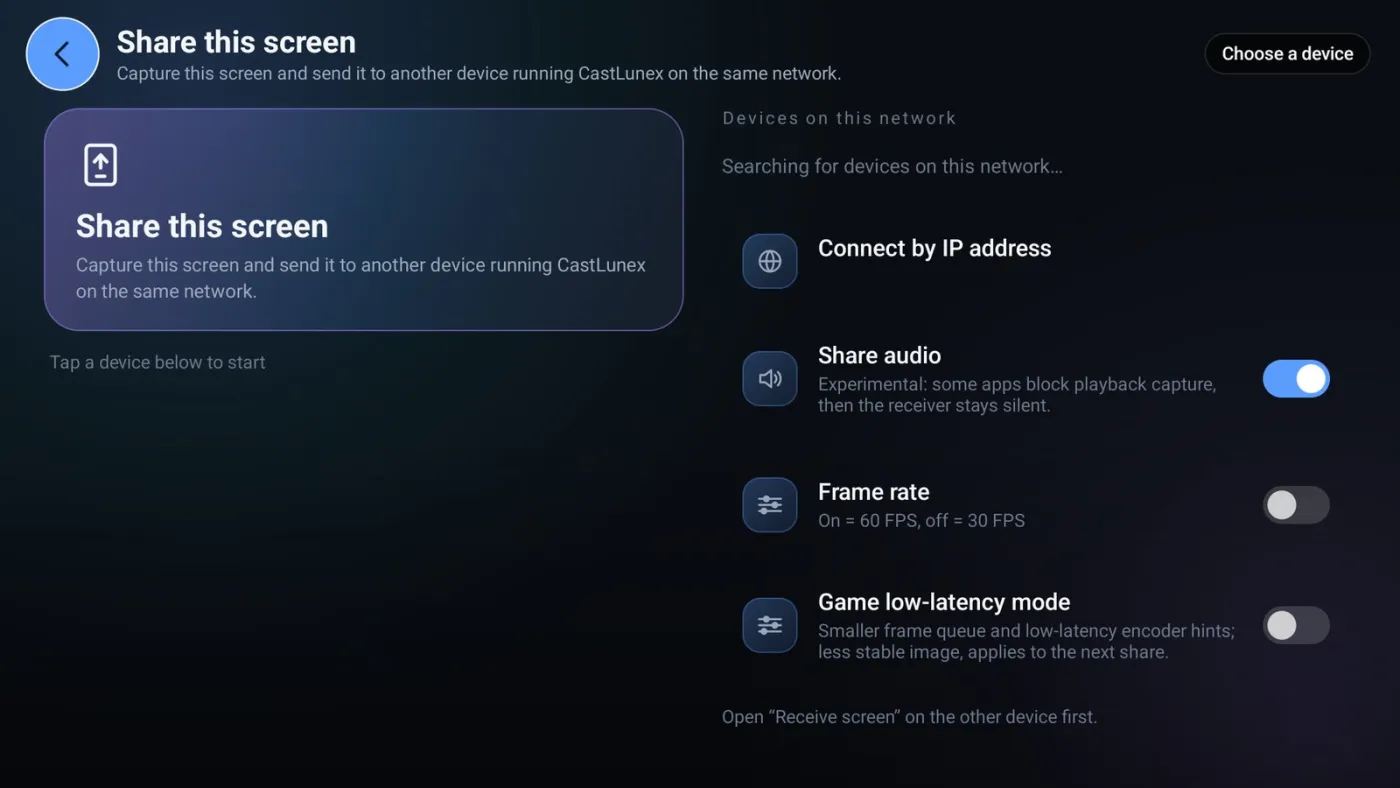
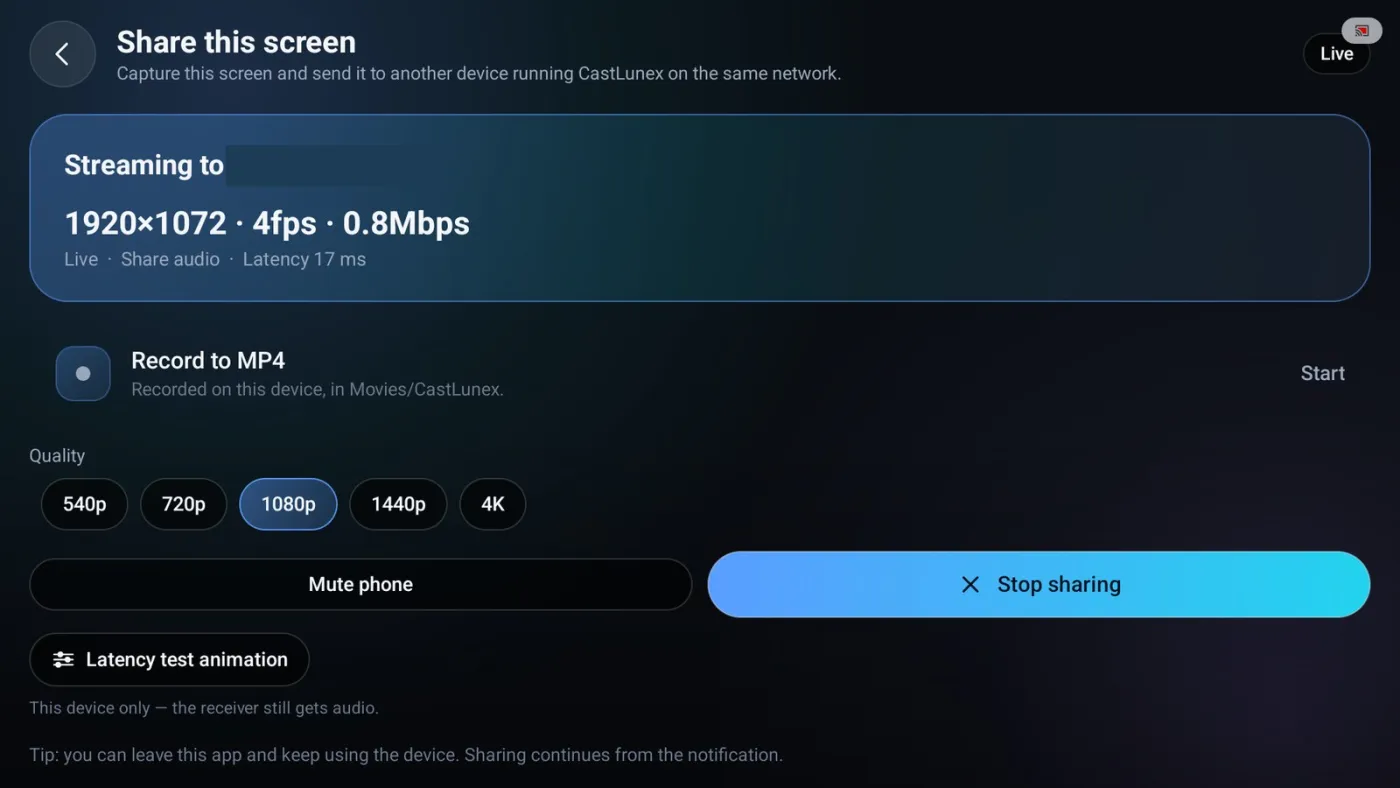
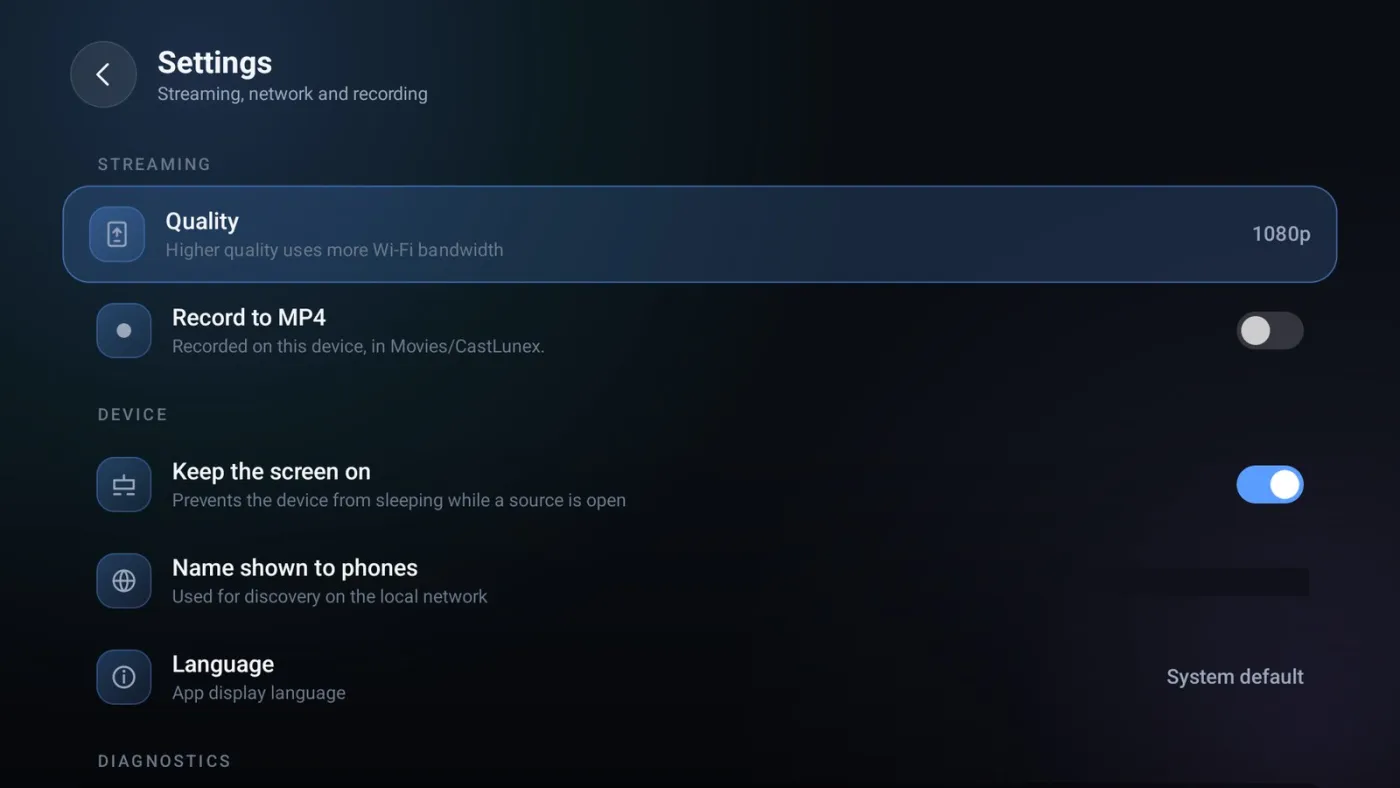
- Quality from 540p to 1440p and 4K, at 30 or 60 fps.
- Game low-latency mode for a shorter delay.
- Leave the app and sharing keeps going from the notification. A receiving screen stops when you leave it, on purpose.
- Crop to 16:9 on the receiving TV to remove black bars from a tall phone screen.
Two ways onto your Google TV
Play edition
Coming to Google Play. Step 0 for any Google TV: press and hold the voice button on the remote and say “open Google Play Store”, then search for CastLunex.
Full edition
Posted on Patreon and installed on your TV from a Windows PC with GTV-toolkit. Adds open receiver on boot and PC control of the TV.
Be there on release day
Follow Cloud Curry Studio on Patreon for release news. The Full edition and the Windows edition are posted there.