Can't Find the Google Play Store on Google TV? 4 Ways to Open It (and Keep It One Click Away)
Google TV has no Play Store tile on the home screen. Open it with a voice command, the Apps tab or Settings, and add a permanent Store button to your home screen.
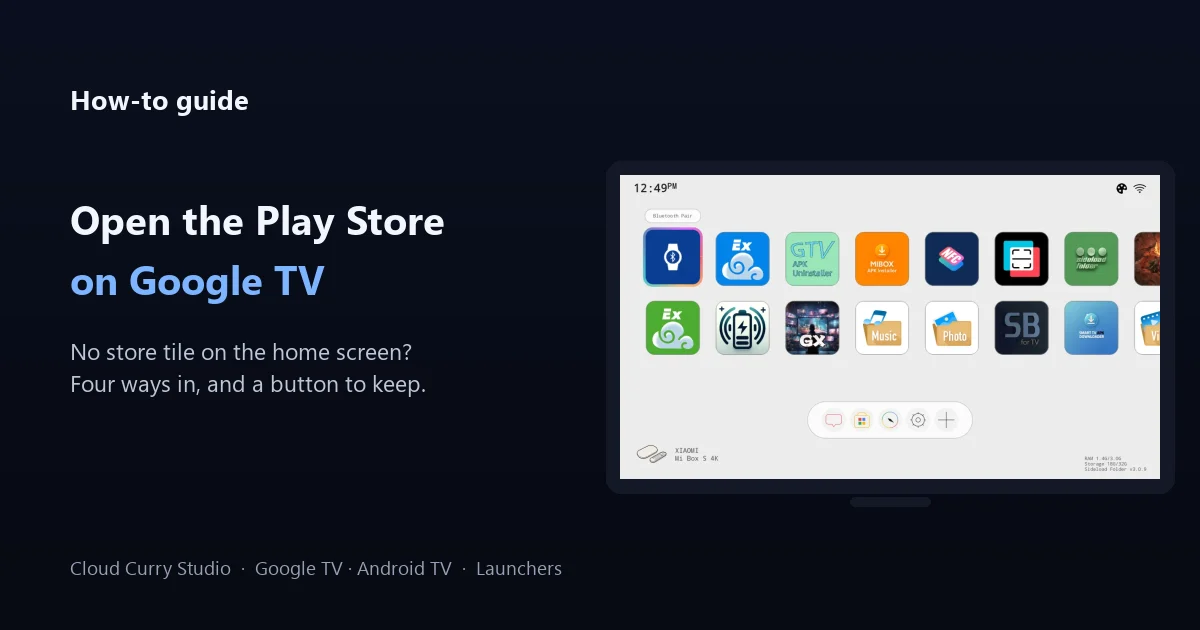
You want to install an app on your Google TV, but there is no Play Store icon anywhere. It is not missing and your TV is not broken: Google TV simply does not put the store on the home screen. This guide shows four ways to open the Google Play Store on Google TV, and how to keep it one click away from then on.
Quick answer
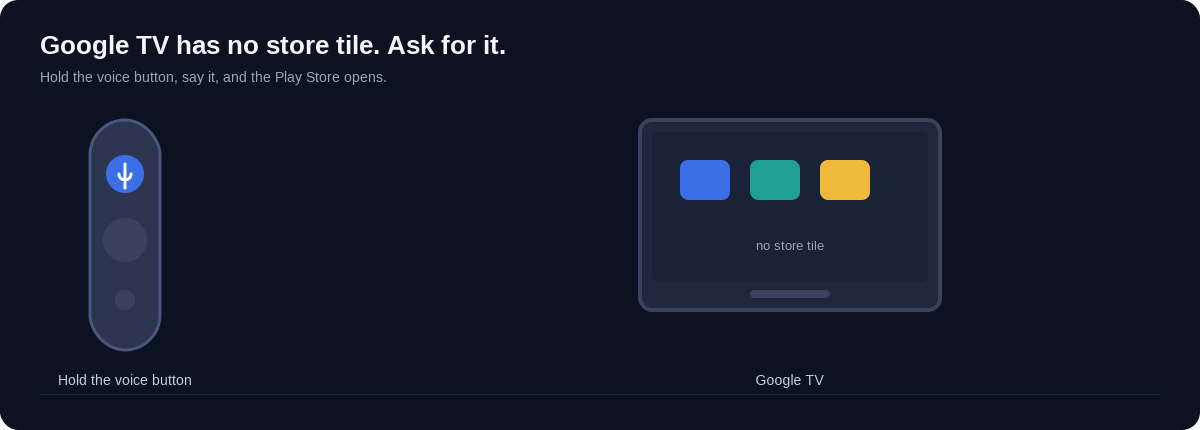
- Google TV: press and hold the voice input button on the remote and say "open Google Play Store".
- Android TV: the Google Play Store has its own banner on the home screen. Open it.
- In the store, type the exact app name in the search box.
Step 0: open the Google Play Store
Everything on this site that starts with "get it from Google Play" begins here. How you reach the store depends on your TV.
| TV | How to reach the store |
|---|---|
| Google TV | There is no store tile. Use one of the four ways below. |
| Android TV | Open the Google Play Store banner on the home screen. |
Way 1: the voice button (fastest)
Press and hold the voice input button on the remote and say "open Google Play Store". The store opens straight away, and you can search for an app by typing its full, exact name, for example "Sideload Folder: TV Launcher".
Way 2: the Apps tab
Open the Apps tab on the home screen. In the App Categories row, choose Search for Apps. Type the name on the keyboard (or use the voice button for the search), pick the app from the results and choose Install. How-To Geek explains the same route: on Google TV the store's search is built into the Apps tab, and installed apps show up at the end of the Apps row.
Way 3: Settings
Go to Settings > Apps > See all apps, scroll to Google Play Store and choose Open. The exact menu names change between brands and Android versions, so look for the nearest match on your TV.
Way 4: a Store button on your home screen
The first three ways all take a few steps every time. A launcher with a Store button turns it into one click.
Keep the store one click away
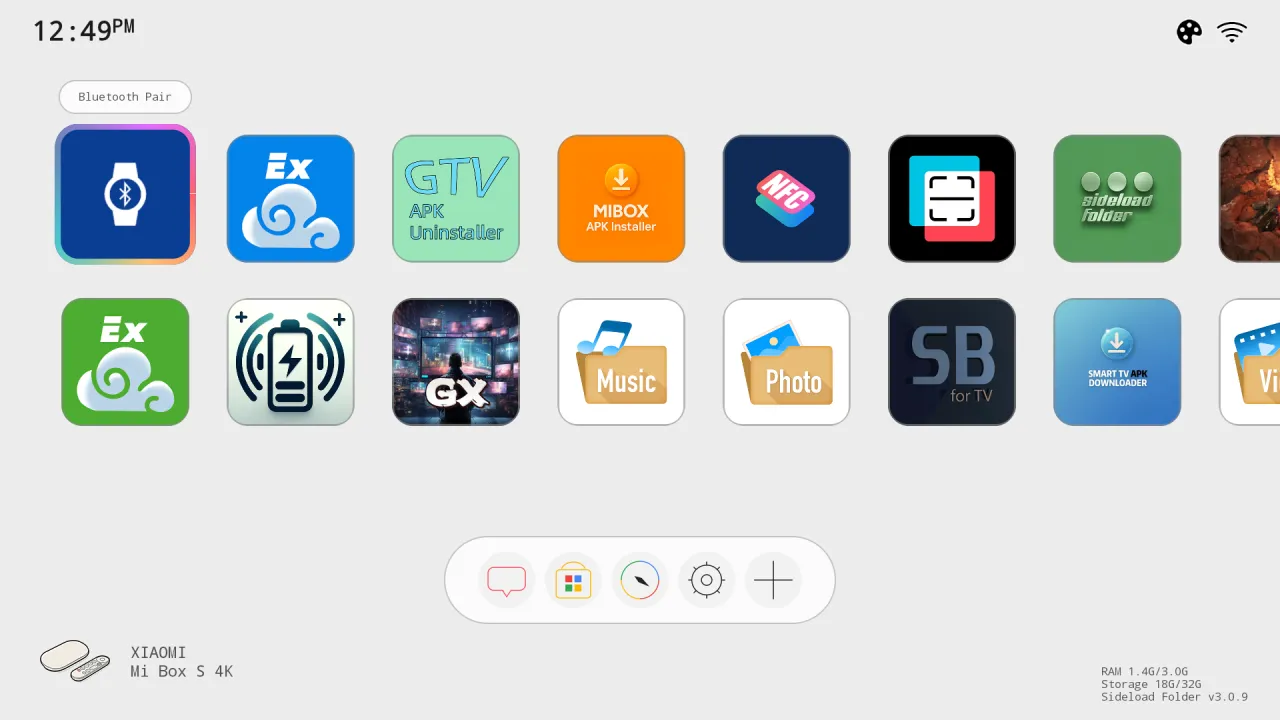
Sideload Folder: TV Launcher is a Google TV launcher from Cloud Curry Studio. Its action bar at the bottom of the screen has a Store button, next to Messages, Browser and Settings, so you open the app store with one click. It also shows every app you installed, including phone-style apps, and supports a rotated screen.
To get it, use Way 1 or Way 2 above and search the full name "Sideload Folder: TV Launcher". Open the app made by Cloud Curry Studio and get it from Google Play.
Make it your home screen
- Open the app, then press Home on the remote.
- If the TV asks which home screen to use, choose Sideload Folder.
- If your Google TV does not offer that choice, GTV-toolkit on Windows can switch the launcher and restore the original home screen at any time.
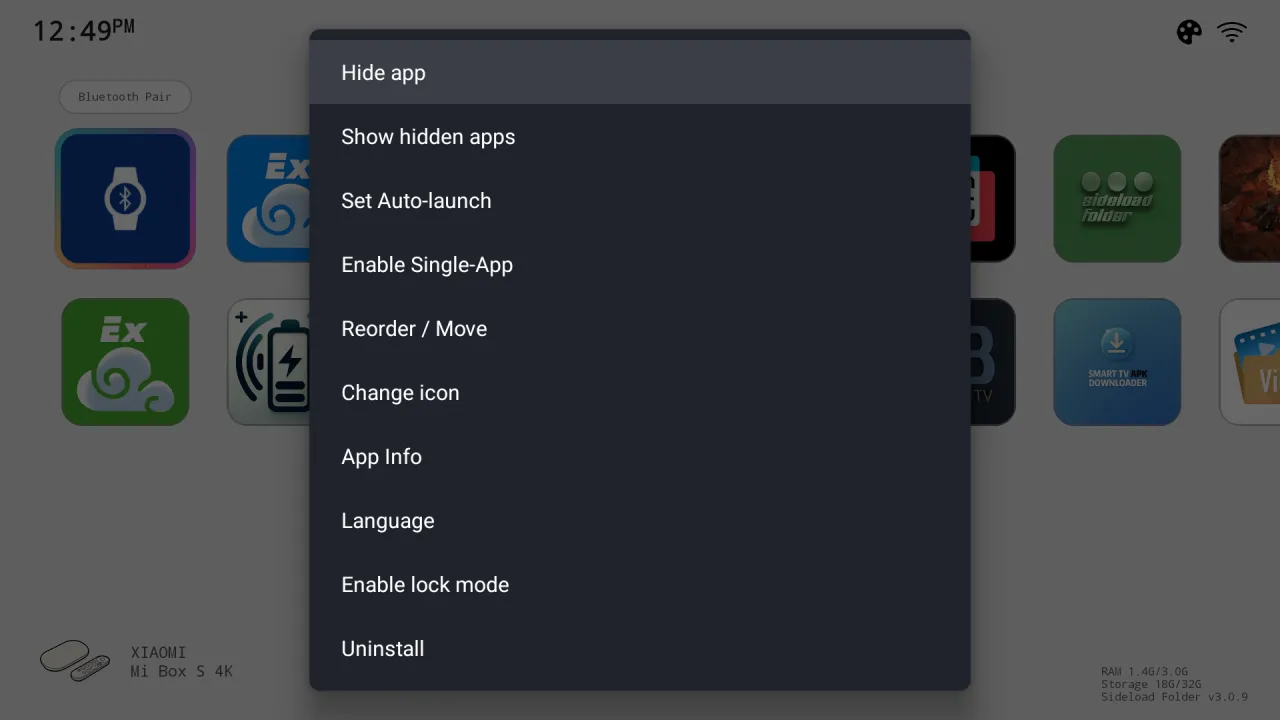
Long-press an app card for its menu: hide it, start it automatically, show only that app, reorder or change its icon.
When the store will not open or says "Can't connect"
- Check that the TV is online and that its date and time are right. Sony's support pages list both as needed for the Play Store to work.
- Make sure the TV has free storage. A full device can block the store.
- Restart the TV and update it. Android Authority reported in October 2025 that some Google TVs showed a "Can't connect" error even though other streaming apps worked, so a system update may be the fix.
Sideloading because the store lacks an app?
If the app is not in the Play Store for your TV, you can install an APK instead. Most Google TV devices are ARMv7a, so choose the armeabi-v7a build or a universal one. Our guide on installing an APK from a USB drive covers the steps.
Bottom line
Google TV hides the Play Store, but one voice command opens it, and a launcher can keep it on your home screen. Press and hold the voice button, say "open Google Play Store", and search the exact app name. When you want it permanently one click away, get Sideload Folder: TV Launcher from Google Play.
Frequently asked questions
Where is the Google Play Store on Google TV?
Google TV does not put a Play Store tile on the home screen. Open it by holding the voice input button and saying "open Google Play Store", through the Apps tab, or from Settings > Apps > See all apps.
How do I open the Google Play Store on Google TV with my voice?
Press and hold the voice input (microphone or Assistant) button on the remote and say "open Google Play Store". The store opens, and you can search for an app by typing its exact name.
How do I search for an app on Google TV?
Open the Apps tab, choose "Search for Apps" in the App Categories row, type the app name on the keyboard and pick it from the results. Typing the full, exact name works best.
How do I find the Play Store on Google TV?
On Android TV the Google Play Store has its own banner (tile) on the home screen. If you do not see it, open Settings > Apps and look for it in the app list.
How can I put a Play Store button on my Google TV home screen?
Use a launcher that has a store button. Sideload Folder: TV Launcher adds a Store button to its action bar, so you open the store with one click. Get it from Google Play.
Why does the Google Play Store say "Can't connect" on my TV?
Check that the TV is online and that its date and time are correct, and free some storage if it is full. Some users have reported the error on other TVs even with working internet, so a restart or an update may be needed.
Which APK should I download for Google TV if the store does not have an app?
Most Google TV devices are ARMv7a, so pick the armeabi-v7a or a universal build. Apps from the Play Store install the right build for your device automatically.
Keep the store one click away
Sideload Folder: TV Launcher shows every app, adds a Store button to the action bar and supports screen rotation. Get it from Google Play.