How to Install an APK on Google TV from a USB Drive (Step by Step)
Install an APK on Google TV or a Mi Box from a USB drive: format, copy, allow unknown apps and install. Plus what to do when the file does not show up.
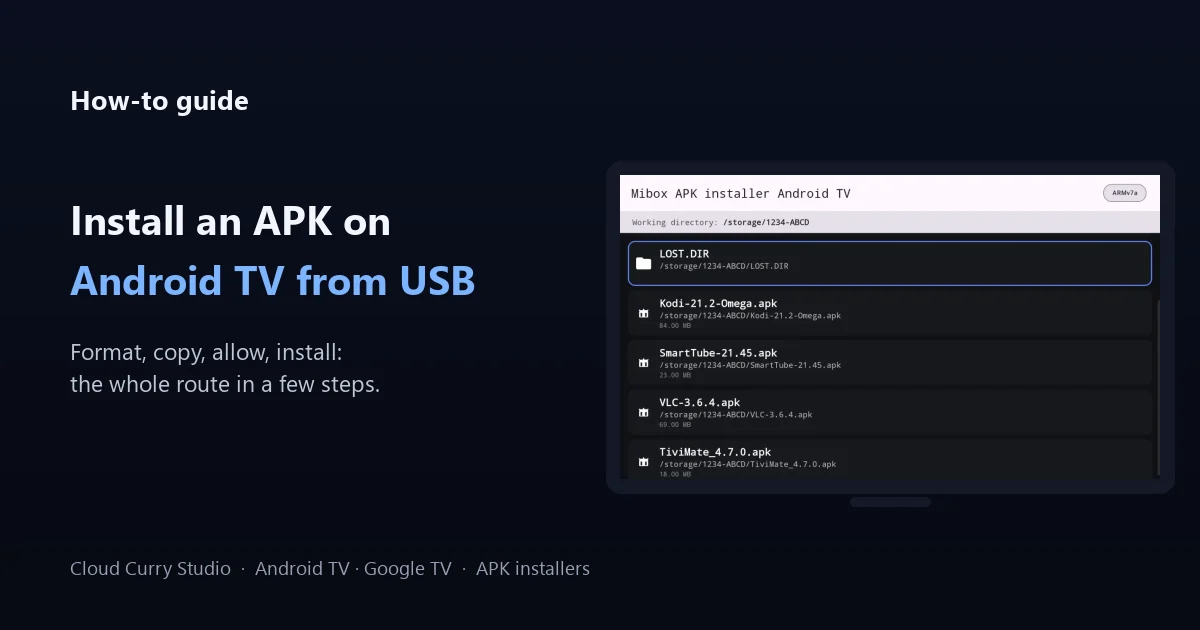
You have an APK on your computer and a TV that is not letting you install it from the Play Store. A USB drive is the oldest trick in the book, and it still works. This guide shows how to install an APK on Google TV from a USB drive, step by step, including the setting everyone forgets and what to do when the file does not show up.
Quick answer
- First, get Mibox APK Installer from Google Play (Step 0 below).
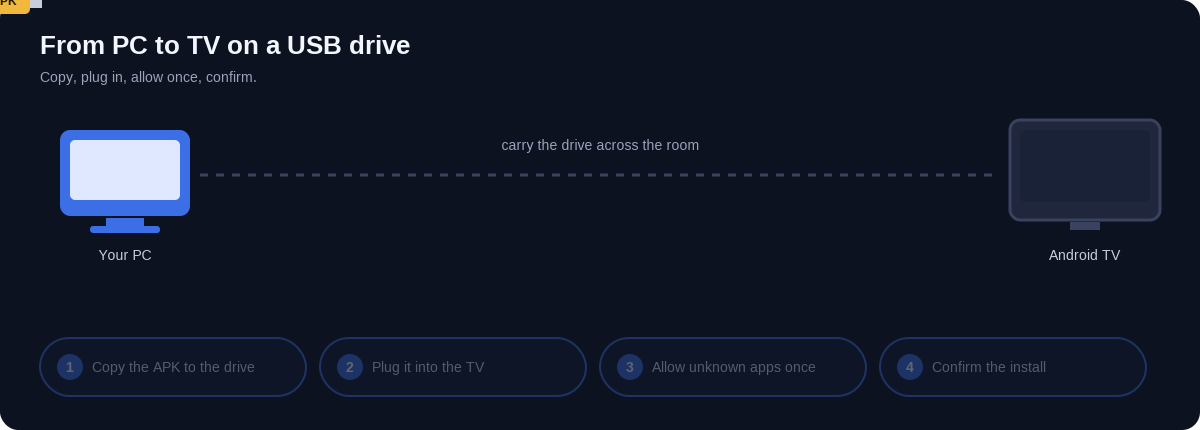
- Copy the APK to a USB drive (exFAT or FAT32).
- Plug it into the TV and open an installer app that can browse the drive.
- Allow unknown apps for that installer once, select the APK and confirm.
Step 0: Get Mibox APK Installer from Google Play first
Mibox APK Installer is on Google Play, so get it from the store there before you follow this guide. How you reach the store depends on your TV:
- Google TV: there is no store tile on the home screen. Press and hold the voice input button on the remote and say "open Google Play Store".
- Android TV: the Google Play Store has its own banner (tile) on the home screen. Open it.
- In the store, use the search box and type the full app name: "Mibox APK Installer". Open the app made by Cloud Curry Studio, then get it from Google Play.
When it is installed, open it and carry on with the steps below.
What you need
- A USB drive or USB disk, and a free USB port on the TV or box.
- The APK file. Download it from the developer or another source you trust.
- An installer app on the TV. Most Google TV devices have no built-in file manager, so a plain tap on the drive does nothing. Mibox APK Installer is an option from Google Play made for exactly this.
Step by step
1. Prepare the drive
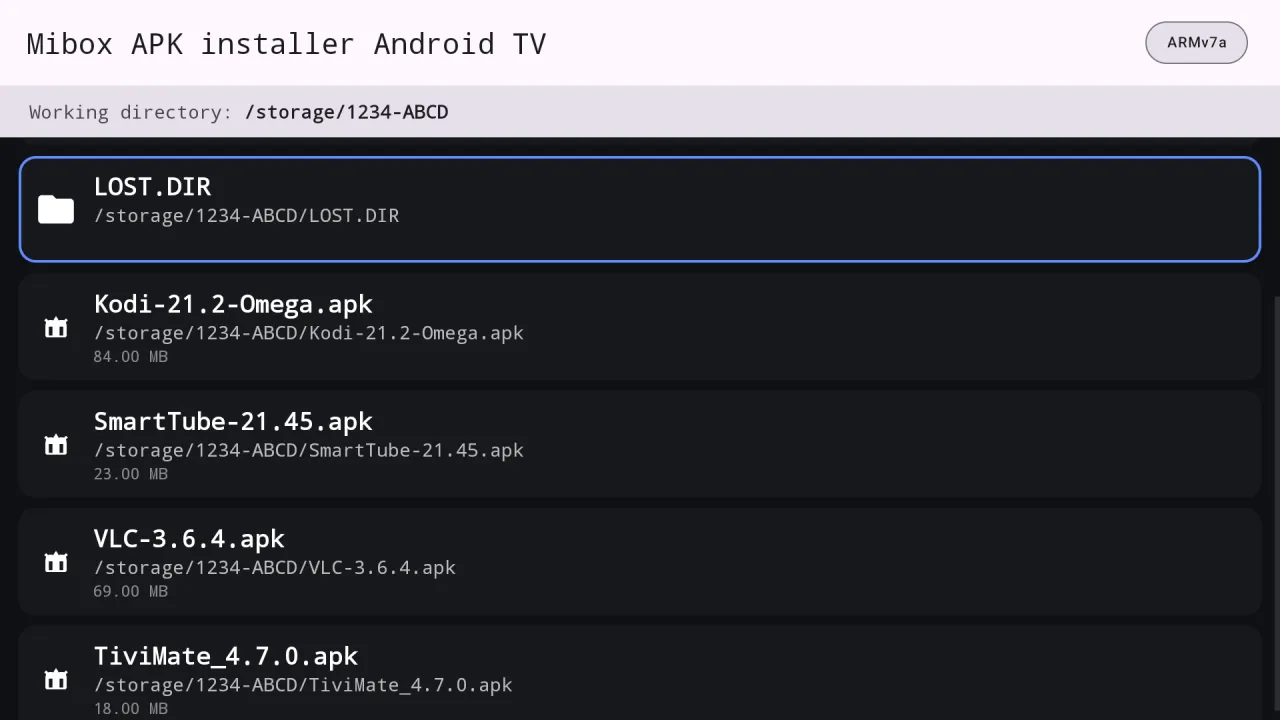
Format the drive as exFAT or FAT32. Some TVs cannot read NTFS, and FAT32 cannot hold a single file over 4 GB, which matters for big game bundles. Copy the APK to the drive. Putting it in the main folder or a short folder name makes it easy to find with a remote.
2. Plug it in
Insert the drive into the TV. In Mibox APK Installer the drive appears as its own row on the home screen, with the drive name and "(USB drive)". If you plug it in while the app is open, the list refreshes by itself.
3. Allow unknown apps, once
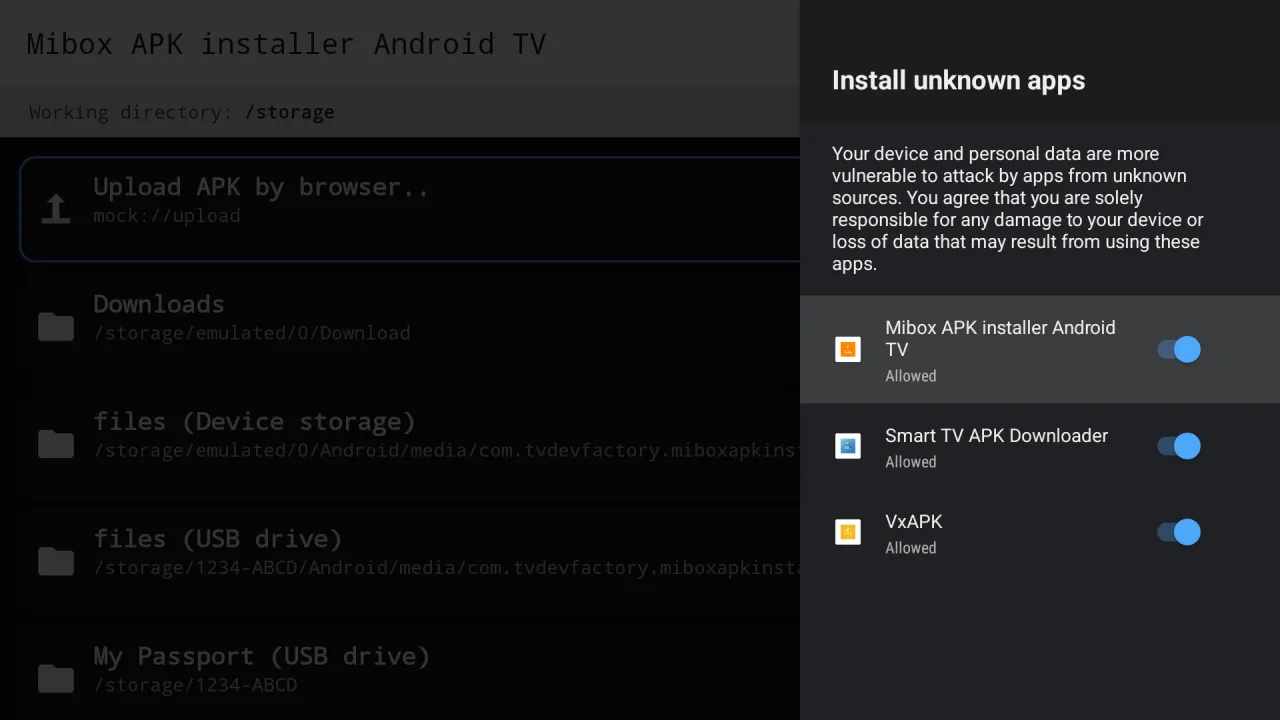
The first time you try to install, Android asks you to allow the installer app to install other apps. The app jumps to the right settings screen: switch the toggle on and press Back.
4. Pick the APK and confirm
Move the focus to the APK and press OK. Choose Yes on the confirmation. A progress dialog runs and a message tells you whether the install worked.
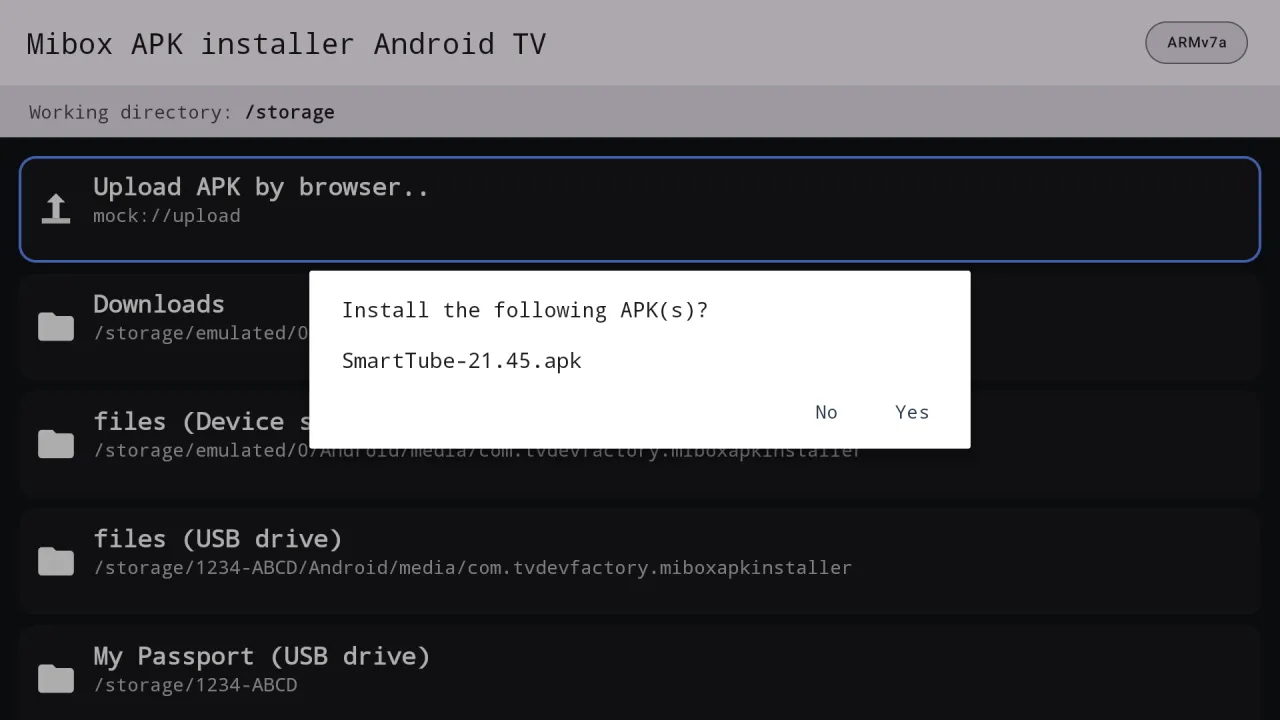
If you have a folder full of APKs, long-press OK on one of them and choose Install all APKs in this folder.
Bundles: XAPK, APKS and APKM
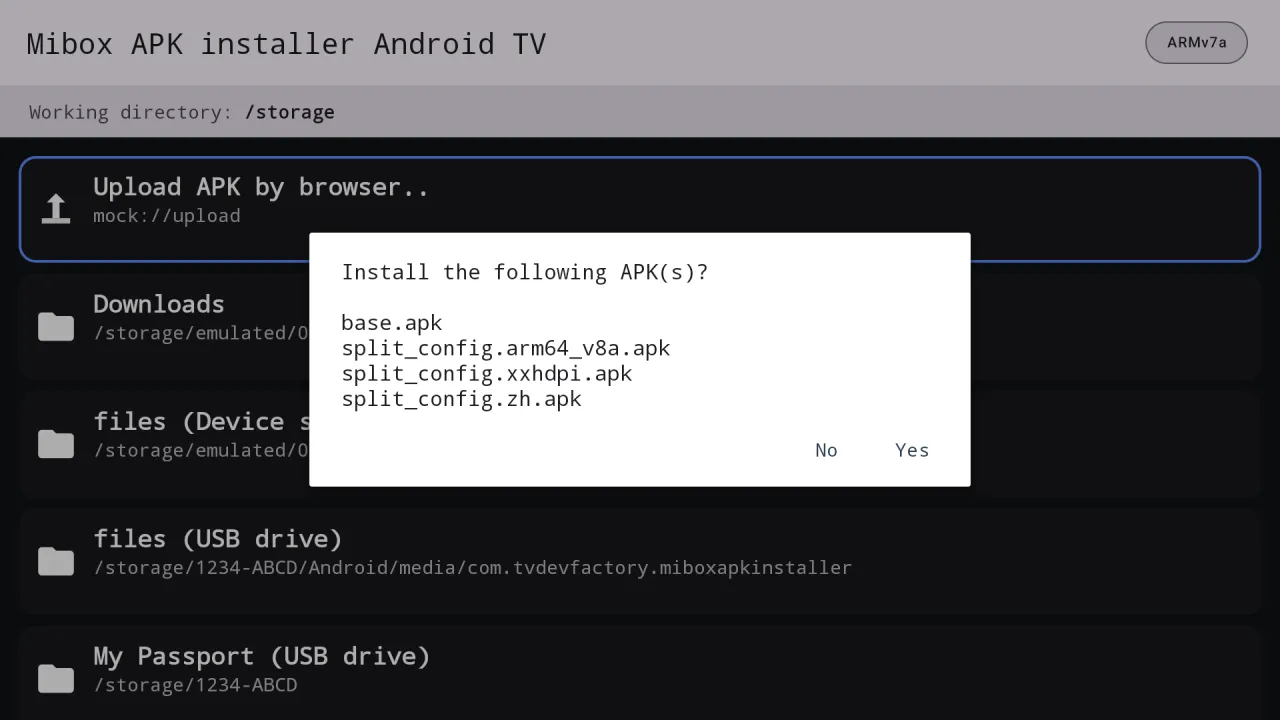
Some apps come as a bundle with several APK files inside. A file manager that only knows single APKs fails on these. Mibox APK Installer opens .xapk, .apks, .apkm and .apk+ files, lists the parts and installs them together.
No USB port, or no drive? Use your phone
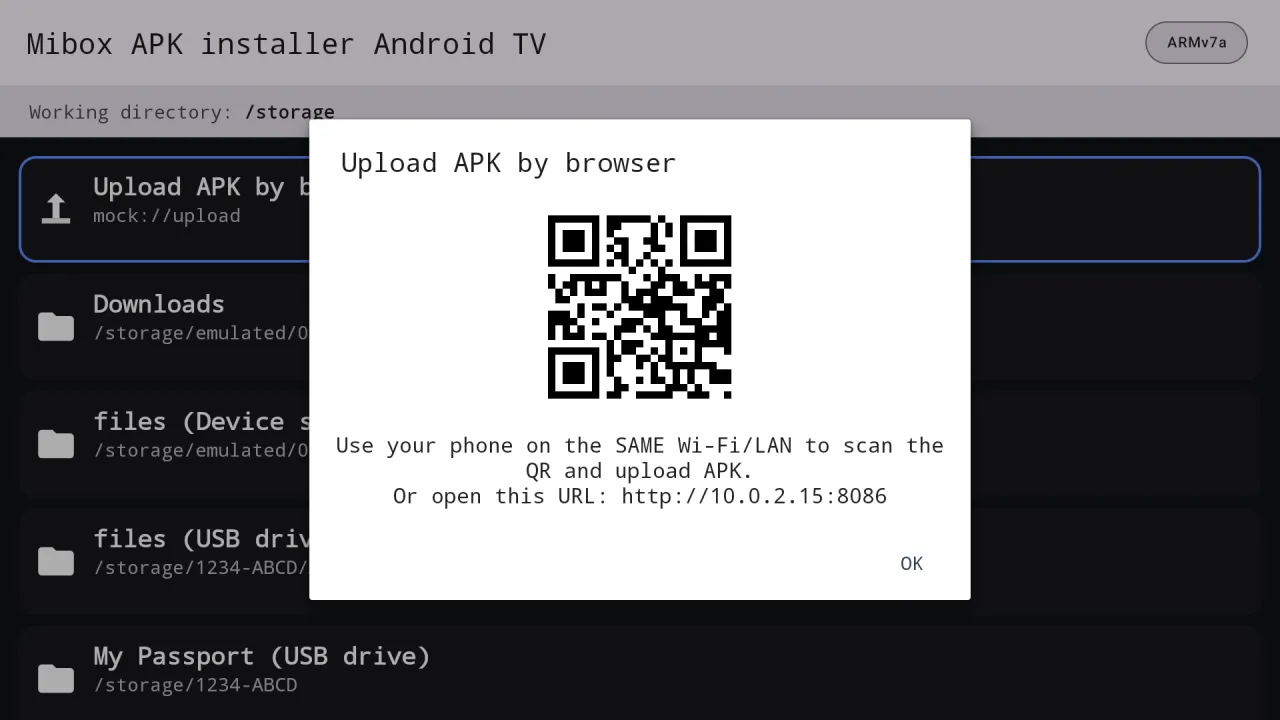
Choose Upload APK by browser on the TV. It shows a QR code and a short web address. Scan the code with a phone on the same Wi-Fi, pick the APK and press Upload. The file lands on the TV and appears in the list, ready to install.
Pick the right APK: most Google TV devices are ARMv7a
Many Google TV devices run on a 32-bit ARM processor, shown as ARMv7a (also written armeabi-v7a). Newer or high-end boxes can be 64-bit, so check yours. If you download the wrong architecture, the install fails or the app refuses to run. When a download page offers several builds, choose the armeabi-v7a (or "universal") one, and check the processor of your own device first. Mibox APK Installer shows your CPU type in a small badge at the top right of the screen, so you can read it right on the TV.
Common problems and fixes
| Problem | Likely cause | Fix |
|---|---|---|
| The TV does not show the drive | Format the TV cannot read, or not enough power | Use exFAT or FAT32, another port, or a smaller stick |
| The APK is not in the list | Wrong folder, or the file is not an APK | Check the folder and the file name; only APK-type files are listed |
| It keeps jumping to Settings | Unknown apps is still off | Switch it on for the installer, then go back |
| "Installation failed" | Older version on the TV, no space, or a damaged file | Remove the old version, free space, or download the file again |
| A bundle does not install | It is missing parts for your device | Get a complete bundle for your CPU type |
One more limit to know: since Android 11, an installer app can see only the files it created plus the folders Android allows. Files that a different app saved to the Downloads folder may be hidden. Use the USB drive, the phone upload, or an installer with all files access, as explained here.
Bottom line
A USB drive is a dependable way to get an APK onto Google TV, provided the drive is readable and you have an installer that browses it. Mibox APK Installer handles the drive, the bundle formats and the phone upload in one app, without asking for broad permissions.
Frequently asked questions
Where do I get Mibox APK Installer and how do I find the Google Play Store on Google TV?
Get it from Google Play. On Google TV there is no store tile: press and hold the voice input button on the remote, say "open Google Play Store", then search the full name "Mibox APK Installer". On Android TV, open the Google Play Store banner on the home screen.
Which APK should I download for Google TV, ARMv7a or ARM64?
Most Google TV devices run a 32-bit ARM build called ARMv7a (armeabi-v7a), so choose that version, or a universal build. Check your device first, because the wrong architecture will not install or run. The installer shows your CPU type on screen.
How do I open the Google Play Store on Google TV by voice?
Press and hold the voice input button on the remote and say "open Google Play Store". Then type the exact app name in the search box. The store installs the correct build for your device.
How do I install an APK on Google TV from a USB drive?
Copy the APK to the USB drive, plug it into the TV, open an installer app such as Mibox APK Installer, open the drive, select the APK and press OK. Allow "Install unknown apps" for the installer the first time, then confirm the install.
Why does my TV not see the USB drive?
The drive may use a format the TV cannot read, such as NTFS on some models, or it may draw more power than the port gives. Try an exFAT or FAT32 drive, a different port, and a smaller stick.
Where is the "Install unknown apps" setting on Google TV?
It sits under Settings > Apps > Security & restrictions > Unknown sources on many TVs, and the name varies by brand and Android version. The installer app opens the right screen for you the first time.
Can I install XAPK, APKS or APKM files from USB?
Not with a plain file manager, which handles single APK files. Mibox APK Installer reads .xapk, .apks, .apkm and .apk+ bundles and installs all their parts together.
My TV has no free USB port. What can I do?
Send the APK from your phone instead. Mibox APK Installer shows a QR code, you scan it on the same Wi-Fi, pick the file and upload it to the TV.
Why do I only see folders and APK files on the drive?
Mibox APK Installer lists only folders and installable files so the list stays short on a TV. Put the APK on the drive, and check the folder you are in.
Is it safe to install an APK from a USB drive?
It is as safe as the file. Get APKs from the developer or a reputable source, and keep unknown-app permission switched on only for the installer you use.
Install APKs from USB or your phone
Mibox APK Installer for Google TV: browse USB drives, install single and split APKs, or upload from your phone. No special permissions.