Single and split APKs
Installs plain .apk files and the bundle formats .apks, .xapk, .apkm and .apk+, with all parts installed together.
The simple way to sideload apps on a TV box.
Mibox APK Installer puts APK files from a USB stick or your phone onto your Android TV and installs them with a couple of clicks of the remote. It stays deliberately simple: no account, no licence and no special storage permission.
Mibox APK Installer is on Google Play. Get it from the store first, then follow any guide. Here is how to reach the store on your TV.
The Google Play Store has its own banner (tile) on the home screen. Open it.
There is no store tile. Press and hold the voice input button on the remote and say “open Google Play Store”.
In the store type “Mibox APK Installer”, open the app by Cloud Curry Studio, then get it from Google Play.
An APK installer made to be driven with a TV remote.
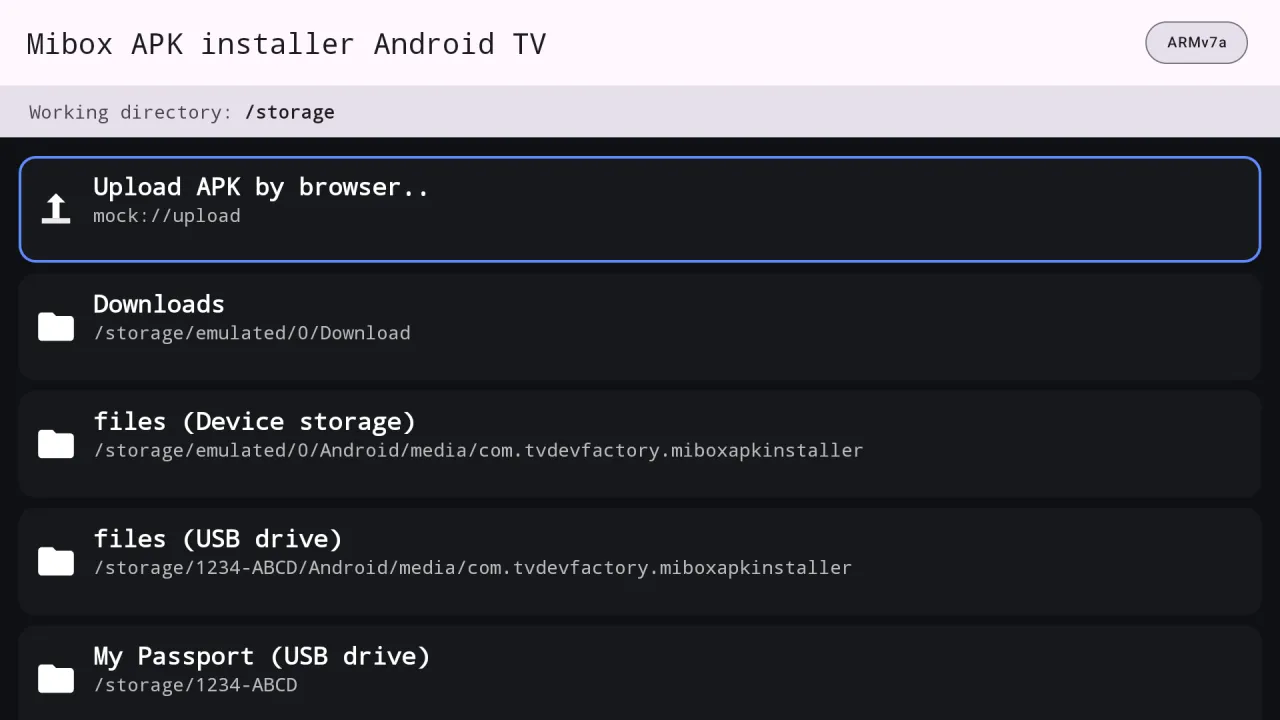
Copy an APK to a stick, plug it in and the drive appears on the home screen of the app.
Scan a QR code with your phone on the same Wi-Fi, pick the file and it lands on the TV.
Split packages such as .xapk, .apks and .apkm are unpacked and installed in one go.
It does not ask for access to all files, so there is less to trust and less to go wrong.
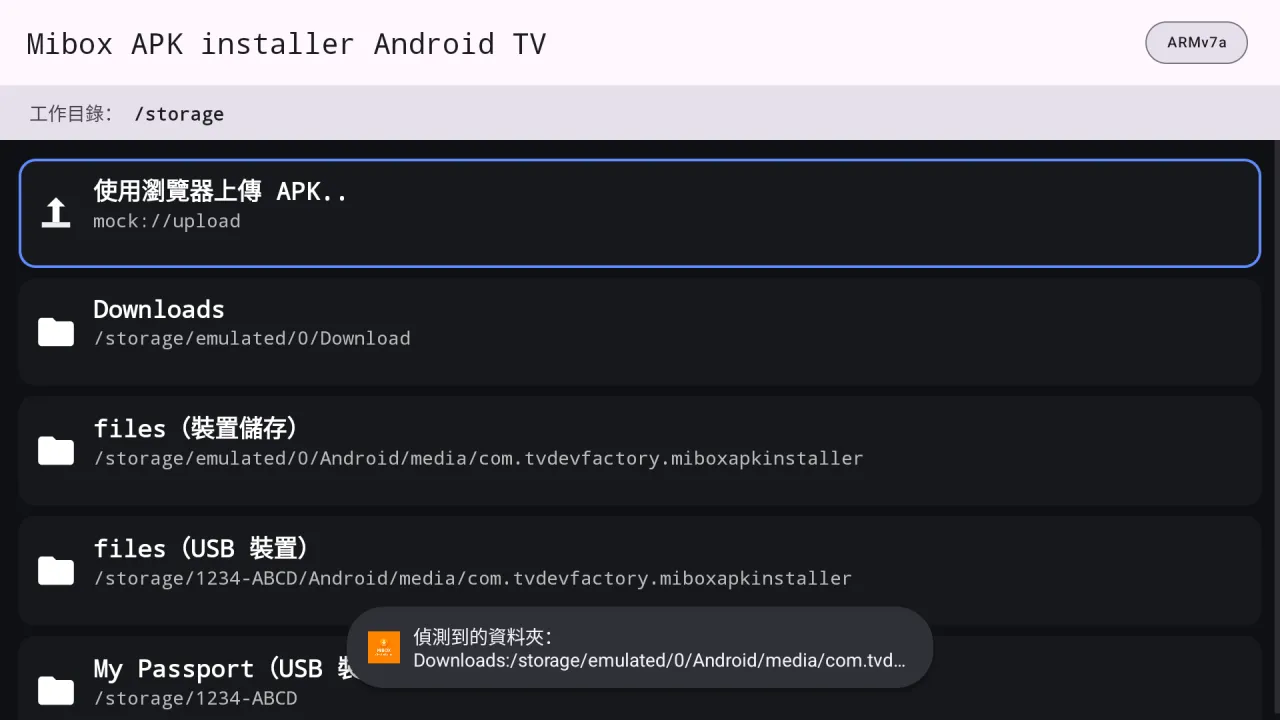
Real screens from Mibox APK Installer running on Android TV.
Use the home screen to choose your device storage, a USB drive, Downloads, or upload by browser.
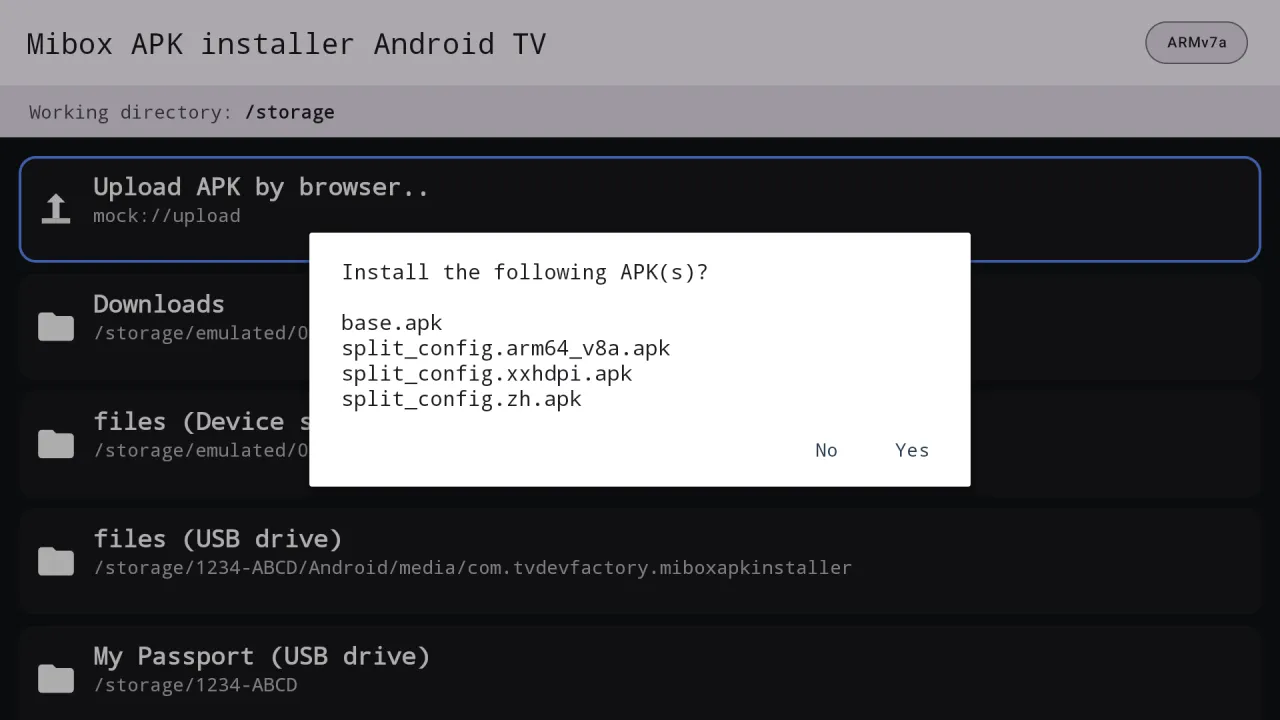
Move the focus to the file and press OK. A bundle shows every file inside it before you confirm.
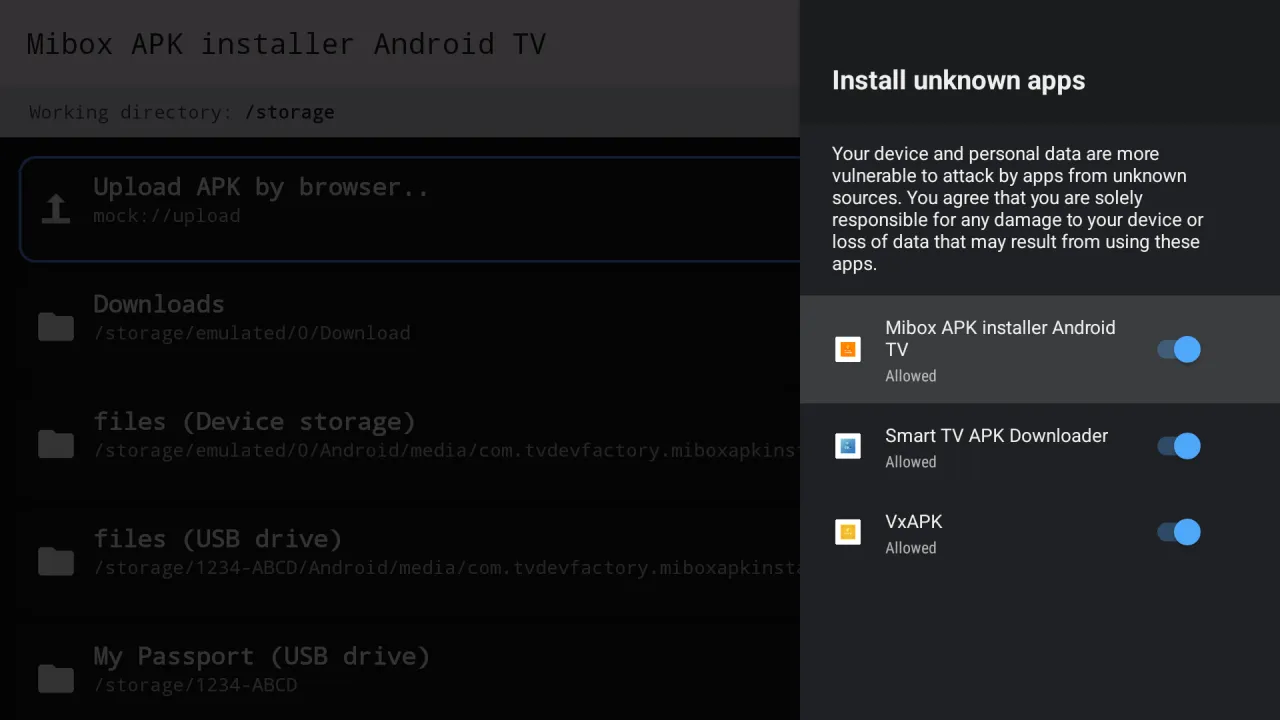
The first time, Android asks you to allow this app to install other apps. Switch it on and go back.
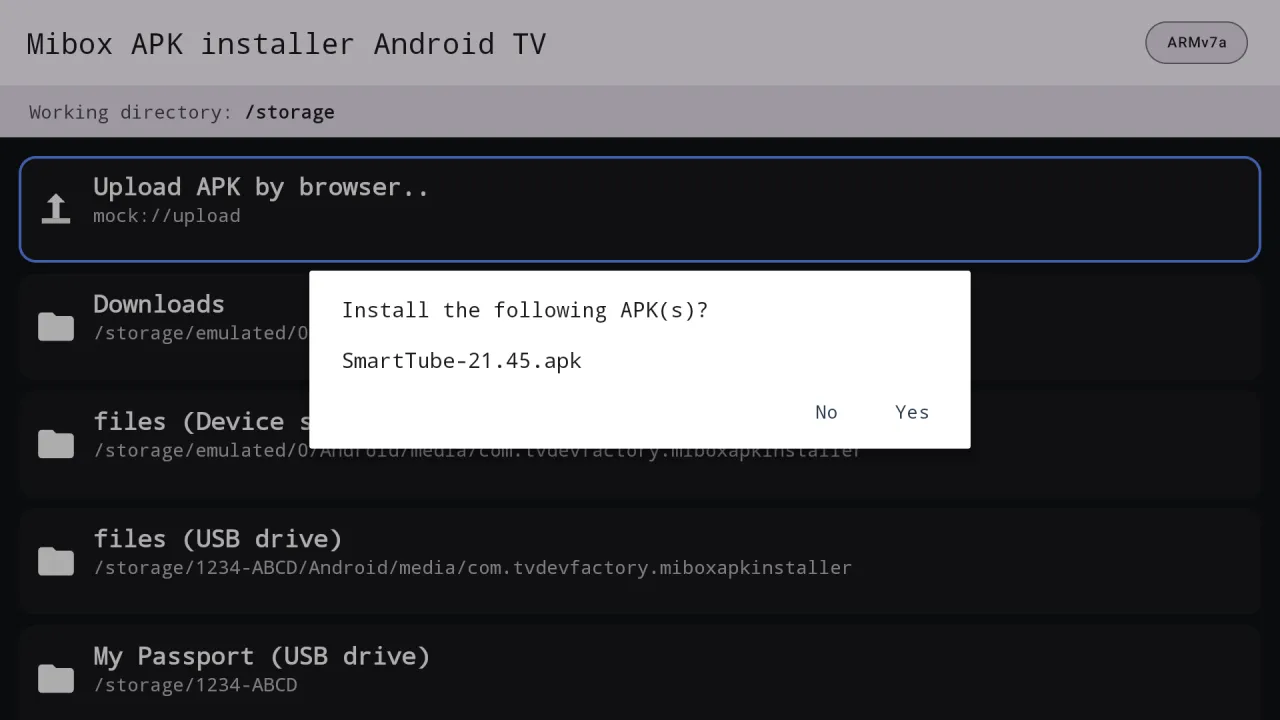
Choose Yes. A progress dialog runs and a message tells you whether it worked.
Everything Mibox APK Installer does, in plain language.
Installs plain .apk files and the bundle formats .apks, .xapk, .apkm and .apk+, with all parts installed together.
Open the item menu and choose to install every APK in the current folder, one after another.
USB sticks and disks show up as their own entries, so you can browse and install straight from them.
A QR code and a short web address let any phone or PC on your network send an APK to the TV.
Built for a TV remote: large rows, a clear focus frame, and a double Back press to exit.
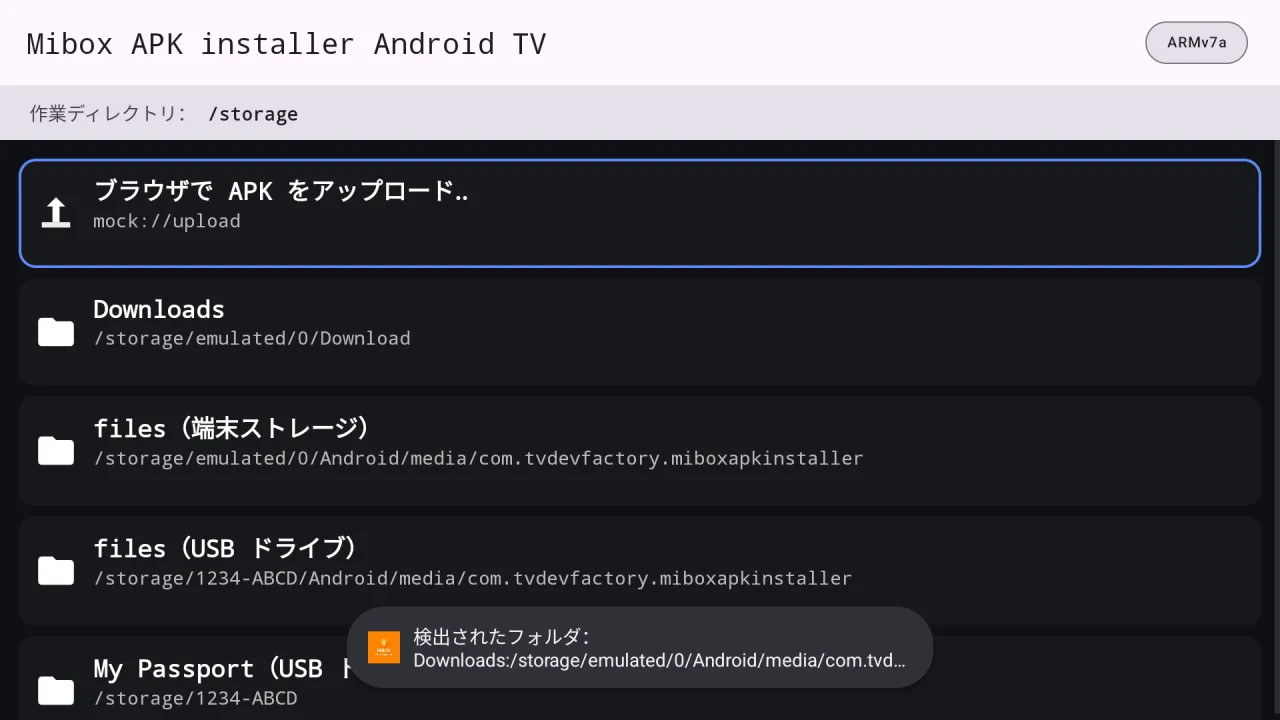
English, Chinese, Japanese, Korean, German, French and Spanish, or follow the system language.
A small badge shows the processor architecture, handy when choosing between APK builds.
Each install ends with a plain message: installed, cancelled, or the reason it failed.
Captured from the running app on Android TV. File names shown in the lists are sample data.
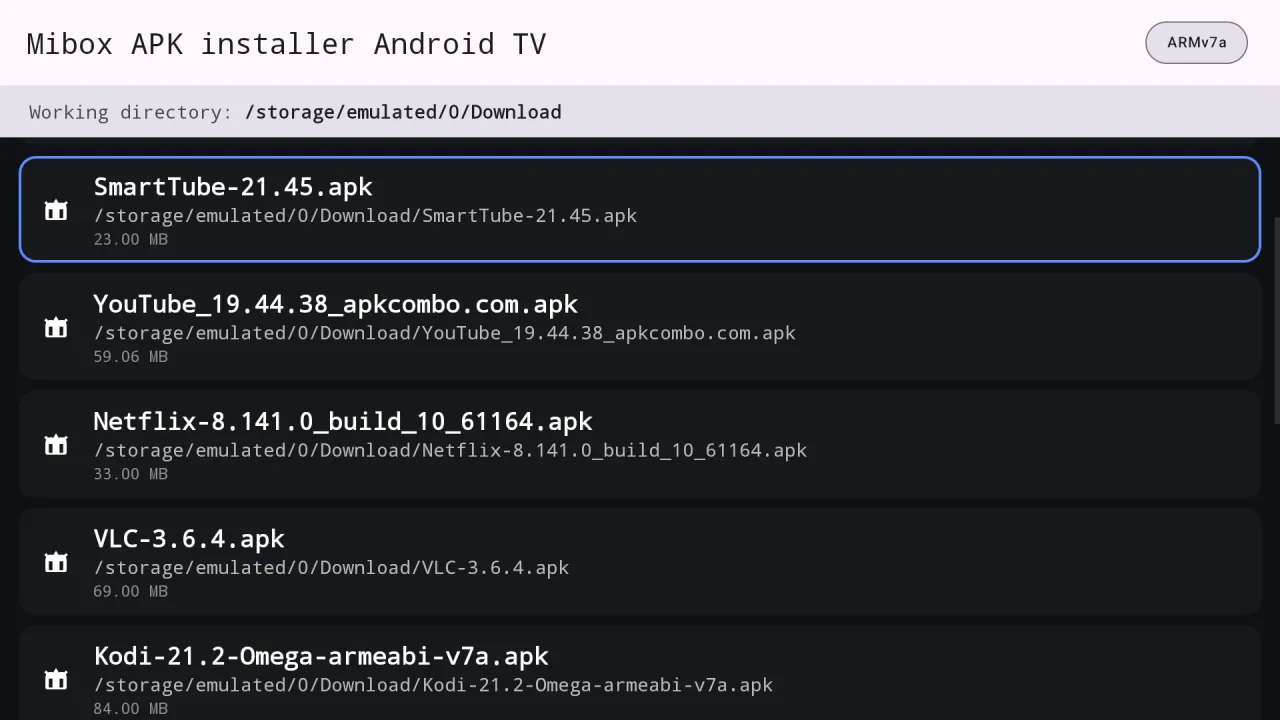
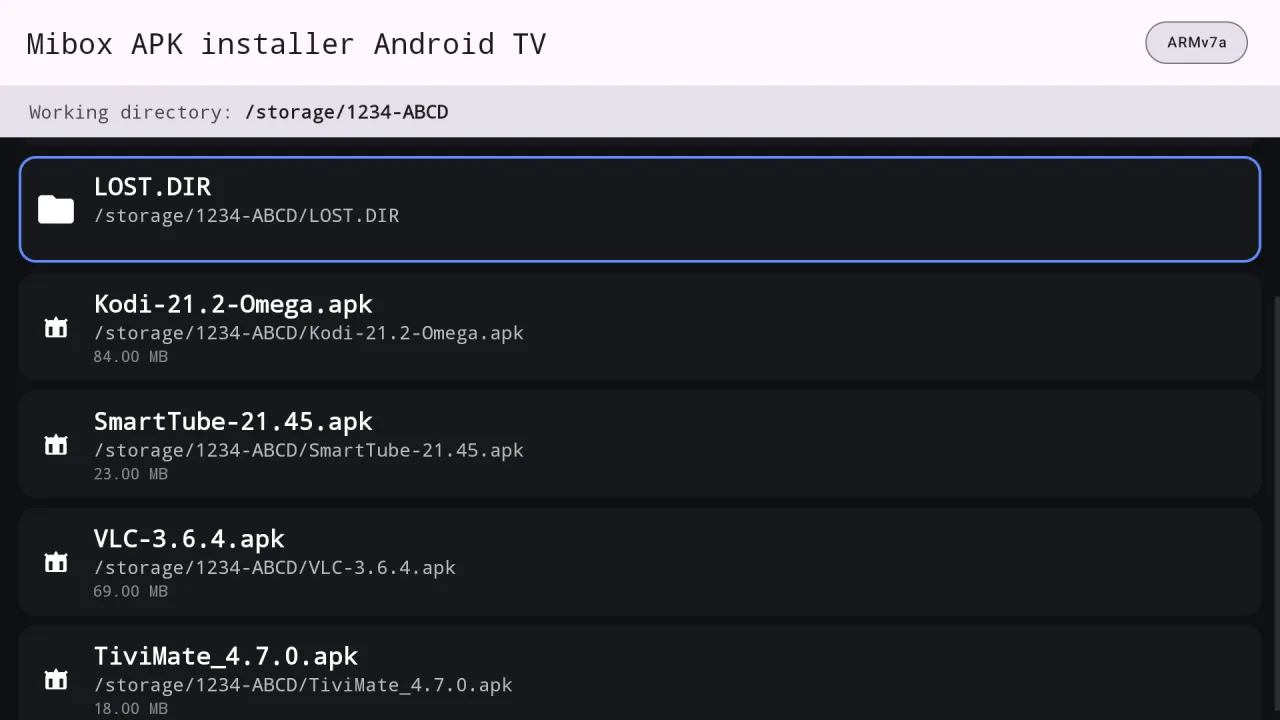
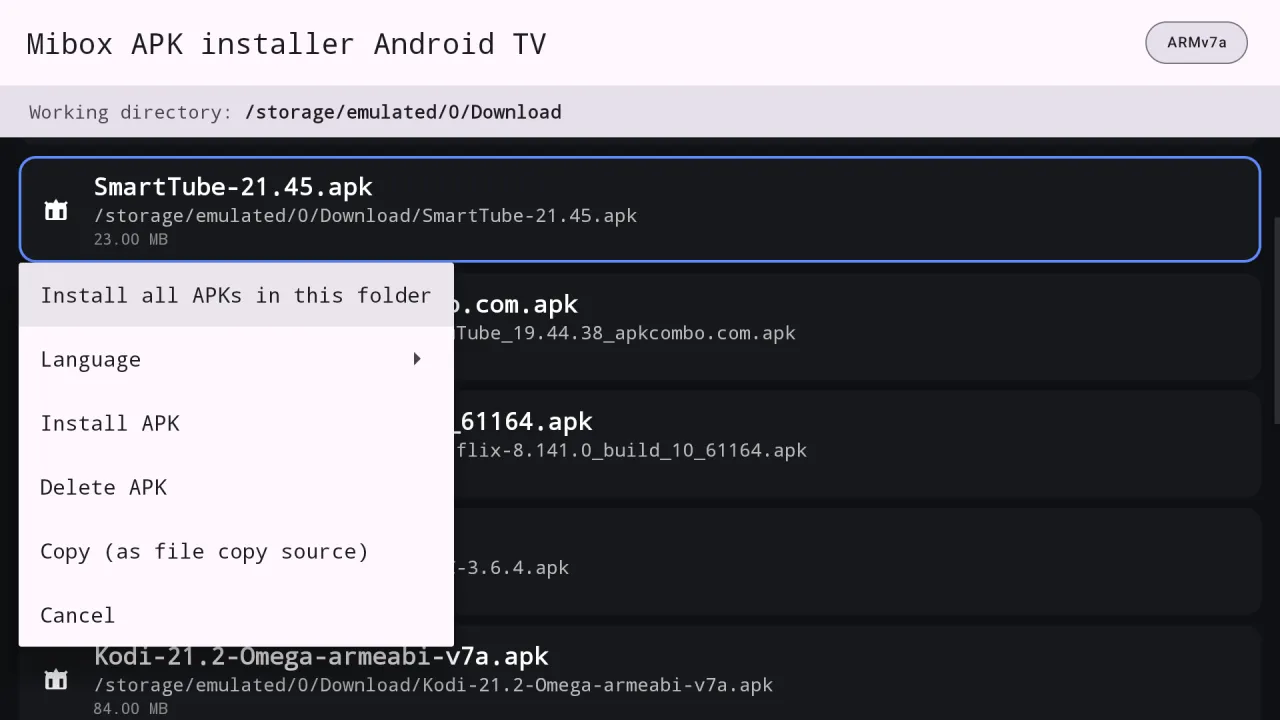
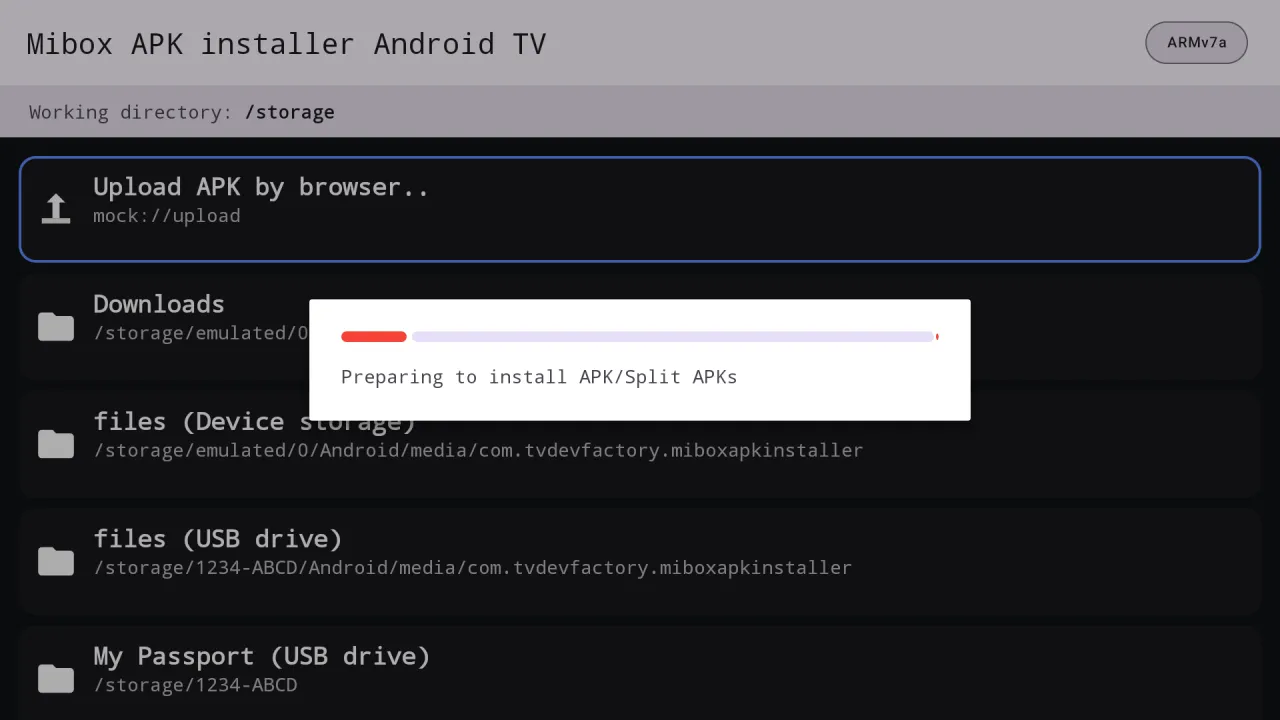
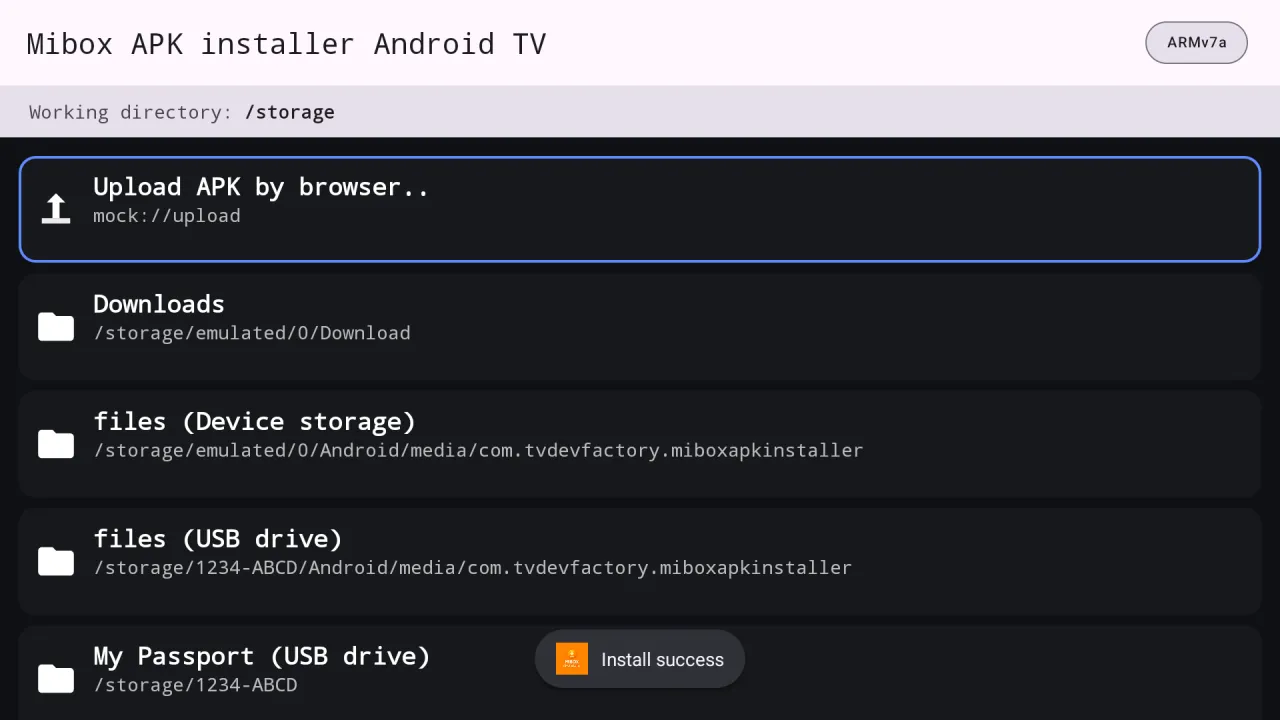
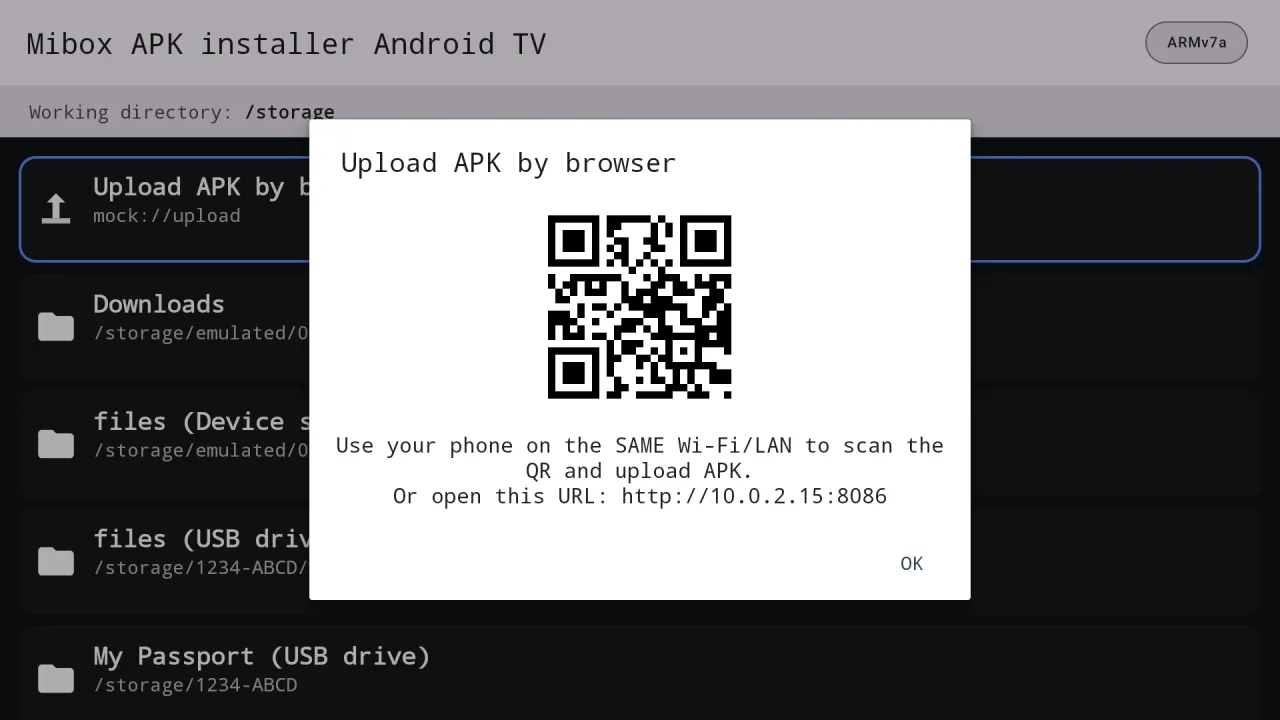
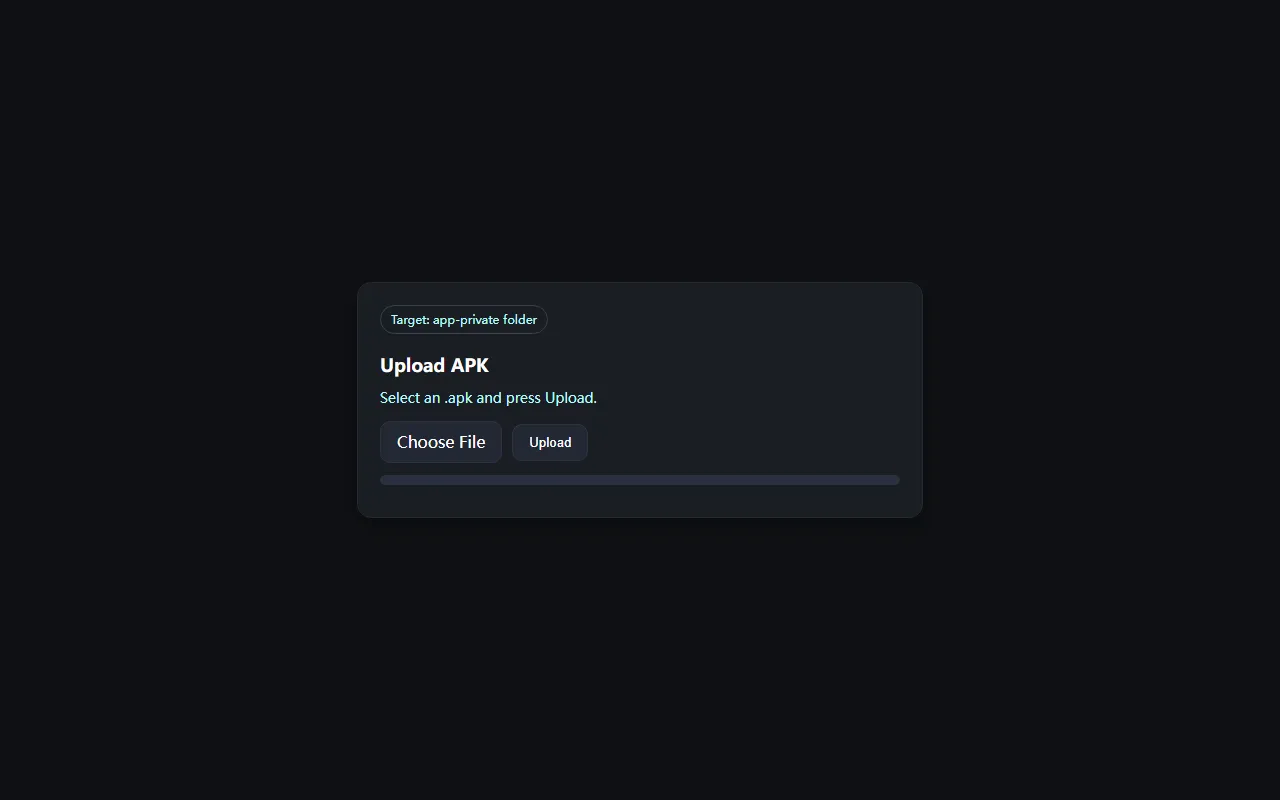
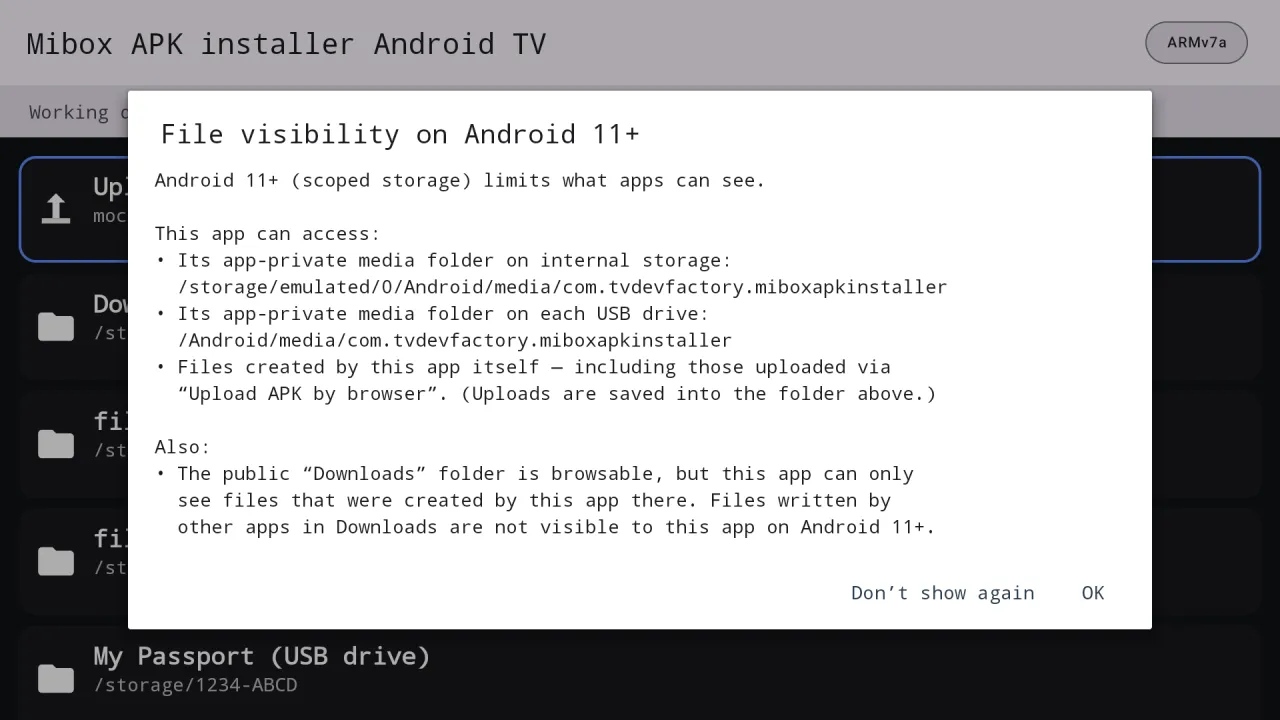
English, Chinese, Japanese, Korean, German, French and Spanish, or follow the system language. It switches instantly from the item menu.
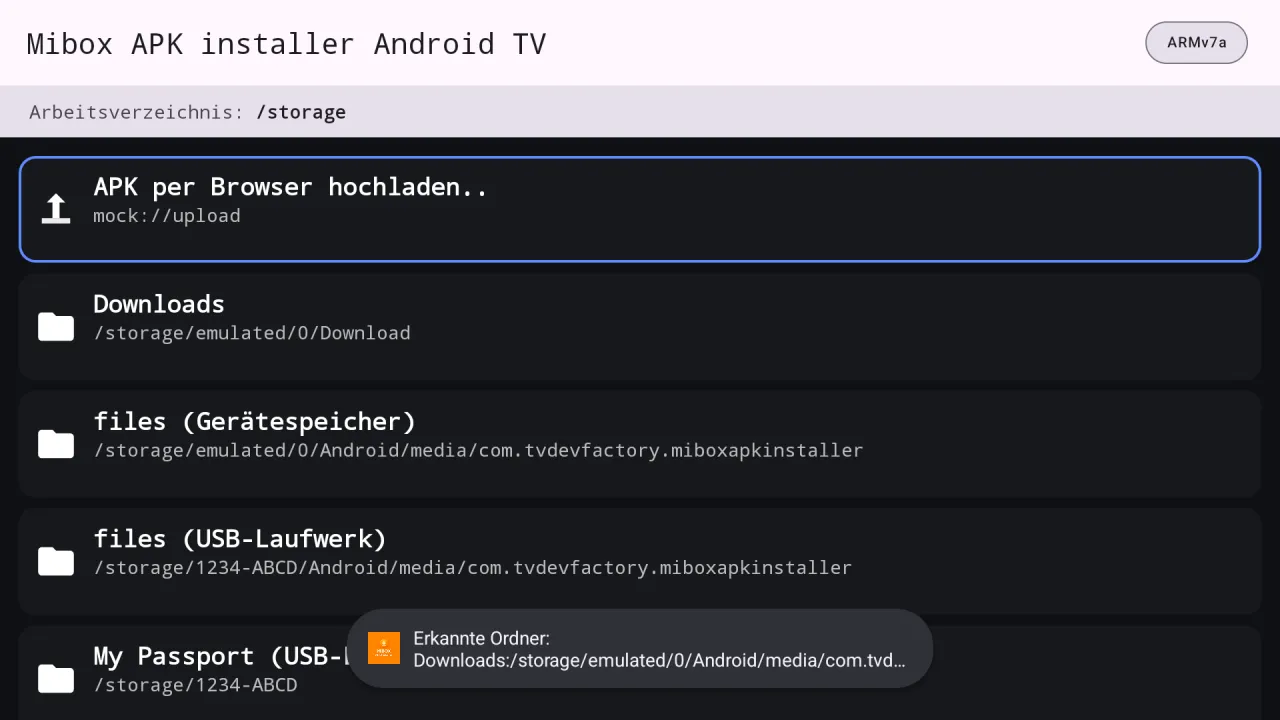
Three apps built on the same engine. They can be installed side by side on one TV.
| Feature | Mibox APK Installer | Smart TV APK Downloader | VxAPK |
|---|---|---|---|
| Install a single APK | ✓ | ✓ | ✓ |
| Install split bundles (.apks, .xapk, .apkm) | ✓ | ✓ | ✓ |
| Install every APK in a folder | ✓ | ✓ | ✓ |
| Browse USB drives | ✓ | ✓ | ✓ |
| Upload from a phone browser (QR code) | ✓ | ✓ | ✓ |
| Download an APK from a web link | – | ✓ | ✓ |
| See APKs other apps saved to Downloads | – | – | ✓ |
| Needs the "all files access" permission | – | – | ✓ |
| Needs a licence | – | – | ✓ |
| Seven interface languages | ✓ | ✓ | ✓ |
Android 11 and newer hide files that other apps saved to shared folders. Without all files access, use the browser upload or a USB drive.
Install Mibox APK Installer from Google Play, copy the APK to a USB drive or upload it from your phone with the built-in QR code, open the file in the app, press OK and choose Yes. The first time, allow the app under "Install unknown apps" in Android settings.
Yes. Plug the drive into the TV and it appears as its own row on the home screen. Open it, move to the APK and press OK. Drives formatted exFAT or FAT32 work best.
Choose "Upload APK by browser" on the TV, scan the QR code with your phone on the same Wi-Fi, pick the file and press Upload. The file then appears in the app, ready to install. If the page does not load, check that your router does not isolate Wi-Fi clients.
Yes. It reads .xapk, .apks, .apkm and .apk+ files, lists the parts inside and installs them together as one app. A base.apk with split files in the same folder is picked up as a set as well.
Since Android 11, an app can only see files it created itself plus the shared folders Android allows. Files saved by a browser into Downloads may be hidden. Upload the file with the browser upload, put it on a USB drive, or use VxAPK, which can ask for access to all files.
Android asks you to approve each app that installs other apps. Allowing it for Mibox APK Installer only lets this app start installs, and every install still needs your confirmation. Only install APKs from sources you trust.
Mibox APK Installer installs from USB, local folders and phone upload. Smart TV APK Downloader adds downloading from a web link. VxAPK adds access to all files and is a licensed app distributed through Patreon. The comparison table on this page shows the details.
Android 9 or newer, on Android TV, Google TV and TV boxes such as the Mi Box. It does not contain device-specific code, so it works on most boxes and sticks.
Get it from Google Play. On Android TV, open the Google Play Store banner on the home screen. On Google TV there is no store tile: press and hold the voice input button on the remote, say "open Google Play Store", then search the full name "Mibox APK Installer" and open the app by Cloud Curry Studio.
Most Google TV devices use a 32-bit ARM processor called ARMv7a (armeabi-v7a), so pick that build or a universal one. The app shows your CPU type in a badge at the top right of the screen.
Mibox APK Installer for Android TV and Google TV.