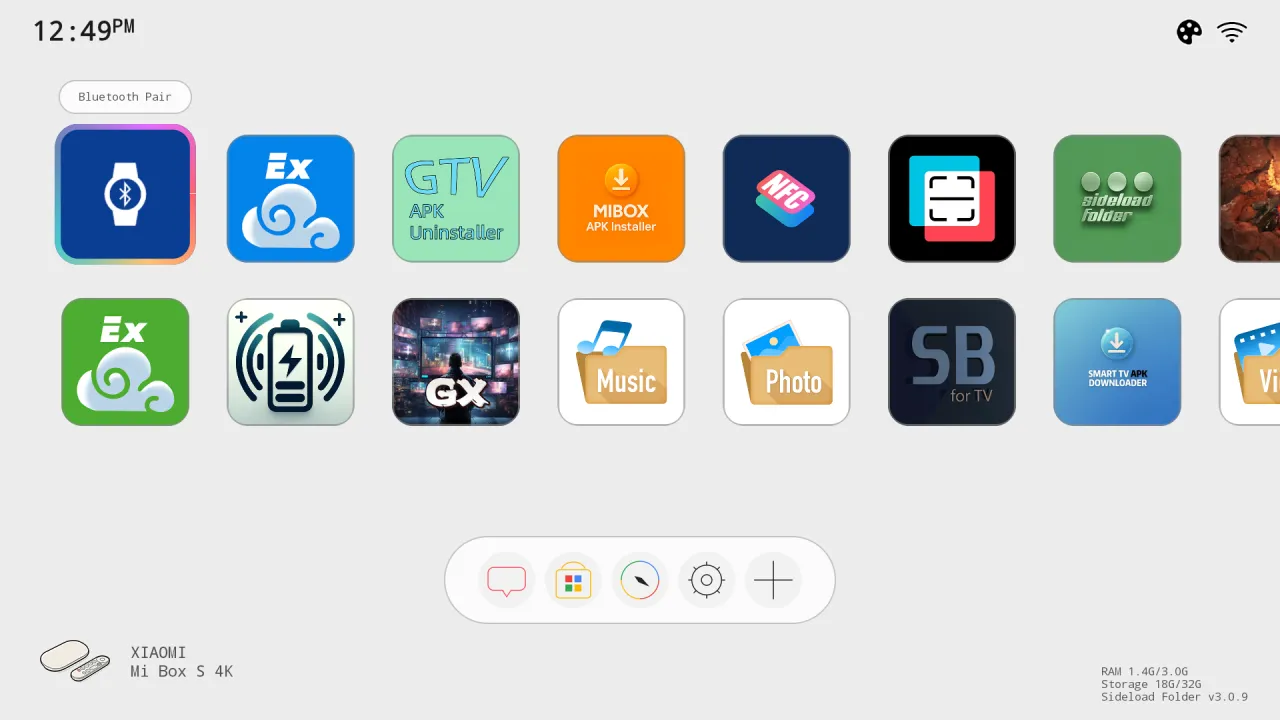
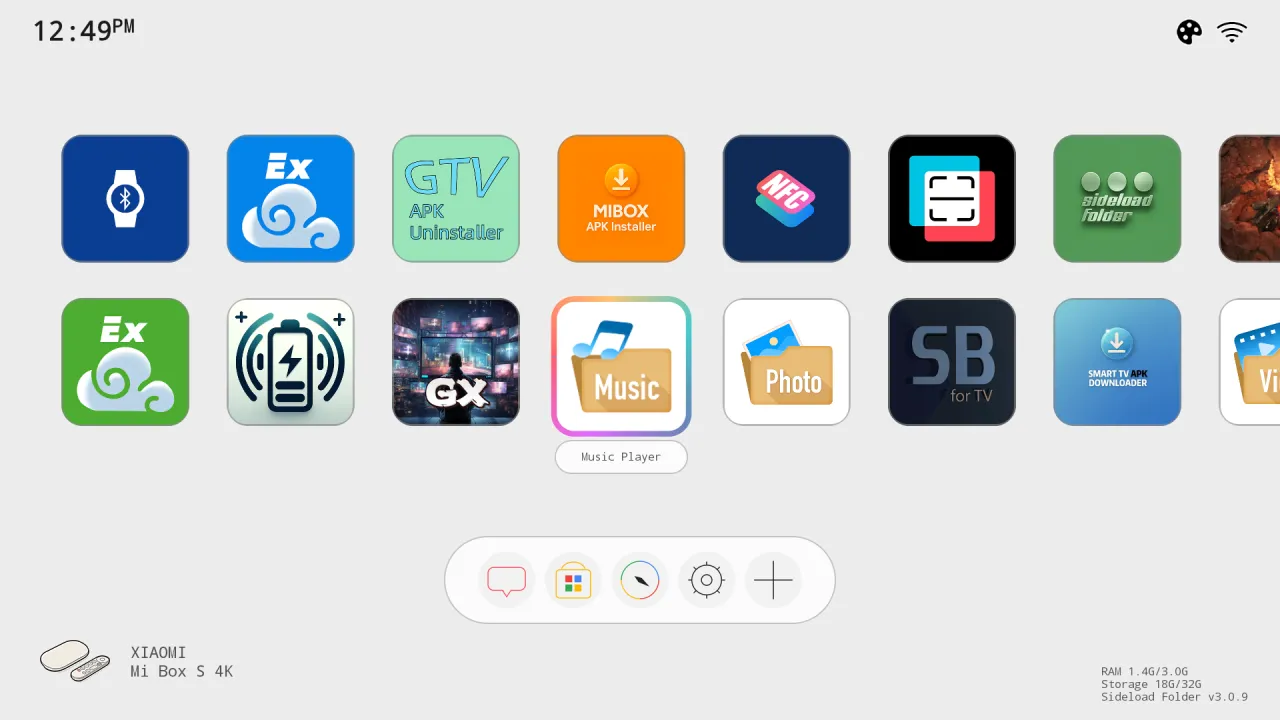
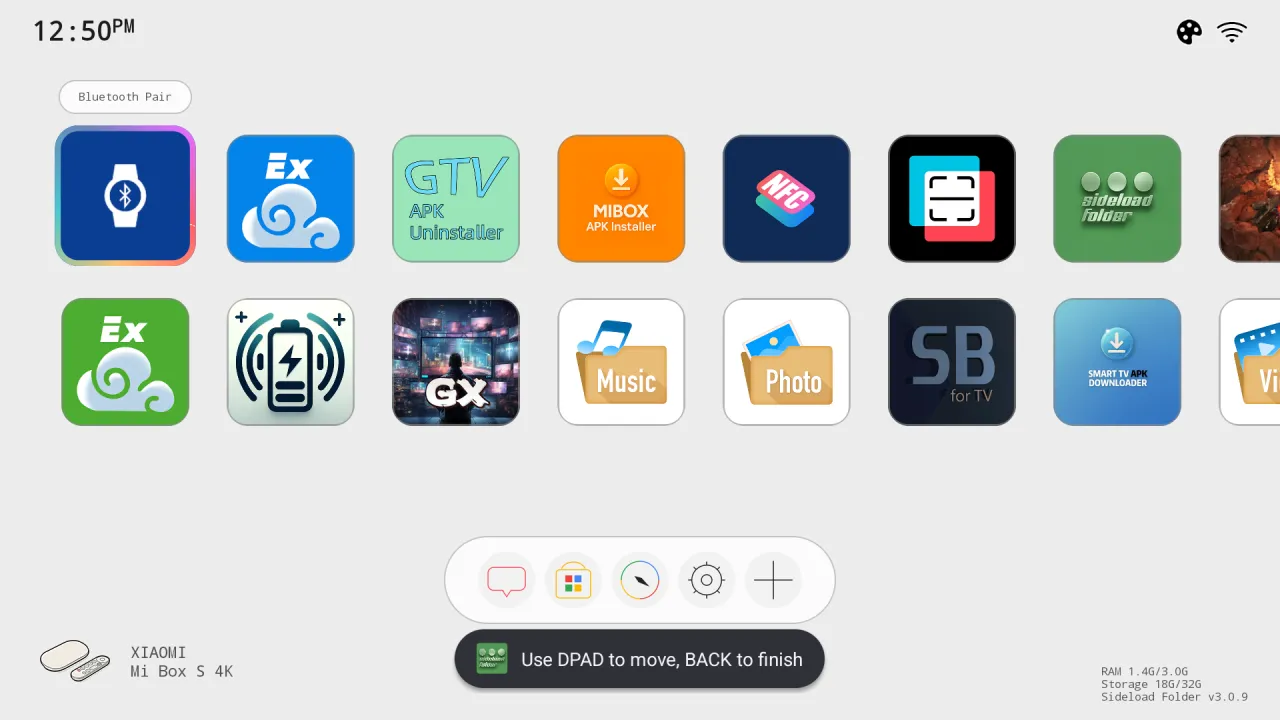
All apps in two rows
Large cards sorted by name or in your own order, with a floating name label on the focused card.
Every app on your TV, and the store one click away.
Sideload Folder: TV Launcher is a clean home screen for Google TV and Android TV. It shows all the apps you installed, including phone-style apps the stock home screen hides, gives you a Store button on the action bar and lays out correctly when the screen is rotated.
Sideload Folder is on Google Play. Get it from the store first, then follow any guide. Here is how to reach the store on your TV.
The Google Play Store has its own banner (tile) on the home screen. Open it.
There is no store tile. Press and hold the voice input button on the remote and say “open Google Play Store”.
In the store type “Sideload Folder: TV Launcher”, open the app by Cloud Curry Studio, then get it from Google Play.
Three things the stock Google TV home screen does not do.
Google TV hides the Play Store. Sideload Folder adds a Store button to the action bar so you can always find it.
Apps that have no TV banner show up on the home screen as normal cards, which the stock launcher does not do.
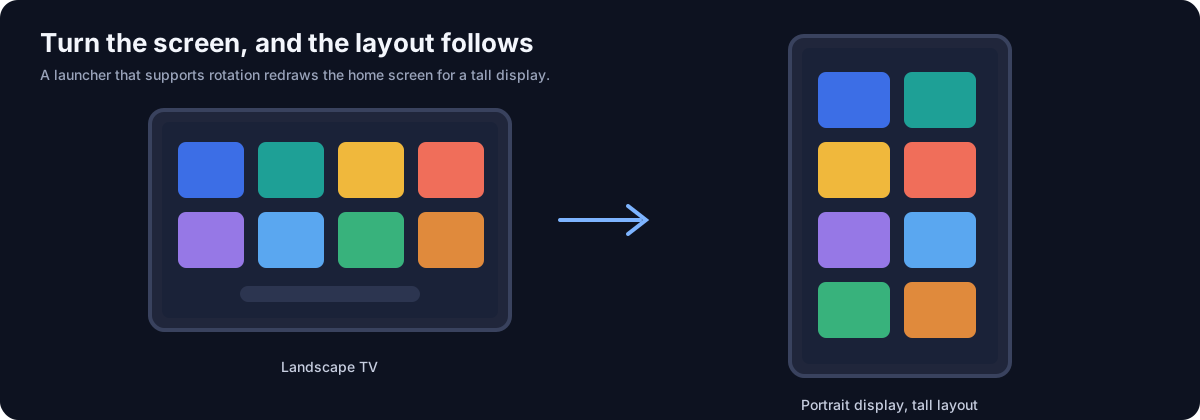
Built for rotated displays, so a vertical TV gets a tall layout. Rotation is set up from GTV-toolkit on Windows.
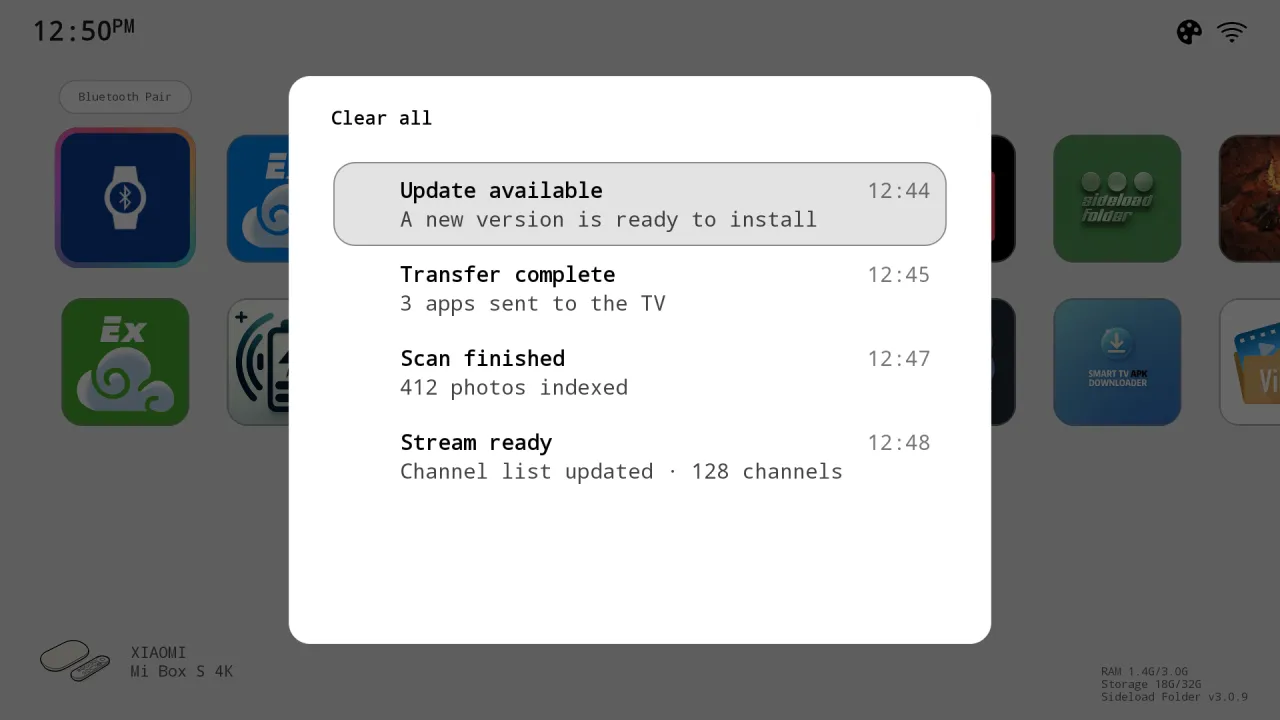
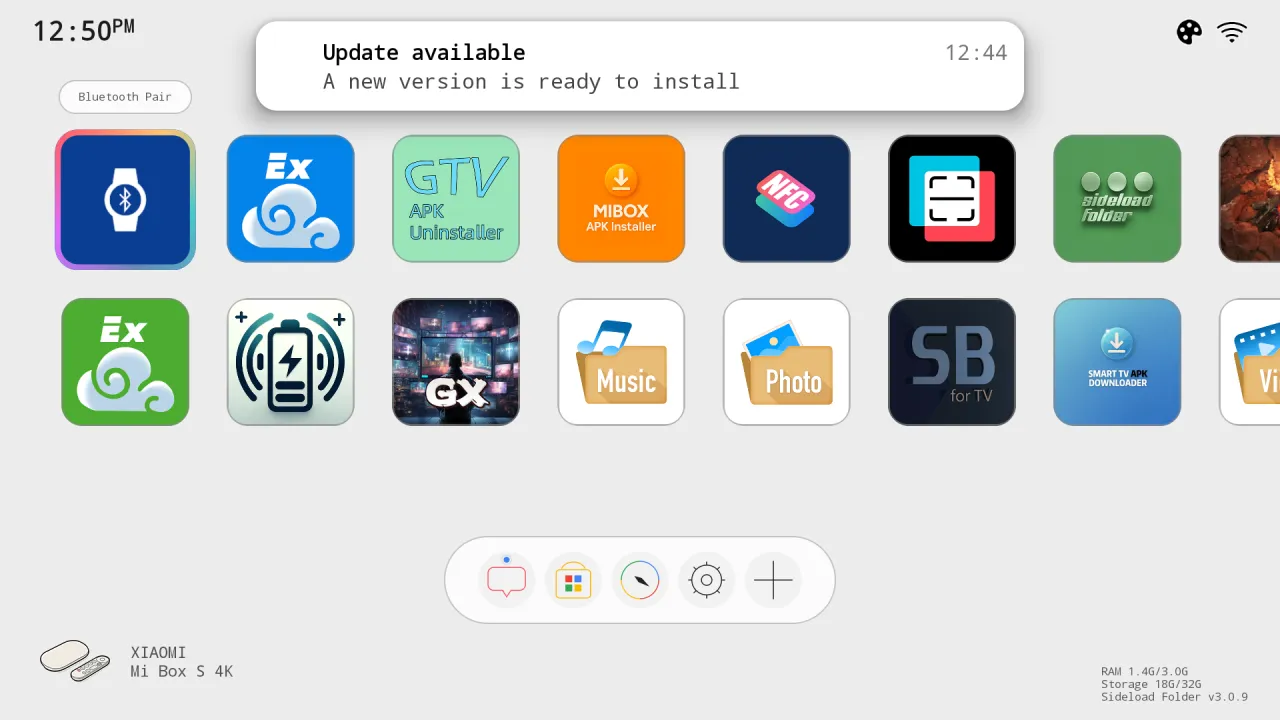
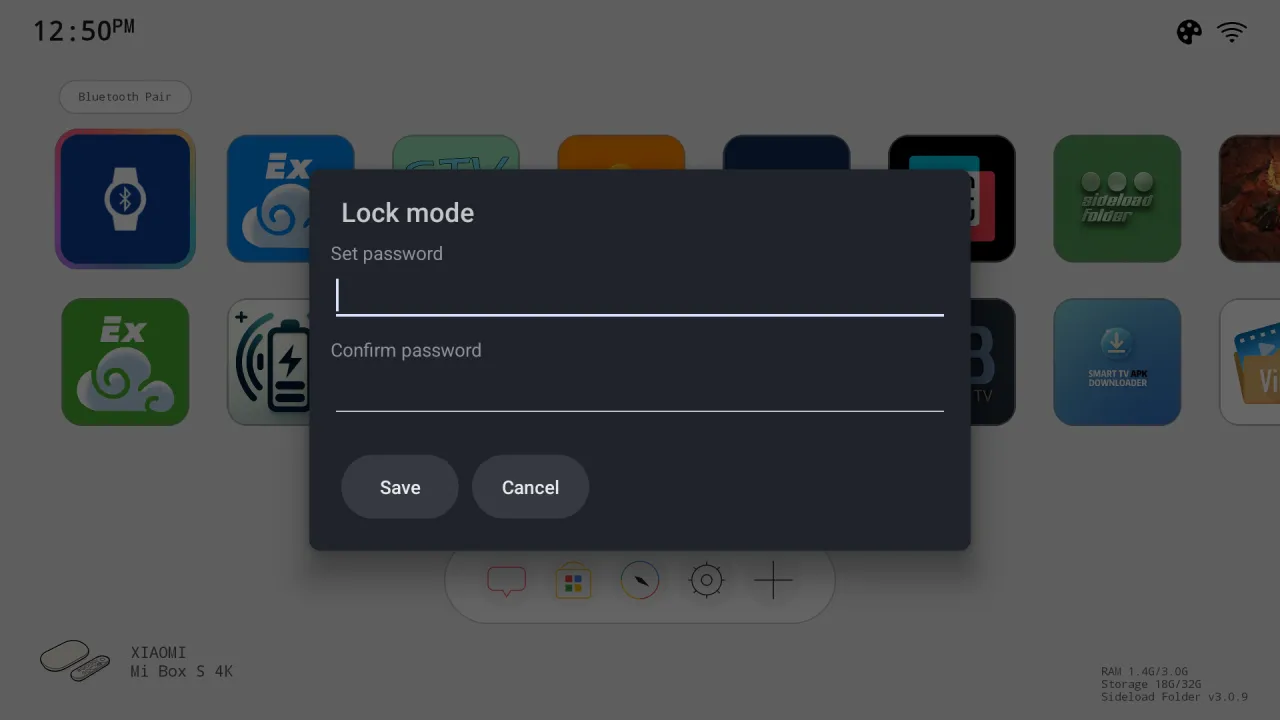
Five action buttons, notifications, themes and lock mode, without extra permissions to read your media.
The stock Google TV home screen is built for landscape. Sideload Folder supports a rotated display, so a vertical TV, menu board or photo frame gets a tall layout. Set the rotation from your PC with GTV-toolkit.
Everything Sideload Folder does, in plain language.
Large cards sorted by name or in your own order, with a floating name label on the focused card.
One click on the action bar opens the app store.
Supports a rotated display for portrait signage and vertical frames.
Messages, Store, Browser, Settings and Add, with your own custom buttons beside them.
Unread dot, list and banner for new notifications on the TV.
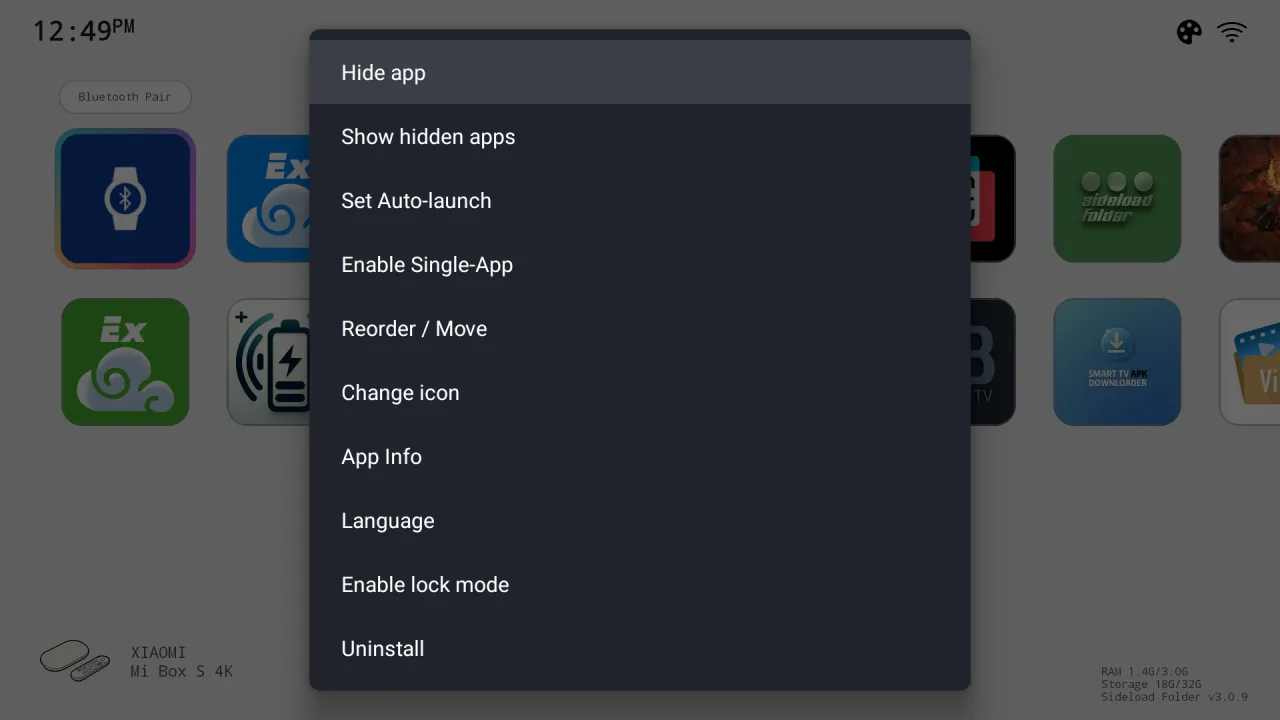
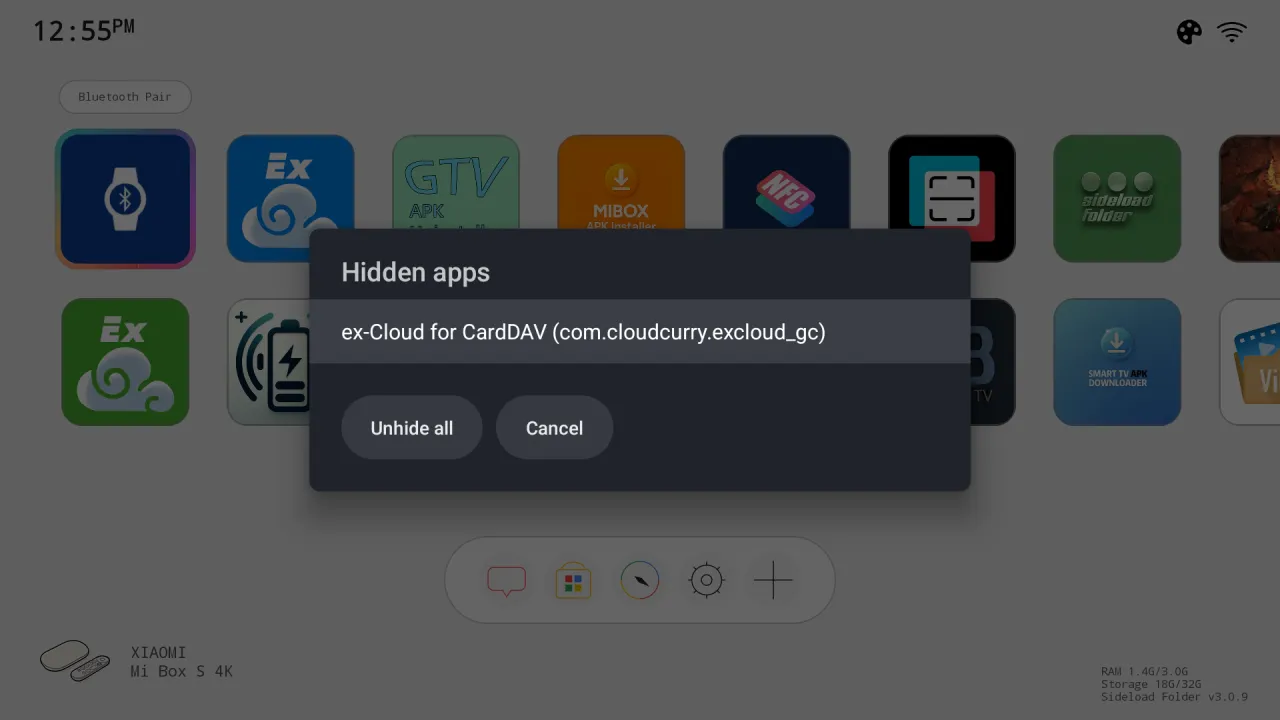
Hide apps, set one to start automatically, or turn the TV into a single-app kiosk.
A password hides Store, Settings and the Add button for a living room or shop.
Background, dark mode, stickers, four icon slots and seven languages.
Captured from the running app on Android TV. Device details and app lists in the pictures are sample data.
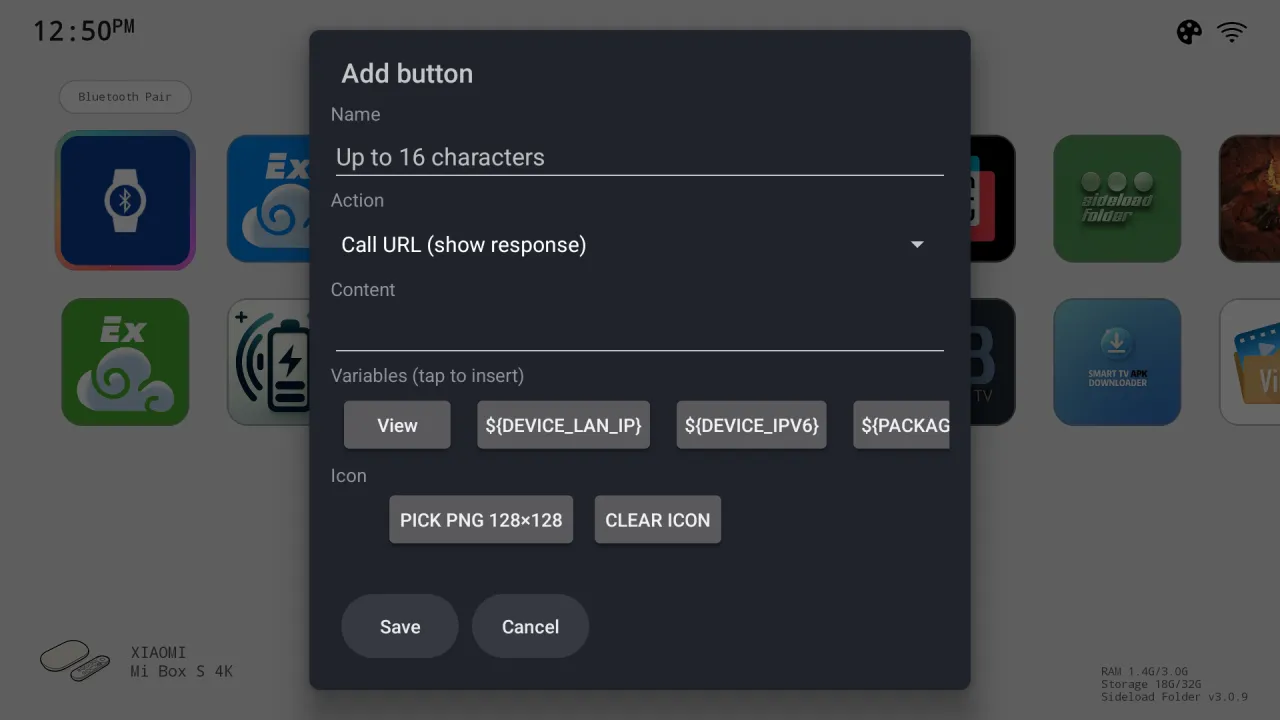
English, Chinese, Japanese, Korean, German, French and Spanish, or follow the system language.
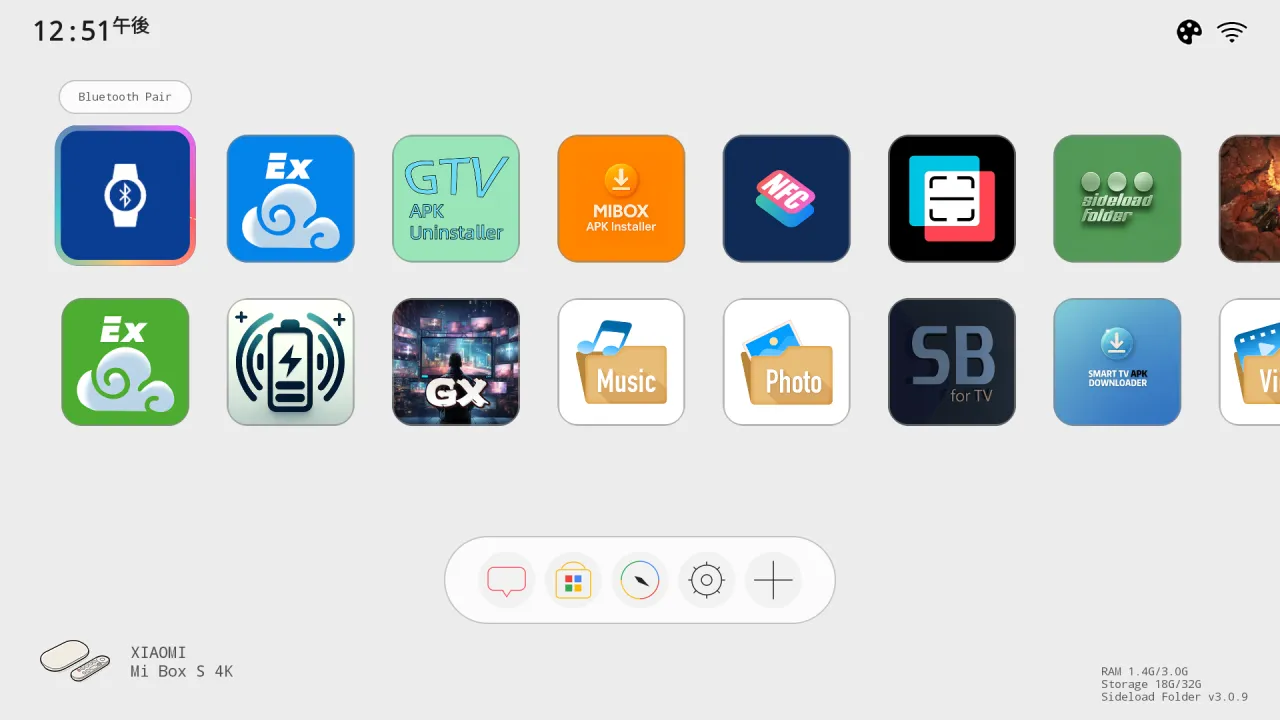
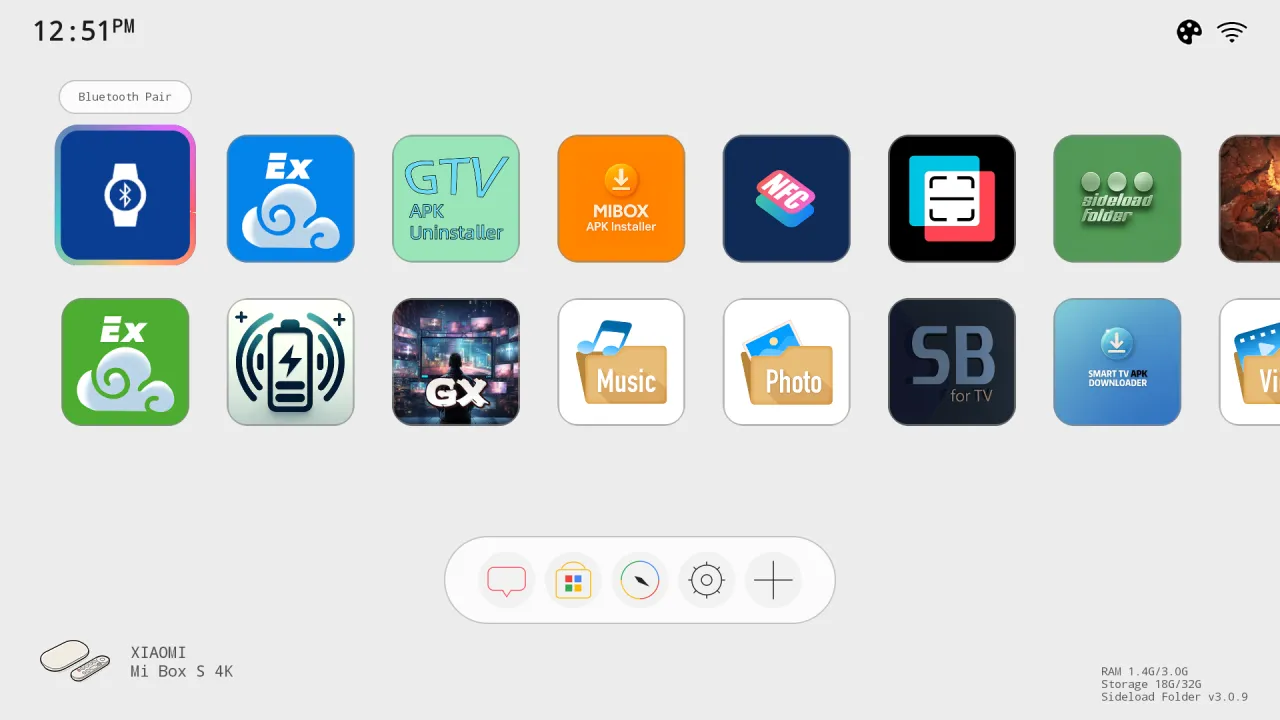
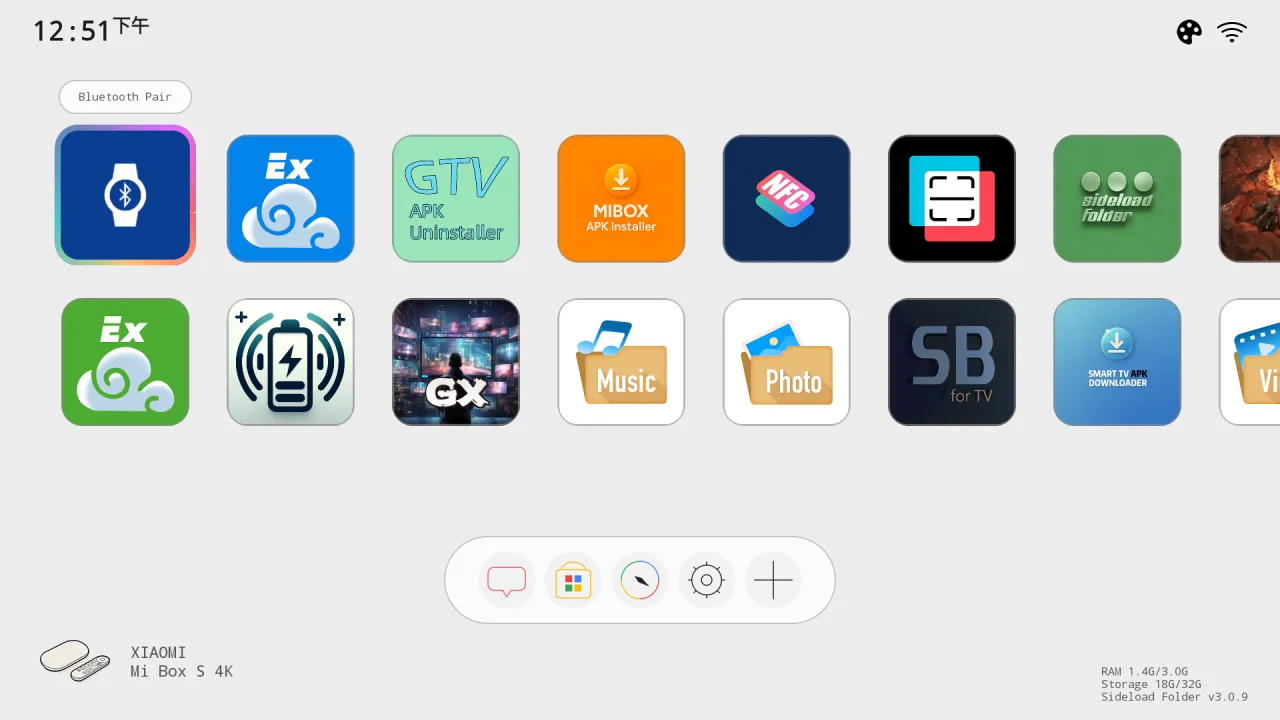
Two launchers from the same family. They can be installed side by side.
| Feature | VxDesktop | Sideload Folder |
|---|---|---|
| All installed apps on the home screen | ✓ | ✓ |
| Store button on the action bar | ✓ | ✓ |
| Rotated or portrait displays | ✓ | ✓ |
| Notifications on the TV | ✓ | ✓ |
| Lock mode and single-app kiosk | ✓ | ✓ |
| Background picture or video, stickers | ✓ | ✓ |
| Gallery and Mouse buttons | ✓ | – |
| Power menu (sleep, restart, shut down) | ✓ | – |
| Advanced custom action types | ✓ | – |
| Themeable action icons | 7 | 4 |
| Where to get it | Patreon | Google Play |
Get it from Google Play. On Android TV, open the Google Play Store banner on the home screen. On Google TV there is no store tile: press and hold the voice input button on the remote, say "open Google Play Store", then search the full name "Sideload Folder: TV Launcher" and open the app by Cloud Curry Studio.
Google TV shows no Play Store tile on the home screen. Use the voice route, or add a Store button to your home screen with a launcher such as Sideload Folder.
The stock home screen lists apps built for TV. Phone-style apps and many sideloaded apps have no TV banner, so they are hidden there. Sideload Folder shows them as normal app cards.
Yes. It lays out for a rotated display, which suits vertical signage and photo frames. GTV-toolkit on Windows can set the screen rotation from your PC.
Open it, press Home and choose Sideload Folder when asked. If your Google TV does not offer the choice, GTV-toolkit on Windows can switch the launcher and restore the original at any time.
Sideload Folder has five action buttons and no power menu. VxDesktop adds Gallery, Mouse and Power buttons, a power menu, more action types and more themeable icons, and is distributed on Patreon.
Android 9 or newer on Android TV, Google TV and TV boxes.
Most Google TV devices use a 32-bit ARM processor called ARMv7a (armeabi-v7a). If you ever sideload an app, pick that build. Apps from the Google Play Store install the right one automatically.
Sideload Folder for Google TV and Android TV.