How to Add an M3U Playlist to Google TV (Link, File or Phone Upload)
Add an M3U or M3U8 playlist and an XMLTV guide to an IPTV player on Google TV: by link, from a file, or from your phone without typing on the remote. Plus fixes.
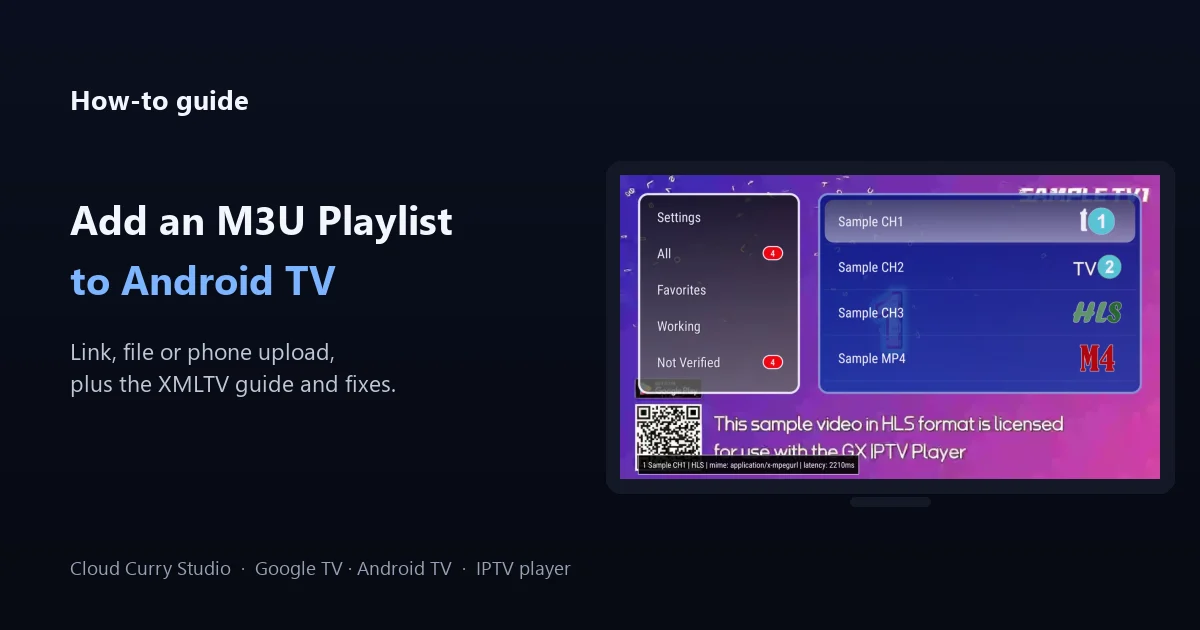
You have an M3U link or file and an Google TV, and you want the channels on the big screen. This guide shows how to add an M3U playlist to Google TV in three ways, how to add an XMLTV programme guide, and what to do when the list does not load.
Quick answer
- Step 0: get an IPTV player from Google Play, for example GX IPTV Player Pro.
- Open its import option and choose link, local file, or phone upload.
- Paste or send your M3U or M3U8 playlist. Optionally add an XMLTV guide.
- Wait for the stream check, then pick a channel.
Step 0: get the player from Google Play
A player has no channels of its own, so you need an app first. How you reach the store depends on your TV.
| TV | How to reach the store |
|---|---|
| Google TV | There is no store tile. Press and hold the voice input button on the remote and say "open Google Play Store". |
| Android TV | Open the Google Play Store banner on the home screen. |
In the store search the full name "GX IPTV Player Pro", open the app by Cloud Curry Studio and get it from Google Play. More about the app. If you cannot find the store at all, see how to open the Google Play Store on Google TV.
The first time you open it, the app shows a disclaimer: it is only a player, it comes with no channels or playlists, and you bring your own legal sources. Press OK to continue.
What an M3U playlist is
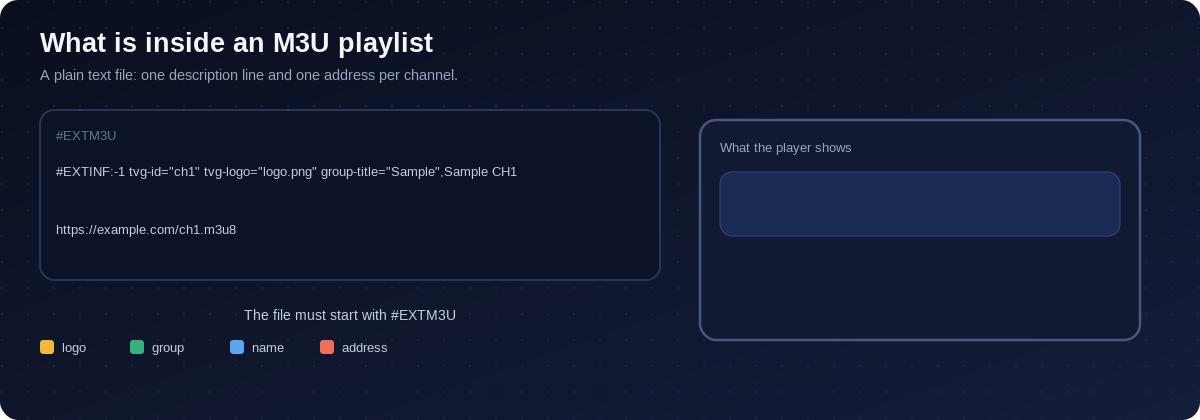
An M3U file is plain text. It starts with #EXTM3U, and every channel is two lines: a description line (#EXTINF) with the name, group and logo, then the address of the stream.
| File | What it is |
|---|---|
| .m3u | A channel list as plain text |
| .m3u8 | The same format saved as UTF-8. HLS streams also use this extension, so it can be a list or a single stream |
| .xml / .xml.gz | An XMLTV programme guide |
Where the playlist comes from
The player does not supply channels. Use a list you have the right to use: your own streams, an organisation that publishes official channel lists, or a test list. To try the app first, import our sample playlist, which holds four test channels made by Cloud Curry Studio:
https://tmnb.nl/x.m3uThree ways to add the playlist
Way 1: a web link
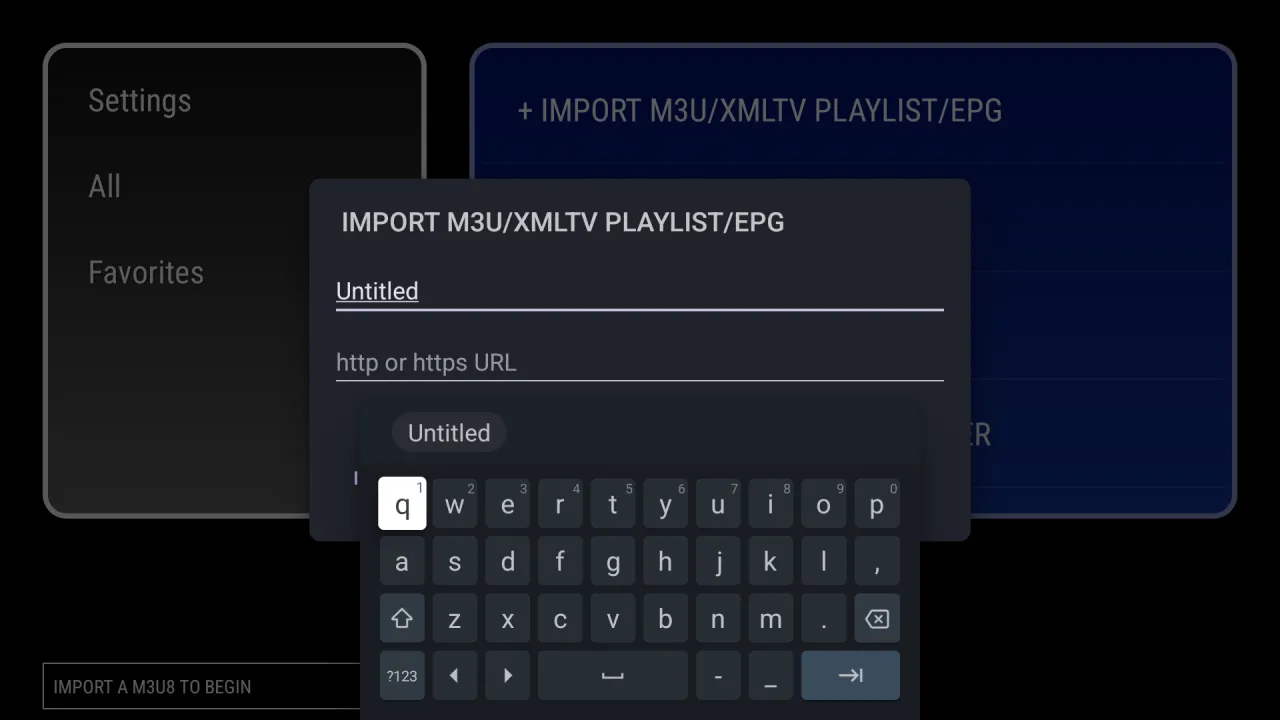
- Open Settings in the app and choose Import M3U/XMLTV Playlist/EPG.
- Choose Import from Internet URL.
- Type a name, paste the link and press Import.
Way 2: a local file
Put the .m3u file in the Download folder or on a USB drive, then choose Import from Local File and pick it with the file picker. On Android 11 or newer, if the app cannot see the file, use phone upload instead.
Way 3: from your phone (no typing on the remote)
- Choose Upload by Browser.
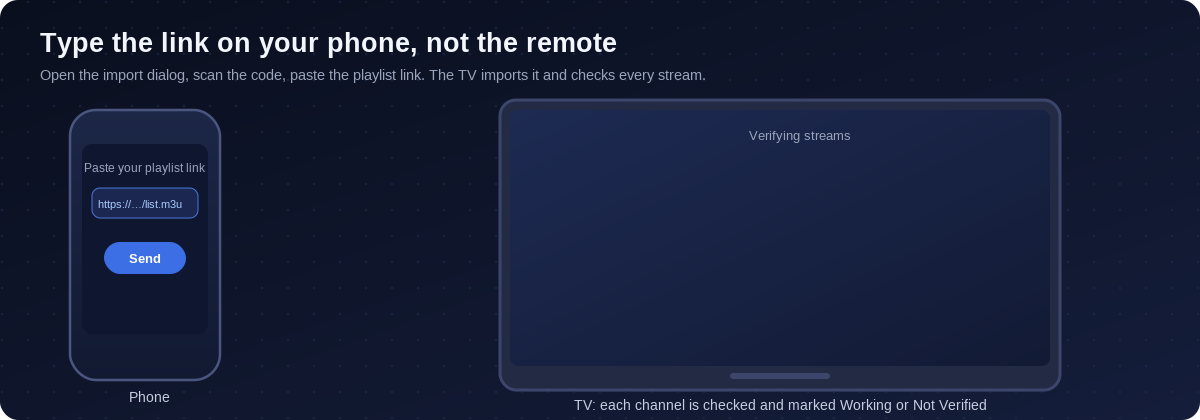
- The dialog shows a code. Scan it with your phone on the same Wi-Fi.
- Paste the link on the phone and send it. The TV starts importing at once.
Keep the dialog open while you send. It closes the connection when you close it.
Let the app check the streams
After the download the app reads names, logos and groups and tests each stream. Channels show up under Working or Not Verified, and groups are made from the stream type, such as HLS or MP4.
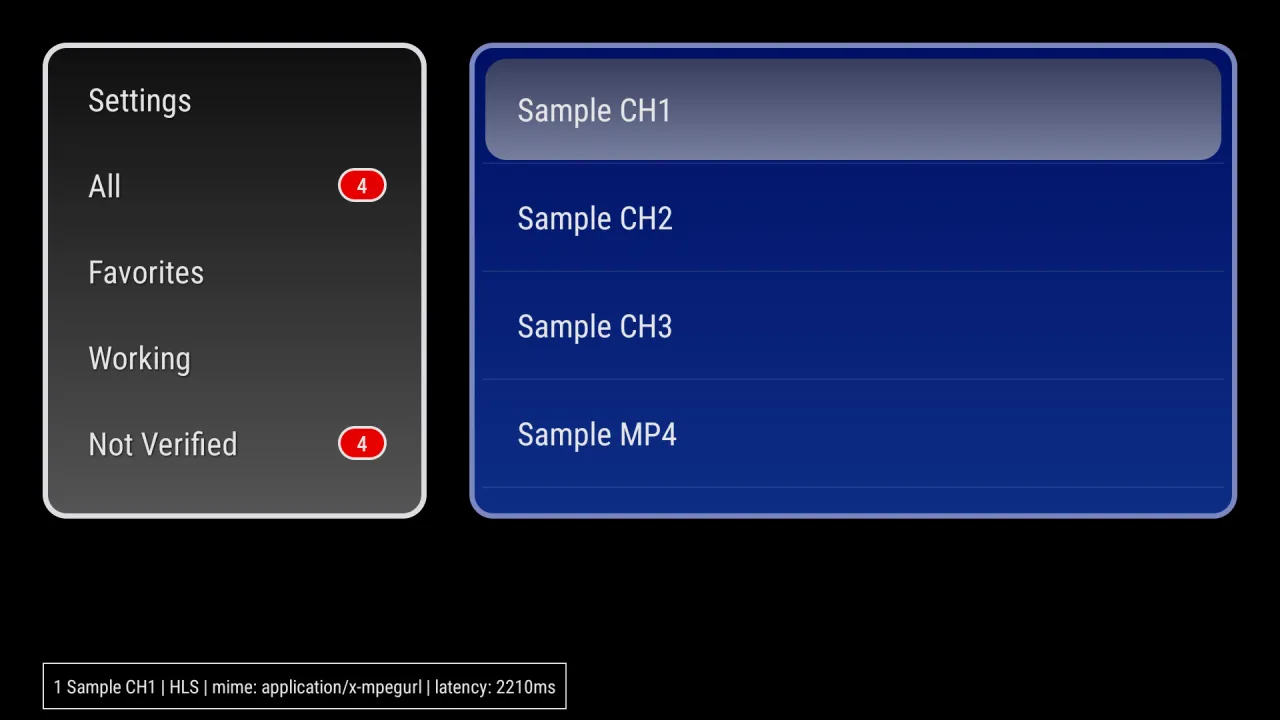
Working only means the address answered. It does not promise smooth playback, and the app says so.
Add the programme guide (XMLTV)
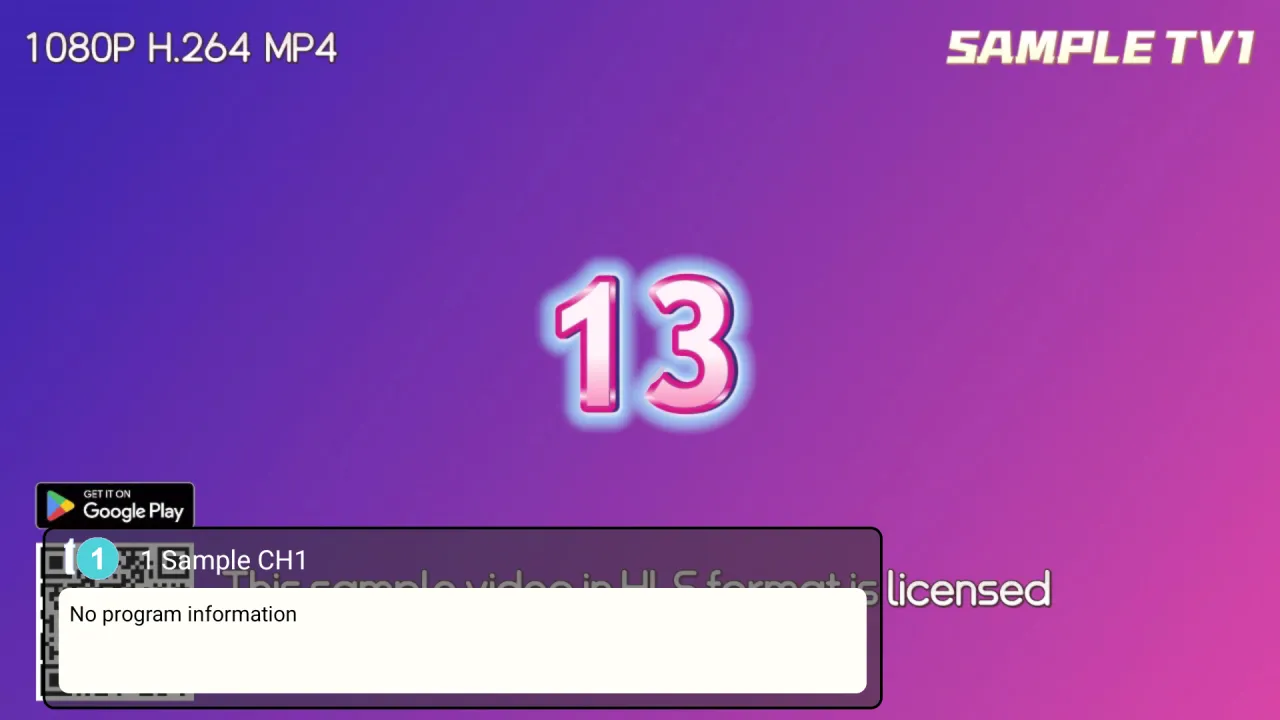
Import the .xml or .xml.gz file the same way. Then open the info window on a channel to see the current and next programme. Without a guide it reads No program information.
When the playlist does not work
| What you see | Likely cause | What to try |
|---|---|---|
| Download failed | Wrong address, certificate problem, no internet | Open the link in a browser first and use https if offered |
| 0 channels | The file is not an M3U list | The first line must be #EXTM3U |
| Everything is Not Verified | Streams need a certain network or region | Test one channel with Watch on Browser |
| Black screen but sound | The video format is not supported on this device | Try another channel or source |
| Keeps buffering | Slow source or weak Wi-Fi | Try a wired connection, or compare on a phone |
| Stops after a few seconds | Missing HLS segments | Reload the list or change the source |
Watch on Browser is the quickest test: long-press a channel and choose it. If the stream fails there too, the stream is the problem, not the player.
Control playback
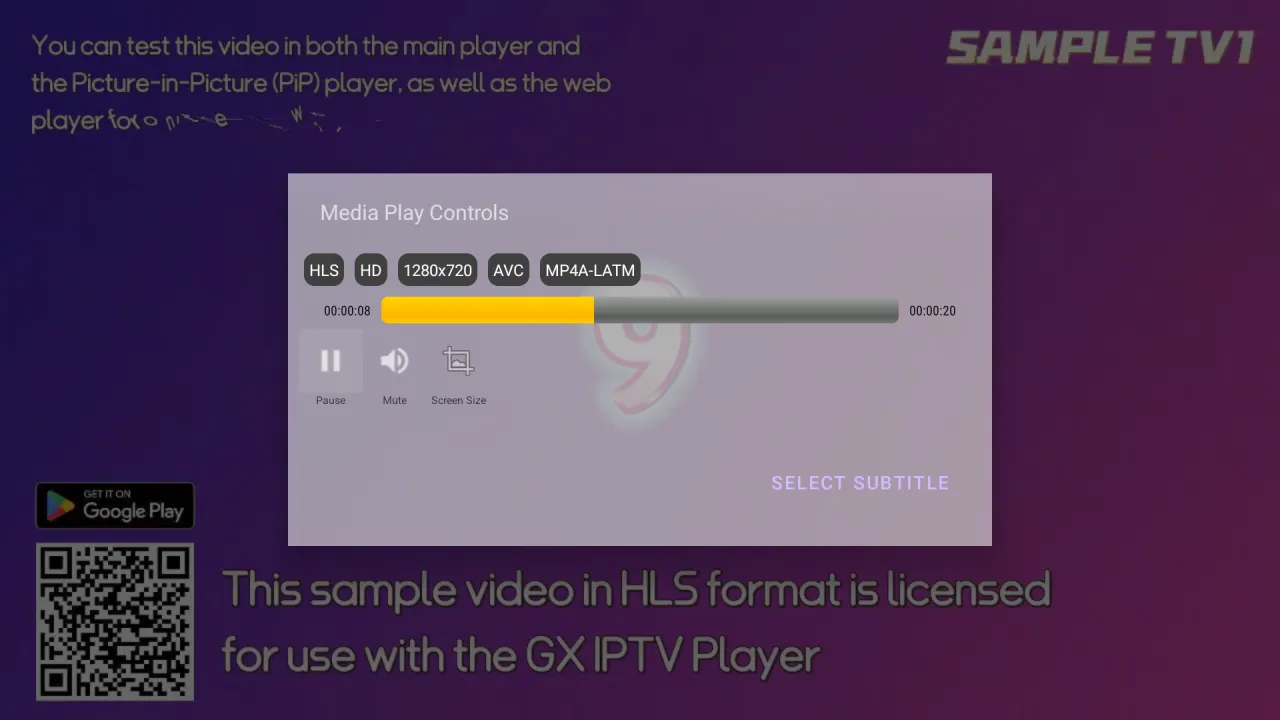
Press left or double-press OK during playback to open the controls. They show the stream type and size, the codecs, a progress bar, mute, screen size and a subtitle button.
Long-press a channel for Picture-in-Picture to keep watching in a corner while you choose the next one.
Bottom line
To add an M3U playlist to Google TV: get a player from Google Play, open its import option, and send the link by URL, file or your phone. Add an XMLTV file if you want the guide. If something fails, check that the file starts with #EXTM3U and test one channel in the browser. GX IPTV Player Pro does all of this and checks every stream on import.
Frequently asked questions
How do I add an M3U playlist to Google TV?
Install an IPTV player from Google Play, open its import option, choose to import from a web link, and paste your M3U link. Some players also accept a local file or a link sent from your phone.
How do I add an M3U playlist to Google TV?
On Google TV the Play Store has no tile, so press and hold the voice button on the remote and say "open Google Play Store". Install a player such as GX IPTV Player Pro, then import your playlist by link, file or phone upload.
What is the difference between M3U and M3U8?
Both are text playlists. M3U8 is the same format saved as UTF-8, which handles non-English names. HLS streams also use .m3u8 files, so the extension can mean a channel list or a single stream.
What is XMLTV and do I need it?
XMLTV is a programme guide file (.xml or .xml.gz). You do not need it to watch, but with it the player can show the current and next programme.
How can I paste a playlist link without typing on the TV remote?
In GX IPTV Player Pro choose Upload by Browser in the import dialog, scan the code with your phone on the same Wi-Fi, and paste the link on the phone. The TV imports it at once.
Why does my M3U import show 0 channels?
The file is probably not a real M3U playlist. A valid list starts with #EXTM3U and has an #EXTINF line followed by a stream address for each channel.
What does Not Verified mean?
On import GX IPTV Player Pro tests each stream. Working means the address answered. Not Verified means it did not answer or has not been tested. It is a connection check only, not a promise of smooth playback.
Where do I get a playlist?
From sources you have the right to use: your own streams, an organisation that publishes official channel lists, or a test playlist. The player contains no channels. GX IPTV Player Pro has no playlists built in.
Play your own lists on the big screen
GX IPTV Player Pro for Google TV: M3U and XMLTV import, stream checks, phone upload and Picture-in-Picture. Get it from Google Play.