How to Transfer Files from PC to Google TV with FileZilla (FTPS)
Send movies, ROMs and photos from your PC to an Google TV over Wi-Fi, encrypted. Start an FTPS server on the TV and connect with FileZilla. Step by step.
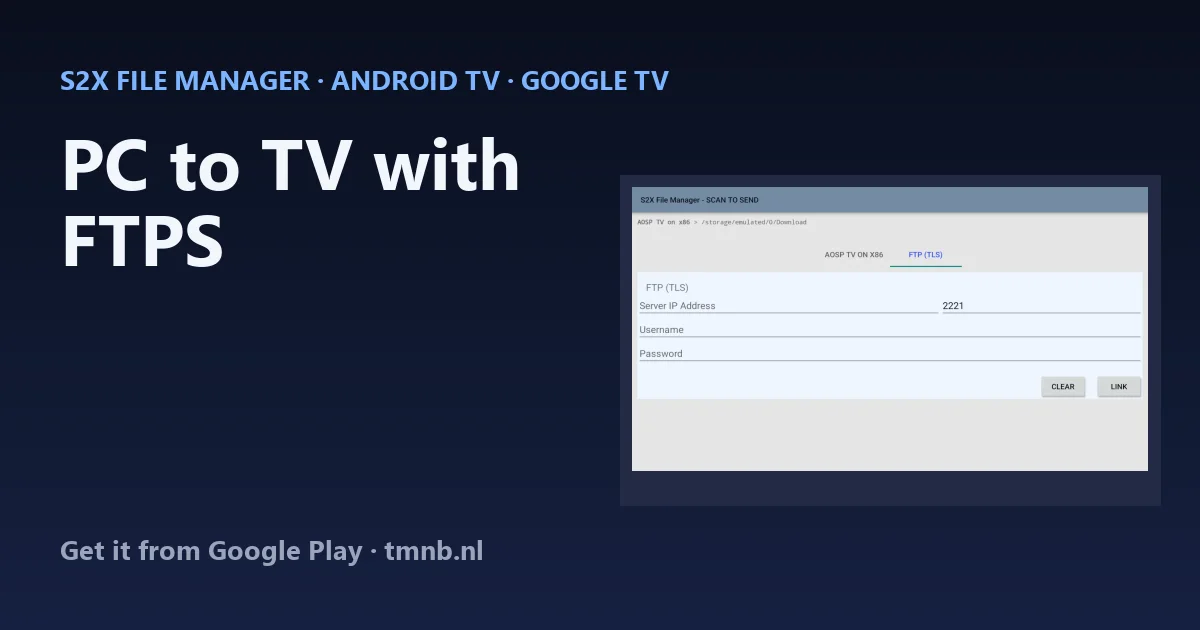
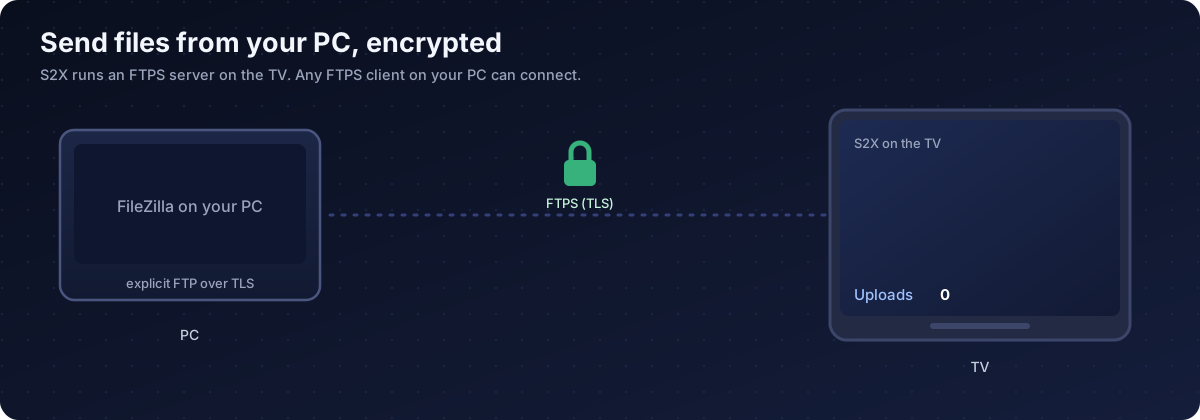
Moving a movie or a game from your PC to a TV usually means a USB drive. If the TV is on the same Wi-Fi, you can skip it. This guide shows how to transfer files from a PC to Google TV with FileZilla, using an encrypted FTPS server on the TV.
Quick answer
- Step 0: get S2X File Manager from Google Play.
- Open the Server panel and press Start.
- In FileZilla choose protocol FTP and encryption Require explicit FTP over TLS, then enter the address, port, username and password shown on the TV.
- Drag files across.
Step 0: get the app from Google Play
| TV | How to reach the store |
|---|---|
| Google TV | There is no store tile. Press and hold the voice input button on the remote and say "open Google Play Store". |
| Android TV | Open the Google Play Store banner on the home screen. |
Search the full name "S2X File Manager", open the app by Cloud Curry Studio and get it from Google Play. More about the app.
Why FTPS and not plain FTP
Plain FTP sends your password and files in the clear. FTPS is FTP wrapped in TLS, so both are encrypted. S2X uses explicit FTPS only: the client connects, then asks to switch to TLS. That is exactly what FileZilla calls "Require explicit FTP over TLS".
Start the server on the TV
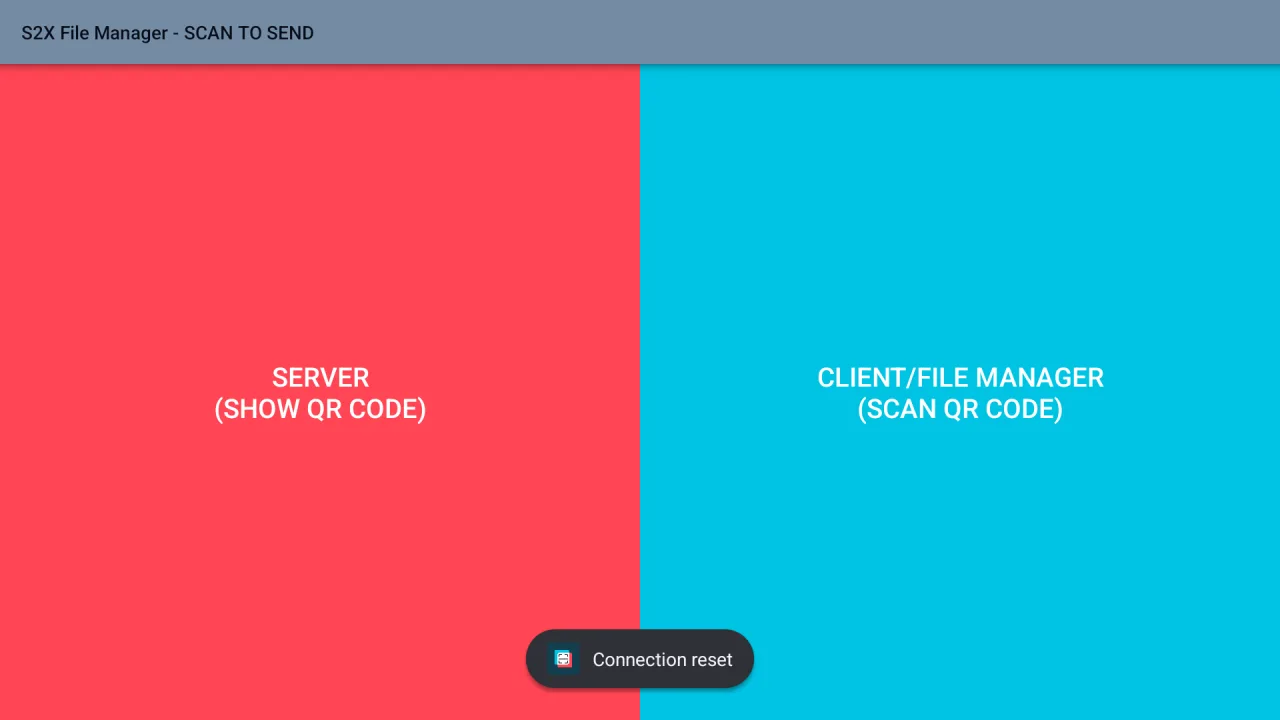
The home screen has two panels. The red one on the left is the Server, the cyan one on the right holds the client and file manager.
Open the server panel. It shows the port, a username and password, a root folder and counters for connections, downloads and uploads.
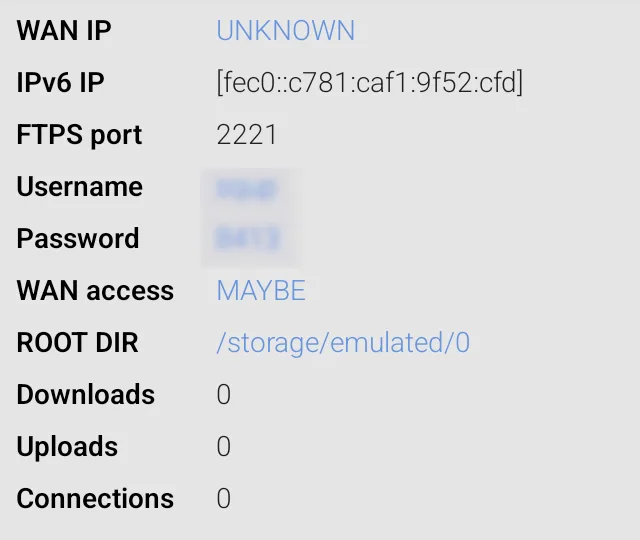
Change the login to your own, and pick a root folder. Choosing Movies instead of the whole storage means a client can only reach that folder. Press Start.
Connect with FileZilla
| Field | Value |
|---|---|
| Protocol | FTP |
| Host | The TV address shown in the server panel |
| Port | The port shown in the server panel |
| Encryption | Require explicit FTP over TLS |
| Logon type | Normal |
| User and password | The ones from the server panel |
The first time, FileZilla shows the certificate. The TV made it itself, so accept it if you are on your own network. Then drag files from the left side to the right.
Connect from another device
The same server works with FTPS apps on a phone or tablet. The TV can also show a code that carries the connection details, so you scan instead of typing on the remote.
The client side works the other way: S2X can connect from the TV to another FTP over TLS server.
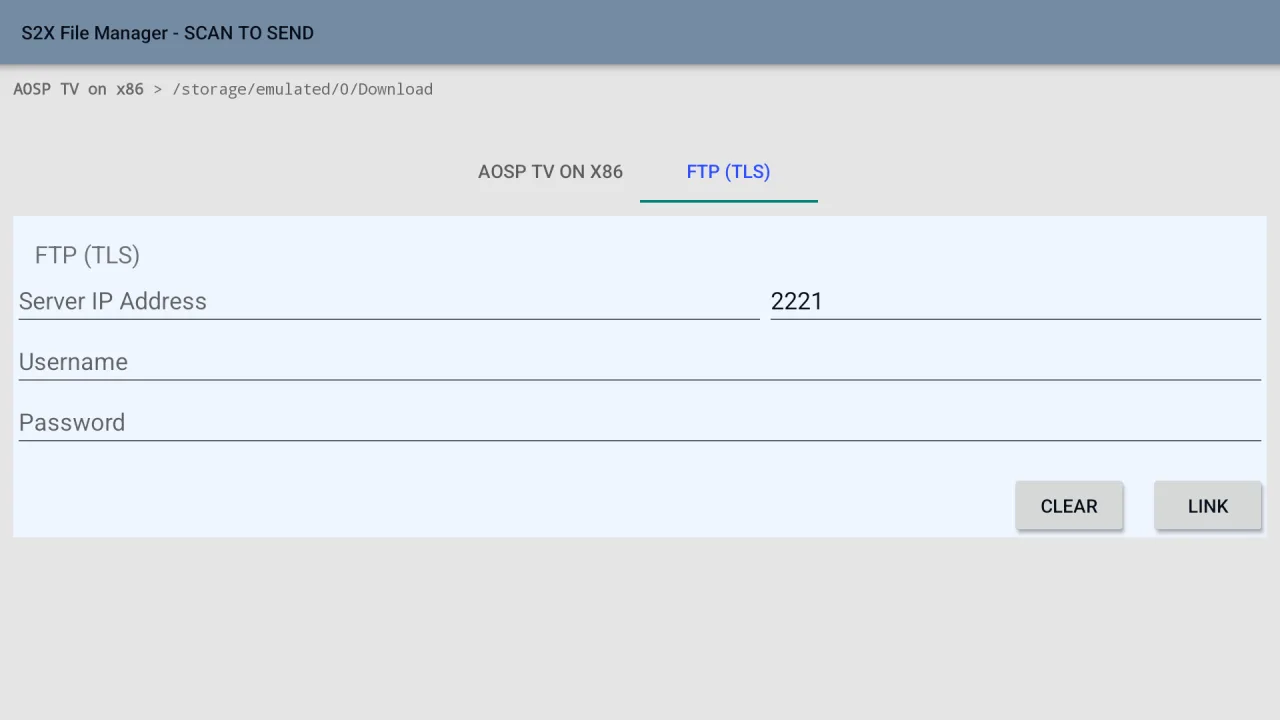
When it does not connect
| What you see | Likely cause | What to try |
|---|---|---|
| Connection refused | Server not started or wrong port | Check the panel shows it running and the port matches |
| Times out | PC and TV on different networks | Put both on the same Wi-Fi or router |
| Login failed | Typo or old password | Re-enter it from the panel |
| Works but files are missing | Root folder is narrower than expected | Check the root folder setting |
| Plain FTP client cannot connect | Server speaks FTPS only | Use explicit FTP over TLS |
Staying safe
Only start the server when you need it. Use your own password. Do not open router ports to the internet. If you need access away from home, use a VPN into your home network instead.
Bottom line
Start the FTPS server in S2X File Manager, connect with FileZilla using explicit FTP over TLS, and drag your files across. No USB drive, and the transfer is encrypted.
Frequently asked questions
How do I transfer files from a PC to Google TV over Wi-Fi?
Install a file manager with a server, such as S2X File Manager, start its FTPS server, then connect from FileZilla on the PC using the address and port shown on the TV.
What is the difference between FTP and FTPS?
Plain FTP sends the login and files unencrypted. FTPS adds TLS. S2X supports explicit FTPS only, so plain FTP clients will not connect.
Which FileZilla settings do I need?
Protocol FTP, encryption "Require explicit FTP over TLS", logon type Normal, the TV address, the port from the screen and the username and password from the S2X server panel. Accept the certificate the first time.
Why does FileZilla warn about the certificate?
The TV makes its own certificate, so FileZilla cannot check it against a public authority. Compare it to your own device and accept it if you trust your network.
Can I send files from my phone instead?
Yes. The TV can show a scan code that carries the connection details, and any FTPS app on your phone can connect the same way.
Is it safe to use outside my home?
Do not expose it to the internet. Use a VPN into your home network and stop the server when you are not using it.
Where do the files end up?
In the root folder you chose in the server panel. Pick a narrow folder to share only what you need.
Can the TV connect to another FTP server?
Yes, but only FTP over TLS. S2X also has an SMB client for shares on a NAS or Windows PC.
Send files to your TV without a USB drive
S2X File Manager runs an encrypted FTPS server on Google TV, with a scan code to connect. Get it from Google Play.