File picker for other apps
Offers itself when an app asks to open a file, save a file or choose a folder.

The file picker your TV is missing, plus an FTPS server.
S2X File Manager lets apps on Android TV and Google TV open files again, shows all your storage once you allow it, and turns the TV into an encrypted FTPS server so you can send files from your PC without a USB drive.
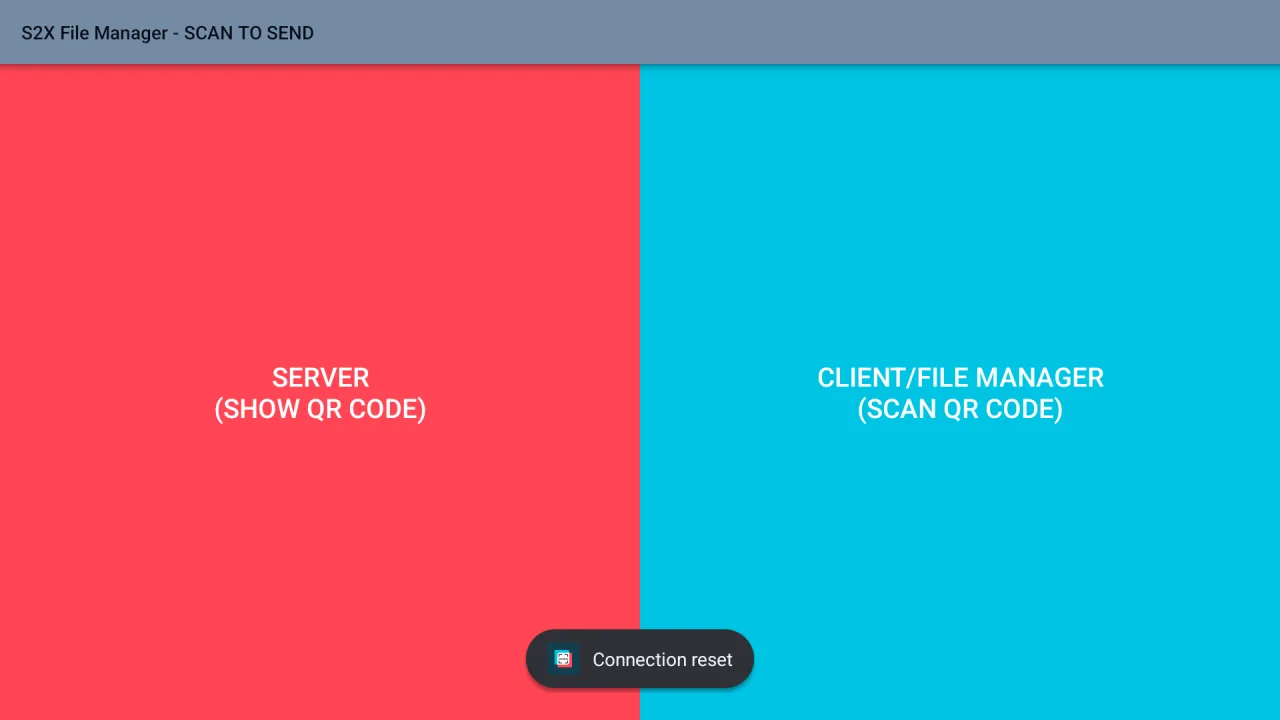
S2X File Manager is on Google Play. Get it from the store first, then follow any guide. Here is how to reach the store on your TV.
The Google Play Store has its own banner (tile) on the home screen. Open it.
There is no store tile. Press and hold the voice input button on the remote and say “open Google Play Store”.
In the store type “S2X File Manager”, open the app by Cloud Curry Studio (its store title ends with “SCAN TO SEND”), then get it from Google Play.
Three jobs the stock TV does not do.
Many Android TV and Google TV devices cannot show a system file picker, so apps that need to open a file just say they cannot. S2X steps in as the picker.
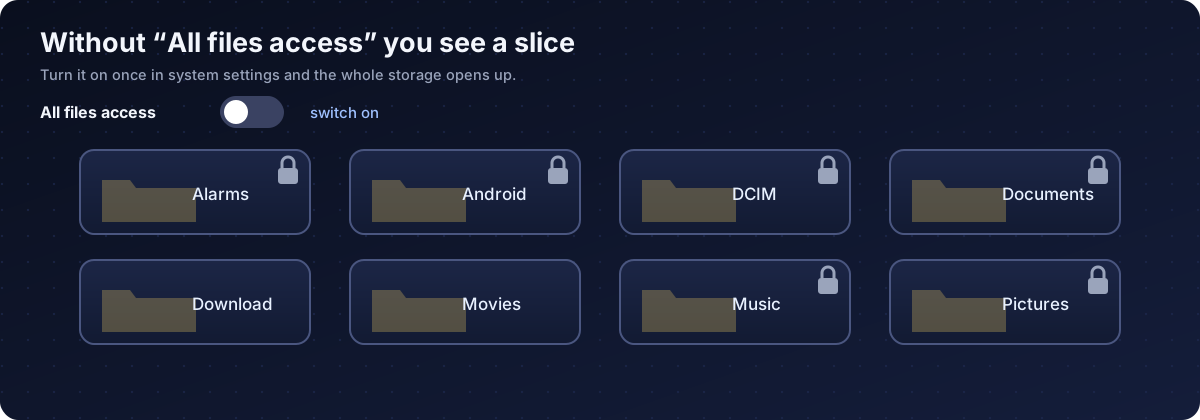
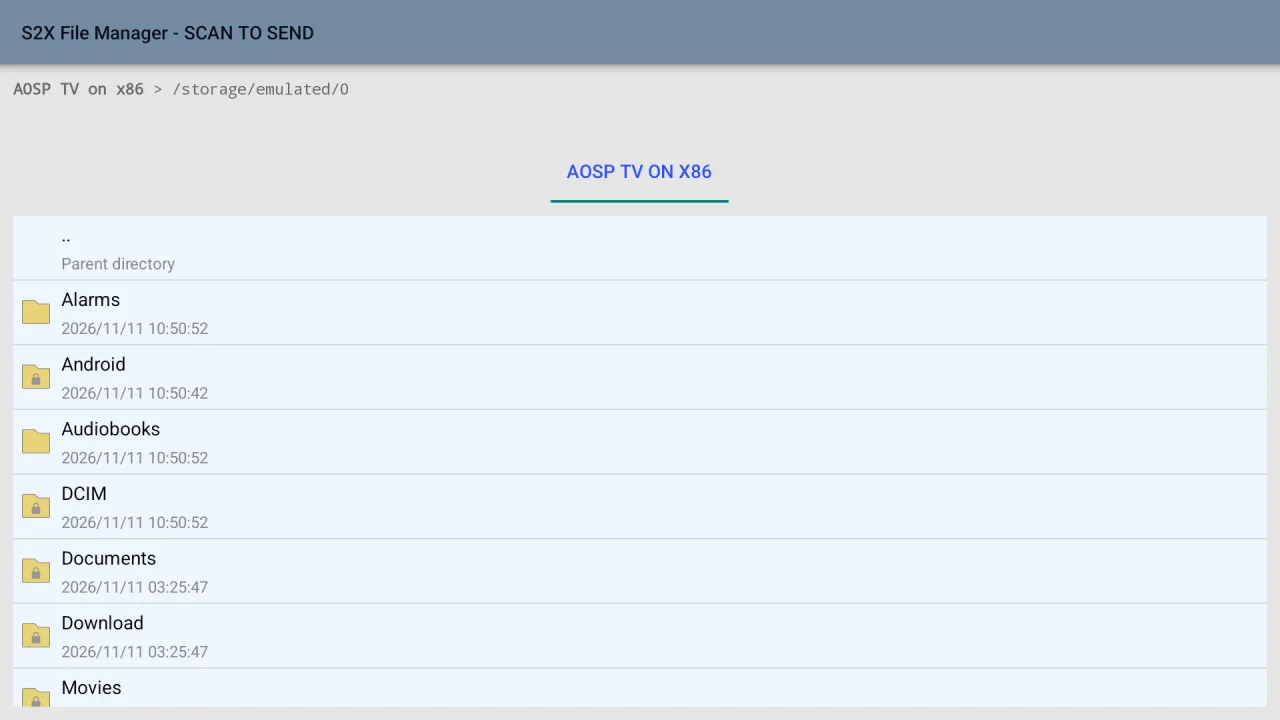
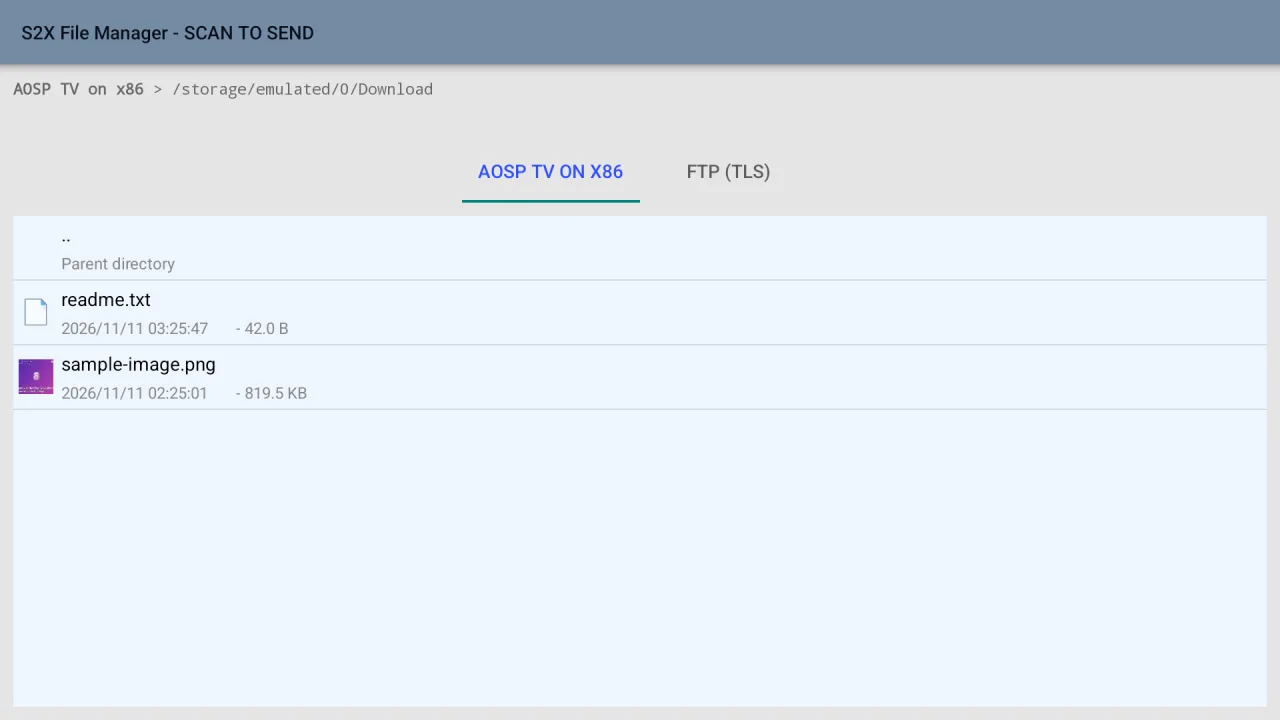
With All files access switched on you can browse the full storage, not only the few folders apps are normally allowed to see.
An FTPS server runs on the TV. Connect from FileZilla and move movies, ROMs and photos over Wi-Fi, encrypted.
Show a code on the TV and scan it with another device to fill in the address and login.
Emulators, players, image tools and sync apps ask Android for a file. On many TVs nobody answers. S2X answers.
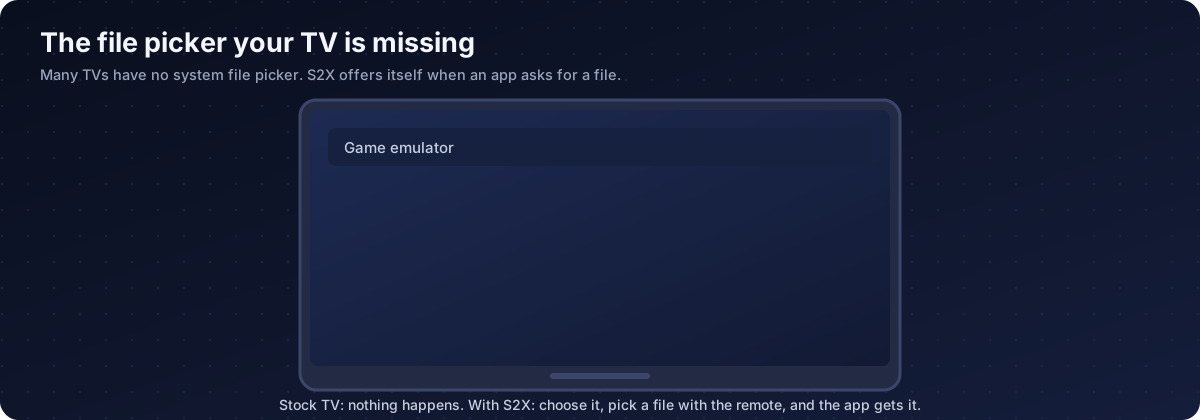
For example choose Load game in an emulator.
The TV asks which app to use. Pick Always to keep it as your picker.
Browse, press OK on the file, and confirm. It goes back to the app.
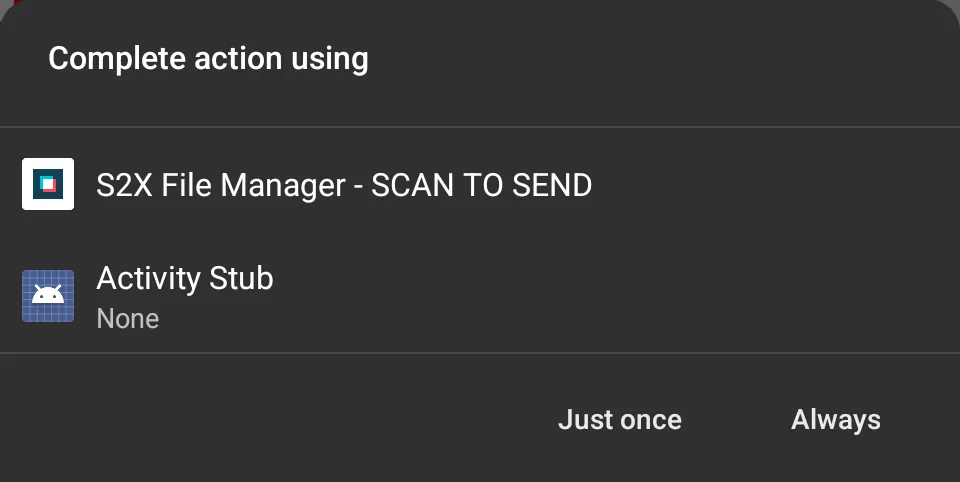
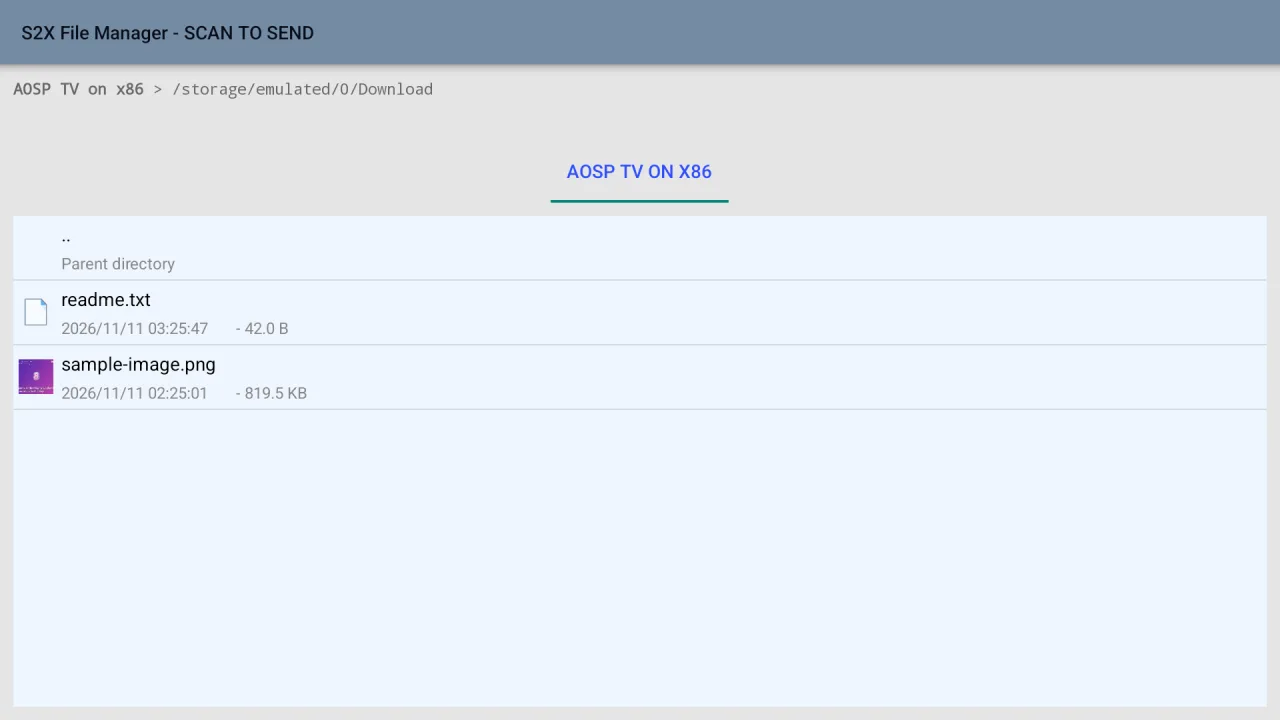
Handles requests to open a file, save a file and choose a folder. Some apps insist on the system picker and may still refuse.
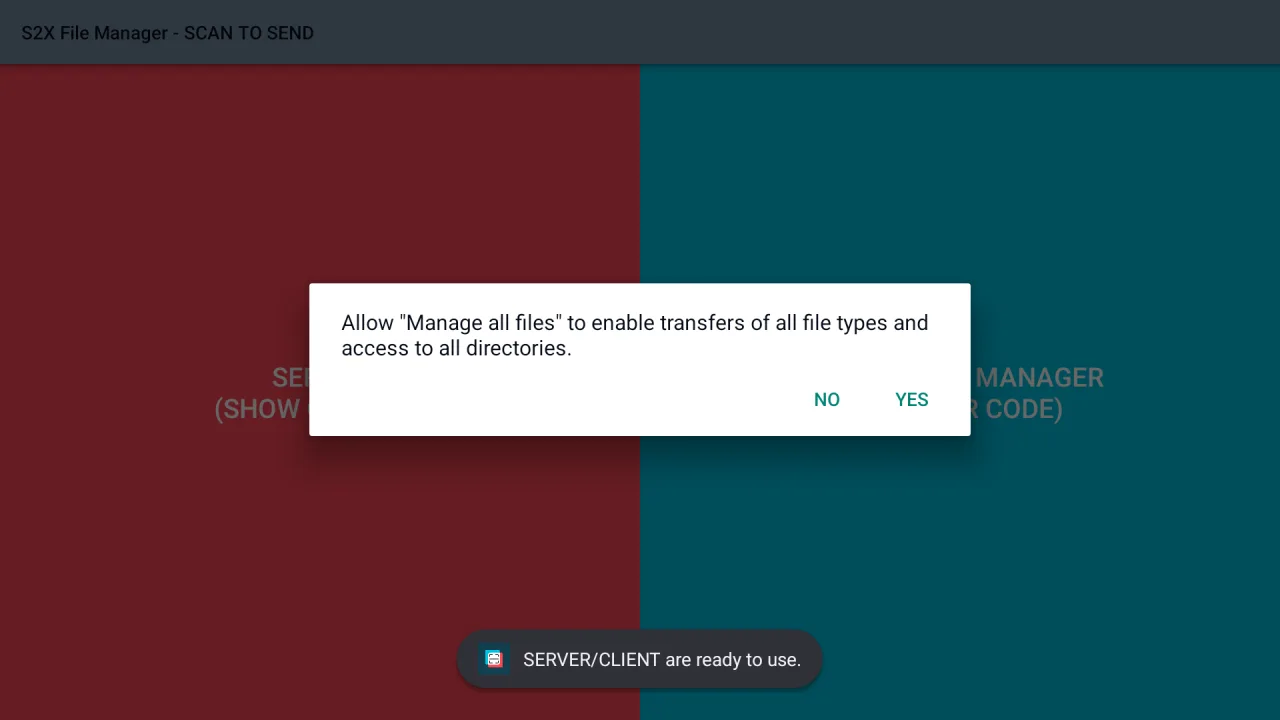
The first time you start S2X it asks to manage all files. Say yes, then switch it on for S2X in system settings.
Start the server on the red panel, then connect from FileZilla or any client that supports explicit FTP over TLS.
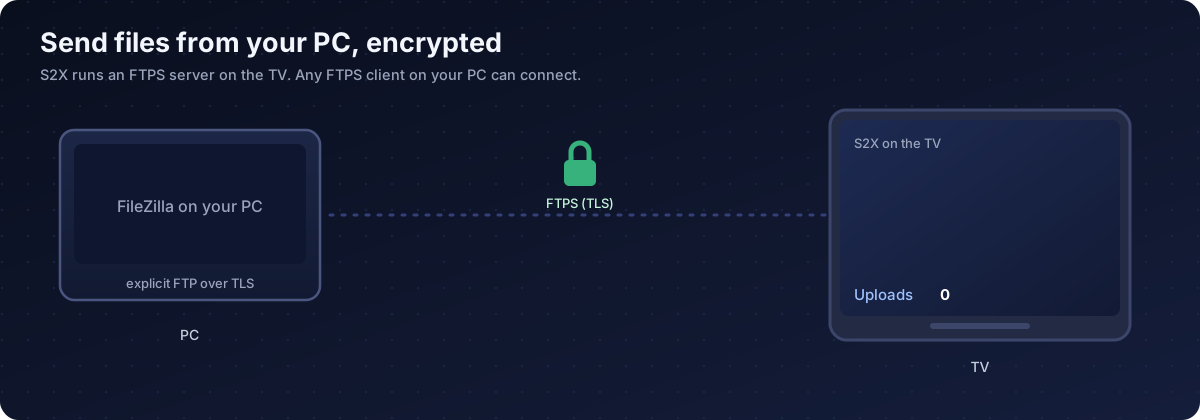
Open the Server panel, check the login and root folder, then press Start.
Protocol FTP, encryption Require explicit FTP over TLS, the TV address and the port shown on screen.
Files land in the root folder you chose. Stop the server when you are done.
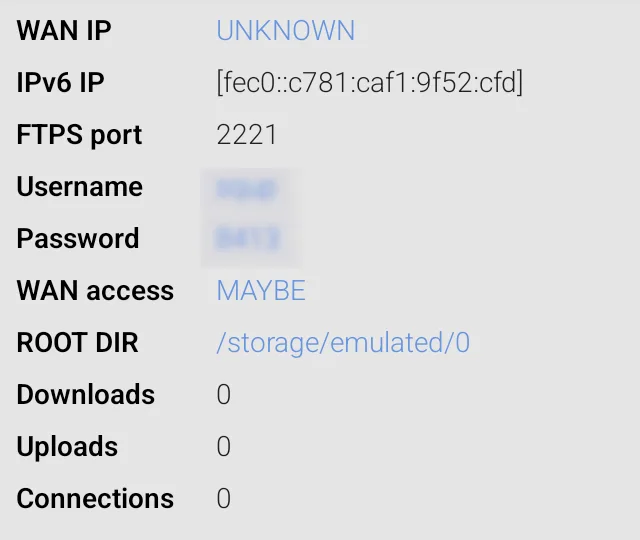
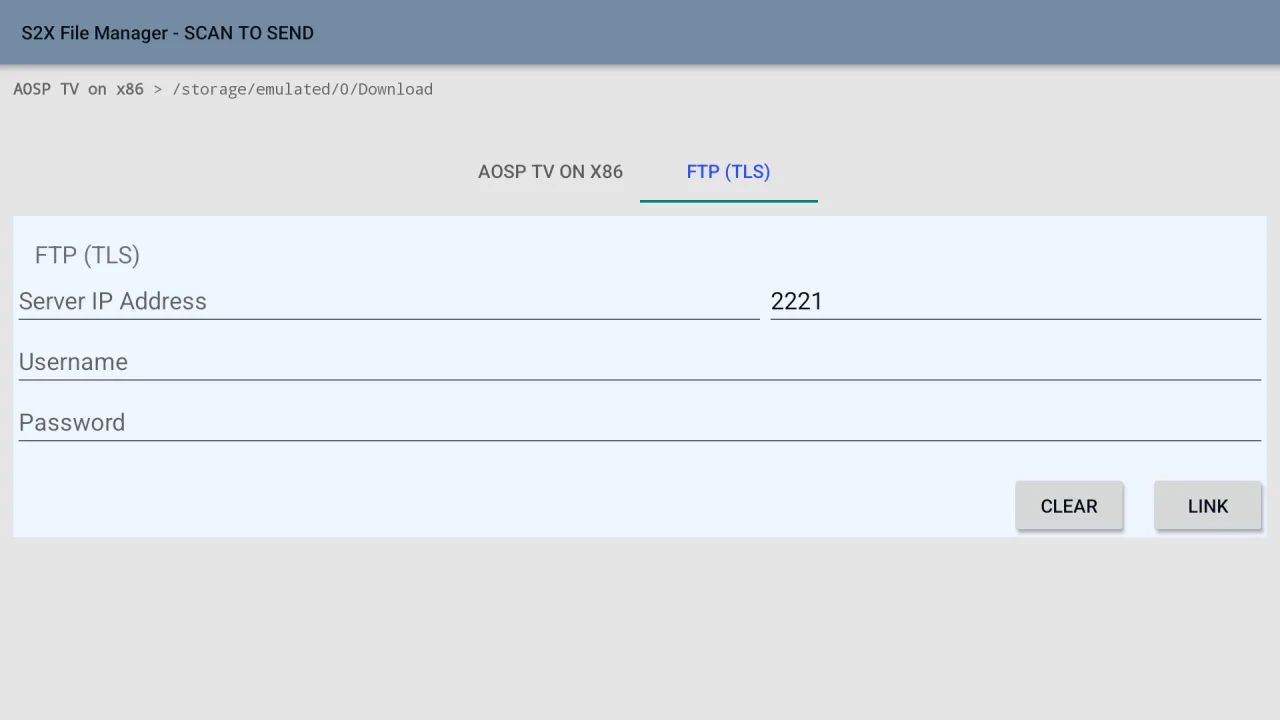
Plain FTP is not supported, only FTP over TLS. Keep the server on your home network and use a VPN rather than opening ports to the internet.
Everything it does, in plain language.
Offers itself when an app asks to open a file, save a file or choose a folder.
Browse and manage every folder the system allows, after one switch in settings.
Explicit FTP over TLS with your own username and password and a root folder you choose.
A code on the TV carries the connection details to another device.
Connect from the TV to another FTPS server and download or upload.
Browse shares on a NAS or a Windows PC.
Open PDF files in the built-in viewer.
Folders, sizes, dates and picture thumbnails, controlled with the remote.
See downloads, uploads and connections at a glance.
English, Chinese, Japanese, Korean, German, French and Spanish.
Captured on Android TV. Login details are hidden.
Get it from Google Play. On Android TV, open the Google Play Store banner on the home screen. On Google TV there is no store tile: press and hold the voice input button on the remote, say "open Google Play Store", then search "S2X File Manager" and open the app by Cloud Curry Studio.
The app asked Android for a file picker and the TV has none. Install a picker app. S2X File Manager registers to answer these requests, so the TV offers it when an app wants to open a file.
Install S2X, switch on All files access, open PPSSPP and choose to load a game. When the TV asks which app to complete the action with, choose S2X File Manager, then pick the game file with the remote.
Choose Always if you want S2X to be the picker every time. Choose Just once to be asked again next time.
It is a special Android permission that lets a file manager see the whole storage. You turn it on in system settings for the app. Some folders, such as Android, stay protected by the system even then.
FTP sends names, passwords and files without encryption. FTPS wraps the connection in TLS. S2X speaks explicit FTPS only, so use a client such as FileZilla and choose explicit FTP over TLS.
Start the server in S2X. In FileZilla enter the TV address, the port shown on the screen, protocol FTP, encryption "Require explicit FTP over TLS", logon type Normal, and the username and password from the screen. Accept the certificate the first time.
It is better not to. Open ports expose your files. Use a VPN into your home network instead, and stop the server when you are not using it.
Only give it to apps you trust. S2X works on your own device, asks you first, and the server needs a username and password. Change the random login to your own and pick a smaller root folder, such as Movies, if you only share videos.
Yes, it has an SMB client for shares on a NAS or a Windows PC.
Android 8.0 or newer on Android TV, Google TV, phones, tablets and Wear OS.
No. The client only supports FTP over TLS. For a plain FTP source, download on a PC first, then send the file to the TV.
S2X File Manager for Android TV and Google TV.