How to Transfer Files from a PC to Google TV (the Easy Way)
Need to send files from your PC to Google TV? Why USB sticks and cloud links stall, and how to upload, download and delete from one Windows window.
You have a file on your PC, such as an APK, a video, a config file or a folder of photos, and you want it on your Google TV box. There is no obvious "send to TV" button, so people try USB sticks, cloud links and trial and error. This guide explains why the usual ways to transfer files from a PC to Google TV stall, and shows the easy way: one File Manager window on your PC.
Quick answer
- Install GTV-toolkit on your Windows 10 or 11 PC.
- Connect to your TV over USB or Wi-Fi.
- Open File Manager, choose a folder on the TV and click Upload.
Why the usual ways stall
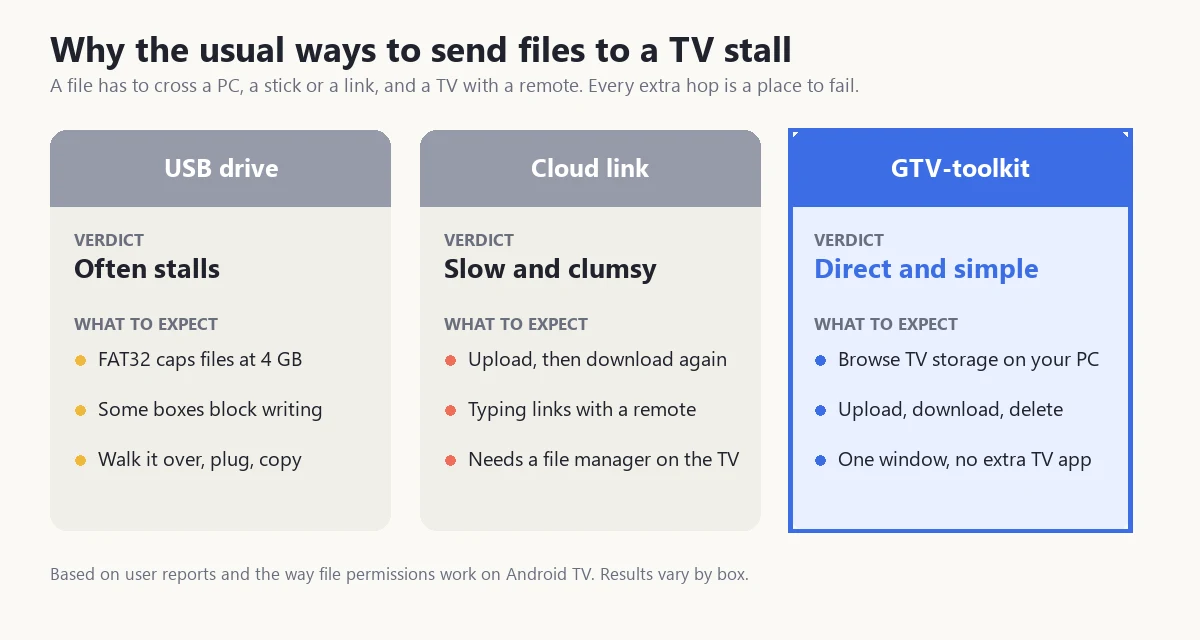
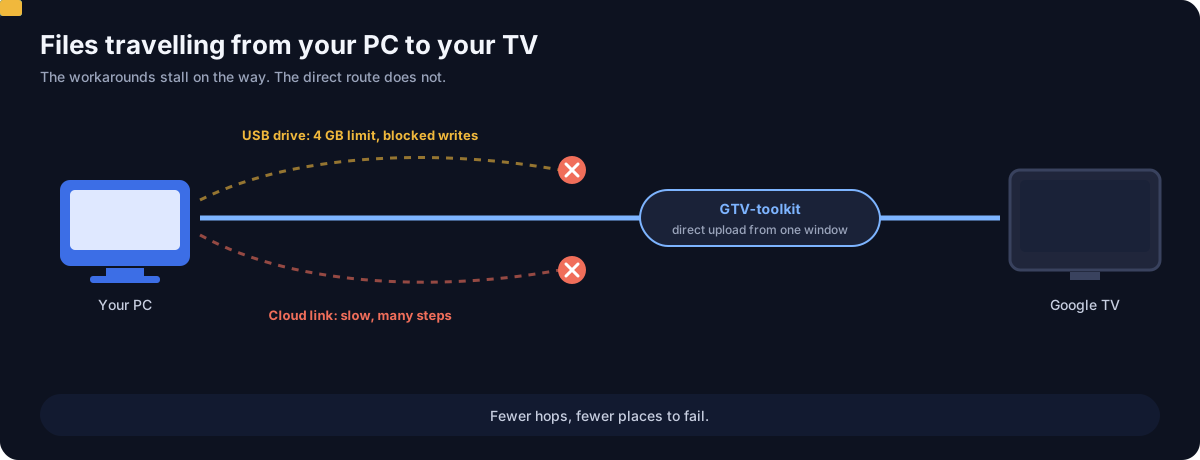
A file has to cross the PC, a stick or a link, and then a TV that you control with a remote. Every extra hop is a place to fail.
- A USB drive. A drive formatted FAT32 cannot hold a single file over 4 GB, so a large video fails to copy. Some TV boxes also restrict writing to external storage, so you can read from a drive but not always copy to it, as one forum user reported. And you still have to walk over, plug it in and copy.
- A cloud link. You upload the file, then download it again on the TV. For a large file that doubles the wait, and typing a link or signing in with a remote is slow.
- No file picker on the TV. Newer Google TV versions have no system-wide file picker, so even when the file is on the box, apps often cannot open it.
The easy way: GTV-toolkit's File Manager
GTV-toolkit is a Windows 10 and 11 app that connects to your Google TV, Android TV or Fire TV over USB or Wi-Fi. Its File Manager lists the TV's storage on your PC, starting at the main shared folder, so you work with the TV the same way you work with a folder on your computer.
Set it up once
- On the TV, turn on the developer option for connecting from a PC. Newer TVs pair once with a six-digit code, then reconnect with one click.
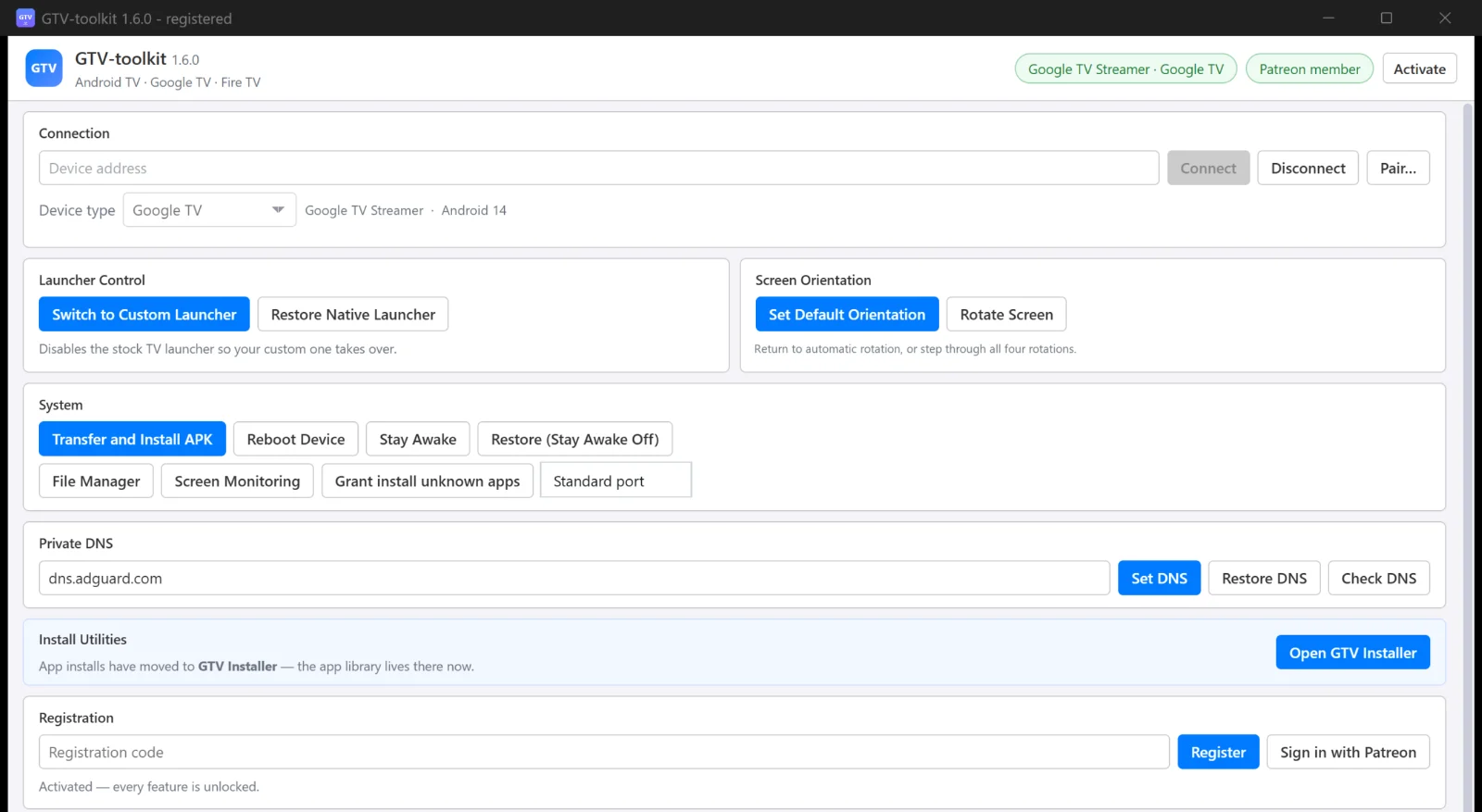
- On the PC, plug in the cable, or type the TV address and click Connect. Accept the prompt on the TV if one appears.
- When the TV model appears at the top of the window, you are ready.
Send, fetch and delete files
- Click File Manager.
- Double-click a folder to open it. Up goes back one level.
- Click Upload to copy a file from your PC to the folder you are viewing.
- Select a file and click Download to save it to the Downloads folder on your PC, or Delete to remove it after a confirmation.
It is handy for pushing an APK or a config file to the TV, pulling a screenshot back, and cleaning up leftover files when a small box runs out of space.
Installing an app from a file
If the file is an app, click Transfer and Install APK. It sends the file and installs it in one go, shows progress, and reports success or the reason for a failure. Multi-file bundle formats copy their extra data too, so large apps and games start without a second step.
Common problems and fixes
- The TV does not appear on the PC. Check both are on the same Wi-Fi and the PC-connection option is on, then type the address and click Connect.
- It says authentication failed. Accept the prompt on the TV, then click Connect again.
- There is not enough space. Many boxes have small storage. Open File Manager and delete leftovers first.
- An app will not install from a file. Use Grant install unknown apps to let your chosen app install other apps.
- A button is greyed out. The one-time trial for that action is used. Activate to unlock it.
Requirements
- PC: Windows 10 or 11, 64-bit. The WebView2 runtime is already included in Windows 11 and modern Windows 10. Nothing else to install.
- TV or box: Google TV, Android TV, Fire TV or Wear OS with the PC-connection option turned on.
- Trial: each GTV-toolkit action can be tried once before activation.
Bottom line
You can keep carrying USB sticks and juggling links, or send files to your TV the way you use any other folder. GTV-toolkit puts the TV storage in a window on your PC, and the same app handles app installs, a remote, screen mirroring and launcher switching. The download page lists the install steps and troubleshooting, and the GTV-toolkit website has the full feature overview.
Frequently asked questions
How do I transfer files from my PC to Google TV?
The simplest way is a PC tool that connects to the TV over USB or Wi-Fi. With GTV-toolkit you connect once, open File Manager, pick a folder on the TV and click Upload.
Why can I not copy files to a USB drive on my TV box?
Some TV boxes restrict writing to external storage because of Android file permissions, and a drive formatted FAT32 cannot hold a single file over 4 GB. Sending the file over the network avoids both limits.
Is there a file manager built into Google TV?
Not a full one. Newer Google TV versions have no system-wide file picker, which is why many apps cannot open files you copied over. GTV-toolkit shows the TV storage on your PC instead.
Where do transferred files end up on the TV?
In the folder you were viewing in File Manager when you clicked Upload, which starts at the TV's main shared storage. You can browse into any folder first.
Can I copy files from the TV back to my PC?
Yes. Select the file in File Manager and click Download. It is saved to the Downloads folder on your PC.
Can I delete files from the TV on my PC?
Yes. Select the file in File Manager and click Delete. The app asks you to confirm before it removes anything.
How big a file can I send to Google TV?
There is no tool limit, but the TV needs enough free space, and cheap boxes often have little. Check what you can delete in File Manager before sending a large file.
Manage your TV files from Windows
GTV-toolkit 1.6.0 and GTV Installer 1.1.0 for Windows 10/11: a file manager for the TV, plus app installs, a remote and more. Distributed through Patreon.