How to Use Google TV in Portrait Mode (Vertical Digital Signage)
Can Google TV run in portrait mode? Not on the stock home screen. Here is why, what works for vertical digital signage, and a 4-step setup with a custom launcher.
You mounted a TV or display on its side for a menu board, a kiosk, a shop window or a vertical photo frame, and Google TV still shows a sideways landscape screen. This guide explains why Google TV does not do portrait mode on their own, what your options are, and four steps to a proper vertical screen.
Quick answer
- The stock Google TV home screen is landscape only. Turning the panel does not change that.
- A launcher built for portrait redraws the home screen for a tall display.
- VxDesktop and Sideload Folder Classic are made for that job, and GTV-toolkit rotates the screen from your PC.
Why Google TV will not go portrait
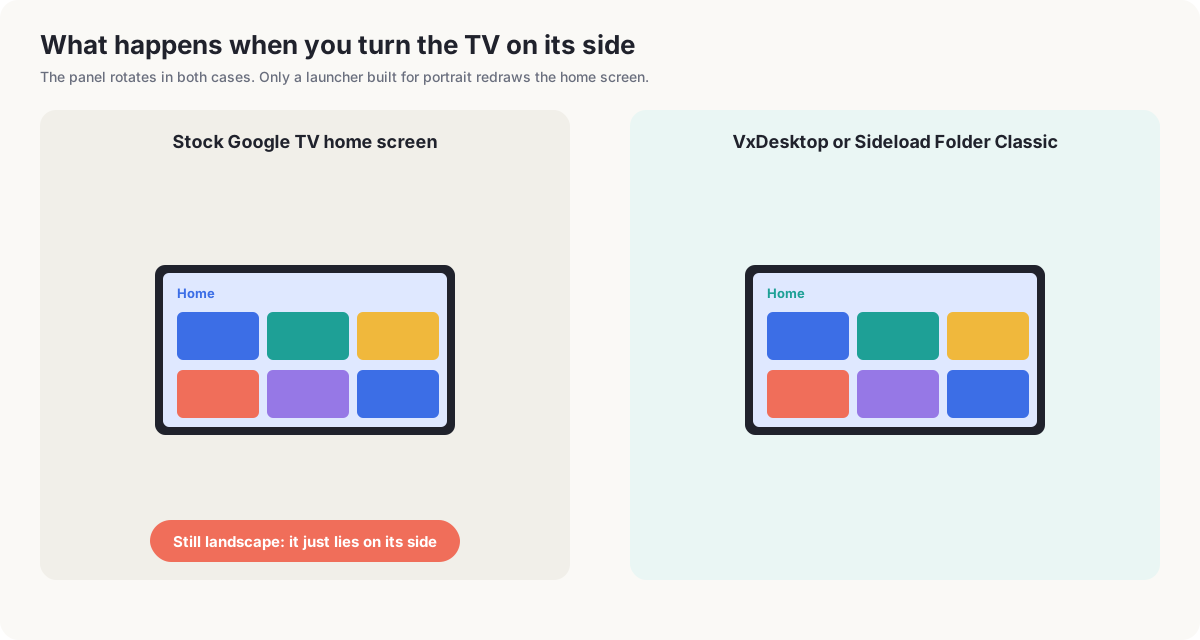
Google TV devices are made for living-room TVs, which are always wide. An Android source commit says the TV platform is not designed to be rotated, so it should not report portrait support. In the Google Nest community, Google staff replied to a user with a vertical display that Chromecast devices are meant for regular TVs in landscape mode and that other orientations are not supported. Another user with a vertical kiosk reported that video played rotated while the playback controls stayed upright.
The result: rotate the output and you get a sideways home screen, not a tall one.
Your options
| Option | How it works | Catch |
|---|---|---|
| Custom launcher (VxDesktop, Sideload Folder Classic) | Replaces the home screen with one that lays out for a tall display | Install it and switch to it once |
| Signage app with its own orientation | The app draws vertical content itself, as with Kitcast | Only the app is vertical, not the system |
| Rotate at a PC or a player | The source device outputs portrait | Not available on a stock Google TV box |
| A TV with built-in rotation | A few models, such as the Samsung Sero or an Auto Rotating Accessory | Limited models, high price |
For most Google TV boxes, the launcher is the real fix, because it controls everything the viewer sees at the home level.
Four steps to portrait mode
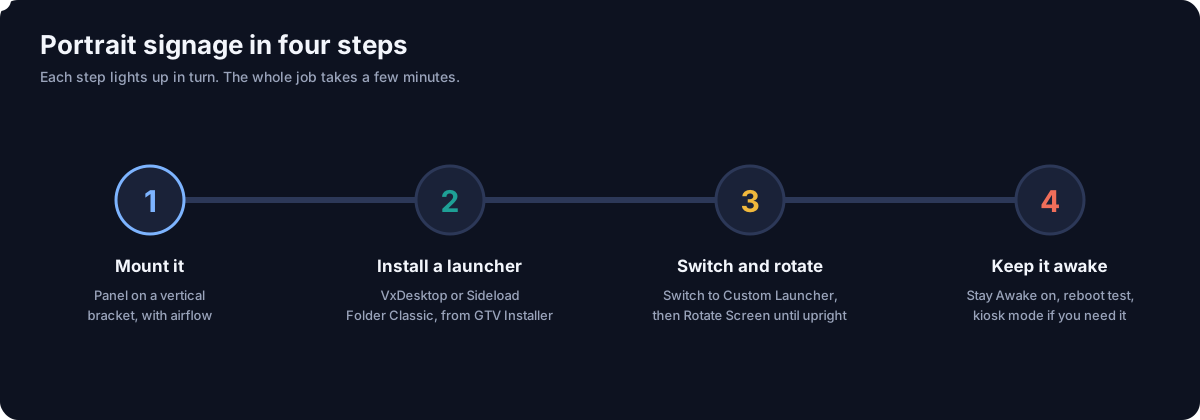
1. Mount the display vertically
Use a proper vertical bracket and leave room around the panel. Not every TV is made to stand on its side: one retailer answer for a 2024 LG model says it is designed for landscape use and may overheat in portrait. Read your TV's manual first.
2. Install a launcher built for portrait
On your Windows PC, open GTV Installer (it comes with GTV-toolkit) and install VxDesktop, or Sideload Folder Classic if you prefer its style. VxDesktop offers layouts, a kiosk mode and themes. Install first, switch second: switching with nothing installed leaves the TV on a minimal system screen.
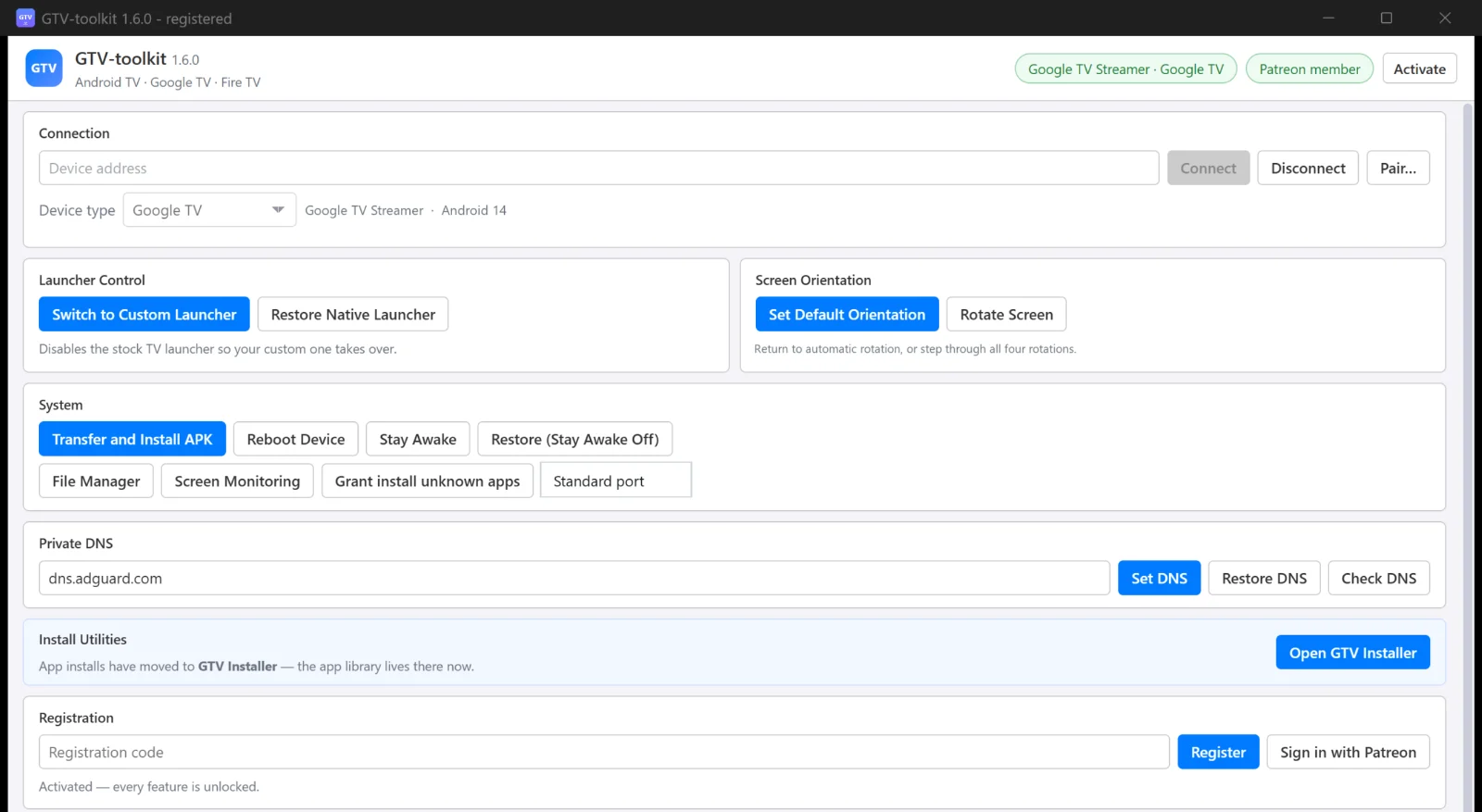
3. Switch the launcher, then rotate the screen
In GTV-toolkit:
- Click Switch to Custom Launcher, and press HOME on the TV to confirm it opens your launcher.
- Click Rotate Screen. Each click steps the screen through the four rotations and back to the start, so click until the picture stands upright.
- If you ever want normal landscape again, click Set Default Orientation, and Restore Native Launcher brings back the original home screen.
4. Keep it awake and test
- Turn on Stay Awake so a signage screen does not go to sleep.
- Reboot the TV and check that it comes back into your launcher in portrait.
- Use kiosk mode in the launcher if you want to keep viewers out of settings.
Tips for signage content
- Design vertically. A 16:9 video on a portrait screen leaves bars. Prepare content in 9:16.
- Do not rely on streaming apps. Many TV apps stay landscape or appear sideways, so use images, video files or web pages in a launcher or signage app.
- Check on the exact hardware. Rotation support differs between boxes and TVs, so test one before you roll out ten.
- Plan for remote care. GTV-toolkit's remote, file manager and screen mirroring let you update a signage box without climbing a ladder.
Troubleshooting
- The picture is sideways after rotating. Click Rotate Screen again until it is upright.
- The home screen is black after switching. Restore Native Launcher, install the custom launcher from GTV Installer, then switch again.
- The launcher disappears after a reboot. Switch again from GTV-toolkit and reboot to check.
- An app will not rotate. It was built for landscape. Use content inside the launcher or a signage app instead.
Bottom line
You cannot make the stock Google TV home screen go portrait, because it was never designed for it. But with a launcher built for tall screens and a one-click rotation from your PC, a Google TV box makes a very capable vertical signage player. The GTV-toolkit page has the download and setup details, and our app list shows VxDesktop and Sideload Folder.
Frequently asked questions
Can Google TV run in portrait mode?
Not on the stock home screen. Google TV devices are designed for landscape TVs, and Google community staff have said Chromecast with Google TV is meant for landscape use only. A custom launcher built for portrait is the practical fix.
How do I rotate the screen on Google TV?
There is no rotate option in the normal Google TV settings. You can change the rotation from a PC with GTV-toolkit, which has a Rotate Screen button that steps through the four rotations and a button to return to automatic rotation.
Can I use a Chromecast with Google TV for vertical digital signage?
It works as a signage player, but the stock home screen and many apps stay landscape. Use a launcher that supports portrait, or a signage app that applies its own orientation.
What is the best launcher for a vertical TV?
Look for a launcher that lays out in portrait and has a kiosk mode. VxDesktop and Sideload Folder Classic from Cloud Curry Studio are built for tall screens on Google TV.
Is it safe to mount a TV vertically?
Only if the TV allows it. Some manufacturers say their models are designed for landscape use and may overheat in portrait. Check the manual, use a proper vertical bracket and leave room for airflow.
Do I need a PC to set up portrait mode?
You need a way to change the rotation. A Windows PC with GTV-toolkit makes it a one-click job, and the same tool can install the launcher and keep the screen awake.
Will apps like YouTube fill a portrait screen?
Often not. Many TV apps stay landscape or show sideways. Plan signage content as images, video or web pages in a launcher or signage app that supports portrait.
Set up portrait signage from your PC
GTV-toolkit 1.6.0 and GTV Installer 1.1.0 for Windows 10/11: install a launcher, rotate the screen and keep the TV awake. Distributed through Patreon.