Best Remote Desktop Software for Windows: Free vs Paid, Pros and Cons (2026)
Looking for the best free remote desktop software for Windows? Compare Windows RDP, Chrome Remote Desktop, AnyDesk, TeamViewer and RustDesk: pros, cons, cost.
You need to reach a PC that is somewhere else: your home desktop from a laptop, a relative's computer that needs fixing, or a few office machines. This guide compares five popular remote desktop apps for Windows, free and paid, with the pros and cons of each, and keeps the list short on purpose.
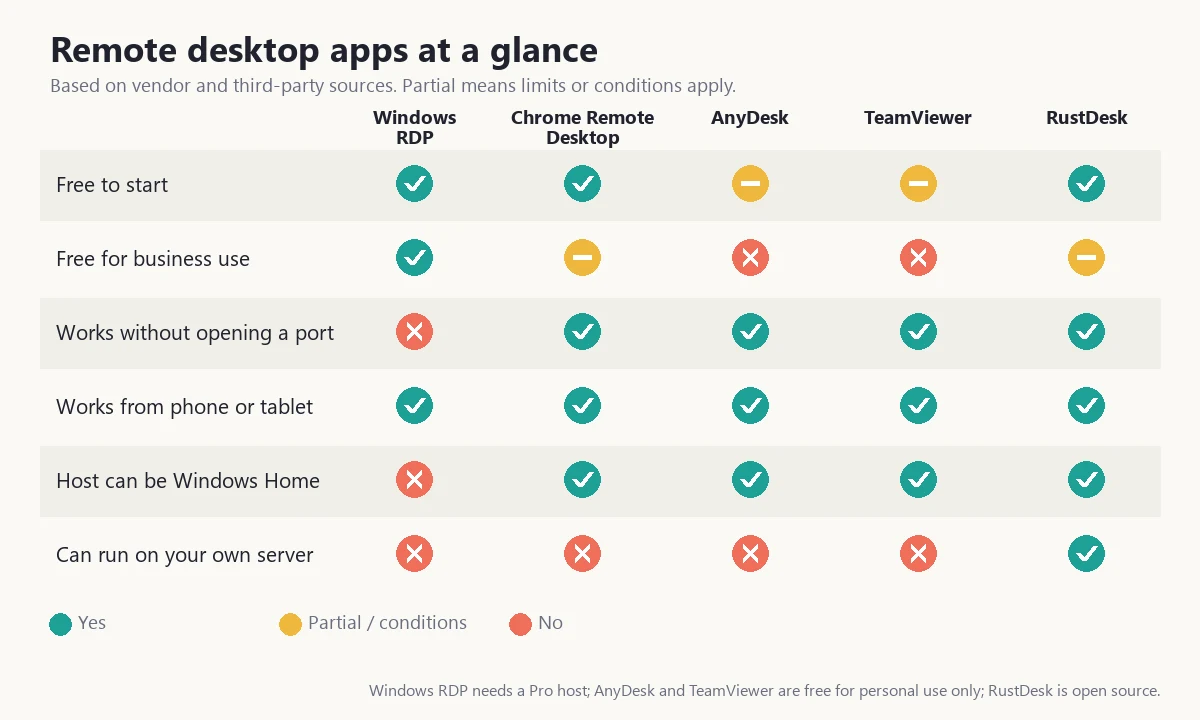
Quick answer
- Your own PC, free: Chrome Remote Desktop.
- Windows Pro PC and a VPN: the built-in Remote Desktop.
- Quick help for family: AnyDesk (free for personal use).
- A paid, polished option for business: TeamViewer or AnyDesk.
- Control and your own server: RustDesk.
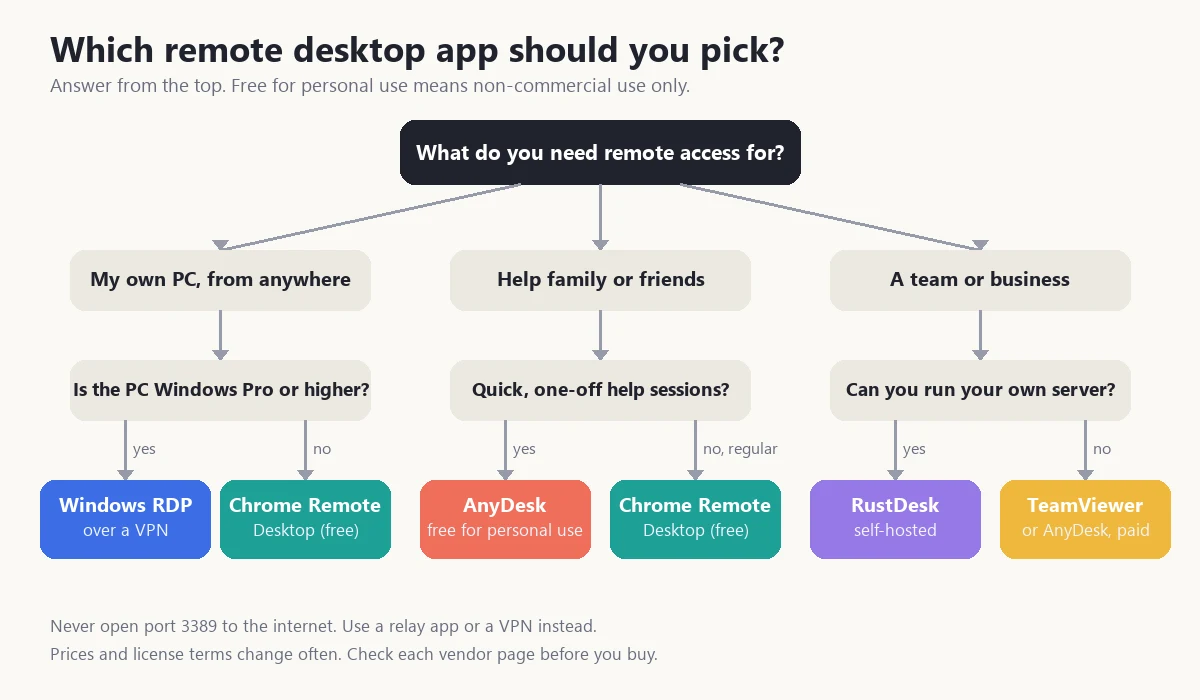
The five apps at a glance
1. Windows Remote Desktop (RDP)
Built into Windows, with clients for other systems.
- Pros: Free once you own a Pro PC, quick and smooth on a local network, no third-party account.
- Cons: The PC you connect to must run Windows Pro, Enterprise or Education. A Home PC can connect out but cannot host. Reaching it from outside needs a VPN or an open port, and an open port is a real risk (see the safety section).
- Best for: your own Pro PC, over a VPN or inside one network.
2. Chrome Remote Desktop
Google's free remote access tool, which works in the browser.
- Pros: Free for personal use, simple setup, works with a Home PC, nothing to open on your router.
- Cons: Fewer admin tools than business products, such as detailed permissions and session history, according to reviewers.
- Best for: reaching your own computer or helping family.
3. AnyDesk
A lightweight relay-based tool, popular for quick support sessions.
- Pros: Small download, quick to start, free for personal use, no open port needed.
- Cons: Free use is personal only and the app may judge your use to be commercial (see the trap below). Paid plans are reported at roughly $14 to $15 per seat per month.
- Best for: occasional help sessions.
4. TeamViewer
The long-standing all-rounder, now adding AI features for IT support.
- Pros: Mature, widely known, many business features, no open port needed.
- Cons: Free for personal, non-commercial use only, and it may decide your use is commercial even when you are one person (see the trap below). Business plans are reported from around $25 a month, which is the priciest here.
- Best for: companies that want one supported product.
5. RustDesk
An open-source option you can self-host.
- Pros: Free and open source, optional self-hosted server so your data stays on your machines, no per-seat fee for the basic client.
- Cons: You run and secure the server, and its paid tier is mainly the server and console. Reports differ on whether commercial use needs a license, so read its terms.
- Best for: teams with some IT skill that want control.
The "free for personal use" trap
AnyDesk and TeamViewer both say the free version is for private use only. What many people do not expect is that the software decides for itself whether your use looks commercial, and you may not agree with its verdict. Do not assume "I am just one person, so it is free."
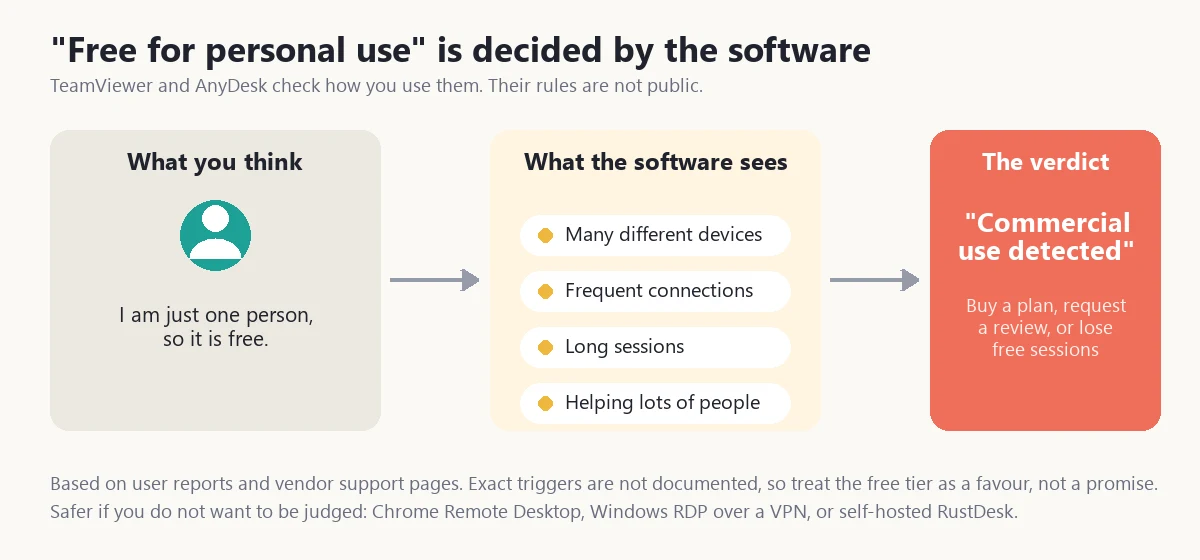
What users report:
- TeamViewer. Its own support pages tell people who see "commercial use suspected" or "detected" to use a reset form to ask for a review. Guides such as this one on Windows 11/10 show how common the message is. Third-party write-ups say the checks are not public and that many devices on one account can look like an IT role, and that some home users are flagged wrongly. A TeamViewer reply reported in Capterra reviews admits it sometimes detects commercial use incorrectly. Competitor blogs also say free sessions get cut to a few minutes after a flag, which is unconfirmed.
- AnyDesk. A review on UpdateStar reports that plenty of users had their usage flagged as commercial and were pushed toward a licence, sometimes just for helping family. Other write-ups say frequent connections, long sessions or multiple devices can trigger it, and that free sessions may time out. Details are anecdotal, because AnyDesk does not publish its thresholds.
- The risk: the fix is usually to buy a plan, request a review or switch tools. Several guides warn that reinstalling the app or opening several free accounts to dodge the flag can get you blocked.
How to stay safe:
- If you help friends and family only now and then, free may work, but expect that it can be taken away.
- If you use it for work, clients or more than a couple of devices, budget for a paid plan from day one.
- If you want no usage police at all, choose Chrome Remote Desktop, Windows Remote Desktop over a VPN, or self-hosted RustDesk, and read their terms.
How a connection reaches your PC
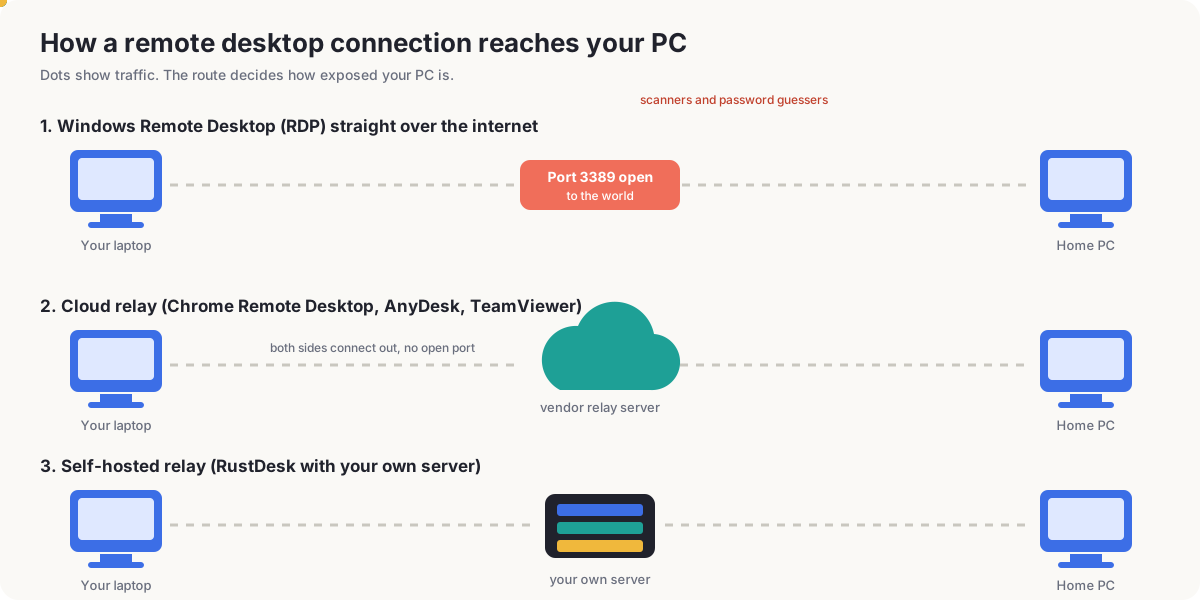
The route matters more than the brand. RDP connects straight to the PC, while the others meet at a relay.
Stay safe
- Do not open port 3389 to the internet. In Sophos' test, brute-force attempts began within a minute, and changing the port did not stop scanners. ESET links exposed RDP to ransomware.
- Use a VPN, a gateway or a relay app instead, and turn on multi-factor sign-in where it is offered.
- Use a long, unique password on the PC, since remote access makes it the front door.
- Beware of scams. Never install remote software for someone who called you unexpectedly. RustDesk's own site warns about this.
- Close it when done. Disable remote access on machines you no longer use.
What comes next: an AI caretaker inside remote desktop
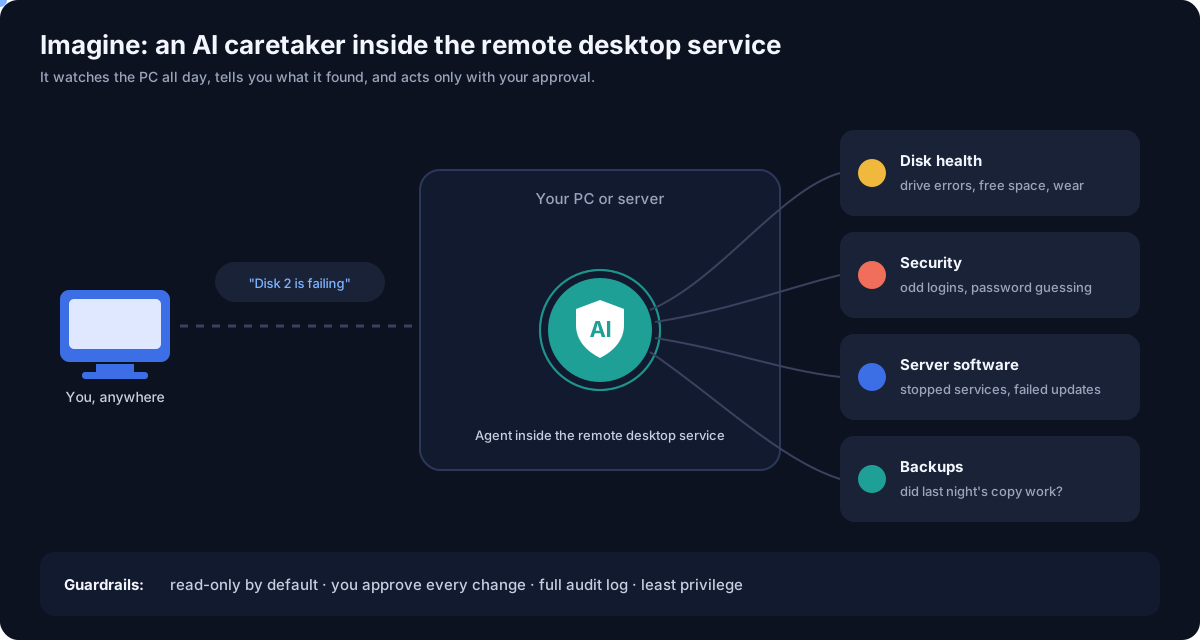
Every app above does one job: it shows you a screen and passes your keystrokes. The PC itself is still looked after by you, at 2 a.m., when something breaks. Now imagine the remote desktop service has an AI agent living inside it, the part that already runs all day on the machine. Not a chatbot you open, but a caretaker that keeps watch.
What that could look like:
- Disk health. It reads drive error counts and free space, notices a disk that is slowly failing, and tells you before the data is gone, not after.
- Security. It sees a burst of failed sign-ins, a login from a place you never use, or a new remote tool that appeared overnight, and raises the alarm or blocks the attempt.
- Server software. It notices a stopped service, a failed update, a full log folder or a crashed app, and offers the fix.
- Backups. It checks that last night's copy actually finished and can be restored.
- Plain-language reports. "Your PC is healthy. One drive is at 91% full. Two sign-in attempts from abroad were blocked." Instead of a wall of logs.
This is not science fiction in direction. TeamViewer already markets an AI agent that learns from support sessions to predict and prevent IT problems, which shows the idea is where the industry is heading. The open question is how to do it safely, because an agent with deep access to your PC is also a juicy target.
Sensible guardrails for any AI caretaker:
- Read-only by default. Watching is safe. Changing things is opt-in.
- You approve every change. The agent proposes, shows before and after, and waits.
- A full audit log of what it saw and did, so nothing happens in secret.
- Least privilege. Only the access it needs, nothing more.
- Calculated facts first, AI second. Disk and security numbers come from the system itself, and the AI explains them, so it cannot invent a problem or hide a real one.
A delegated PC that looks after itself and tells you in plain words what needs your attention is a very different product from a screen-sharing window. It is the direction we are working on at Cloud Curry Studio, and we will share more when it is ready.
What to look for when you choose
- Is it free for your kind of use, personal or business?
- Does the host edition of Windows support it?
- Does it need an open port, or does it connect out?
- Can you see who connected and when?
- Who runs the relay, and where does your data pass through?
Our pick
For one person, Chrome Remote Desktop is the easiest free start, and Windows Remote Desktop over a VPN is the best if you already own Pro. For teams, compare TeamViewer and AnyDesk on price and support, or look at RustDesk if you can host it yourself. Prices and license terms change often, so confirm them on each vendor's page before you commit.
Sources include Windows Remote Desktop edition requirements, vendor sites, and third-party comparisons. Pricing figures are as reported by those comparisons and may have changed.
Frequently asked questions
What is the best free remote desktop software for Windows?
For personal use, Chrome Remote Desktop is the simplest and costs nothing. Windows Remote Desktop is also free if your PC runs Pro or higher. RustDesk is free and open source if you can run a server.
Is Chrome Remote Desktop really free?
Yes. Google offers it at no cost for personal remote access and screen sharing, and it works in the browser. Reviewers note it has fewer admin features than business tools.
Is AnyDesk free?
AnyDesk has a free version for personal use. Business use needs a paid plan; sources put plans at roughly $14 to $15 per seat per month, so check the current price.
Is TeamViewer free?
TeamViewer is free for personal, non-commercial use. Business plans are paid and reported to start around $25 a month, so check the current price.
Why does TeamViewer say commercial use detected?
TeamViewer uses its own checks to decide whether free use looks commercial, and they are not public. Reports say many devices on one account or frequent connections can trigger it, even for home users. TeamViewer provides a form to request a review of your usage.
Why does AnyDesk say my use is commercial?
Sources describe a similar automatic check on patterns such as frequent connections, long sessions or several devices. If it decides you are a business, you may be asked to buy a licence or have sessions limited, so a free personal plan is not guaranteed.
How could AI change remote desktop software?
An AI agent running inside the remote desktop service could watch disk health, security events, server software and backups all day, explain problems in plain language and fix them with your approval. Safe versions would be read-only by default, keep an audit log and use least privilege.
Is it safe to let an AI agent manage my PC or server?
Only with guardrails: read-only by default, your approval before any change, a full audit log and the minimum access needed. Calculated facts such as disk errors should come from the system, with the AI only explaining them.
Can I use Remote Desktop on Windows 11 Home?
A Home PC can connect out to another PC, but it cannot be the host. The PC you connect to needs Windows Pro, Enterprise or Education.
Is Remote Desktop (RDP) safe?
RDP is safe when it sits behind a VPN or gateway with strong passwords and multi-factor sign-in. Opening port 3389 to the internet is dangerous: Sophos saw brute-force attempts within a minute in its test.
What is the difference between RDP and AnyDesk or TeamViewer?
RDP connects directly to your PC, so reaching it from the internet needs a VPN or an open port. AnyDesk and TeamViewer connect through the vendor relay, so no port needs opening.
Is RustDesk safe to use?
RustDesk is open source and lets you self-host the server. Its own site warns that scammers ask people to install remote tools, so only install it for someone you know and trust.
More guides on the way
We publish practical guides for Windows, Android and Google TV. Follow the blog feed to catch the next one.