Browse like a TV app
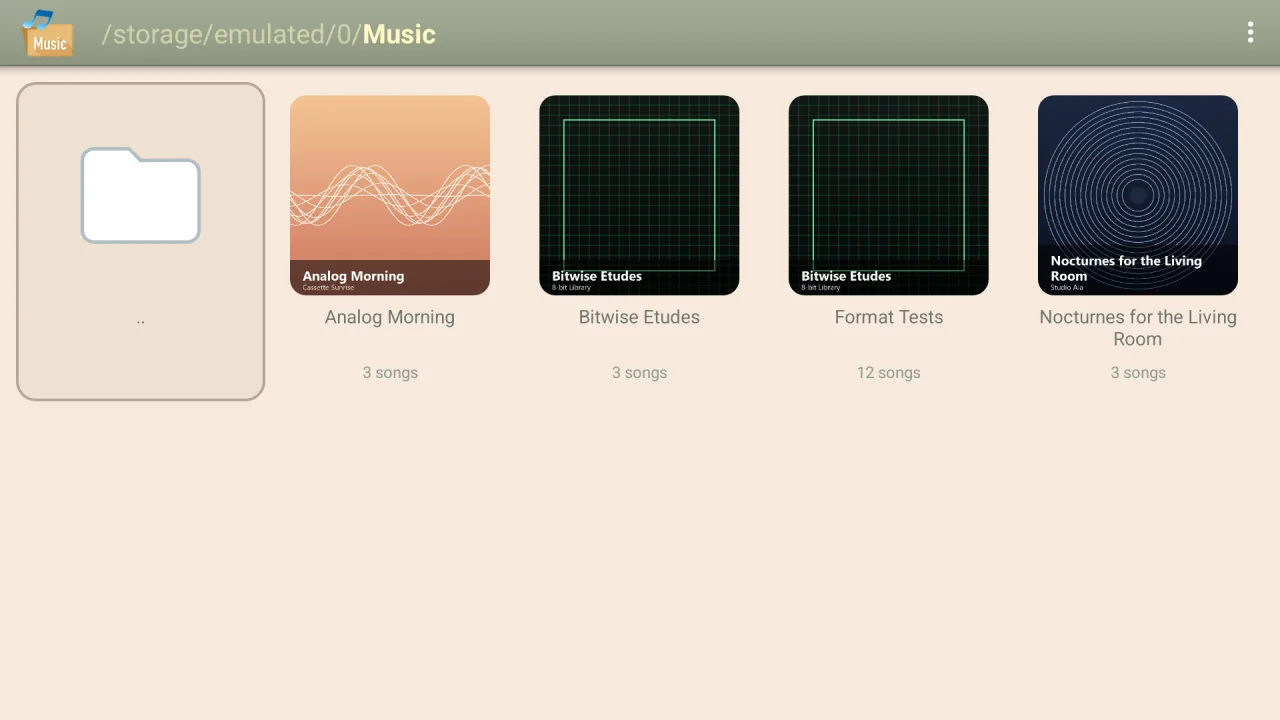
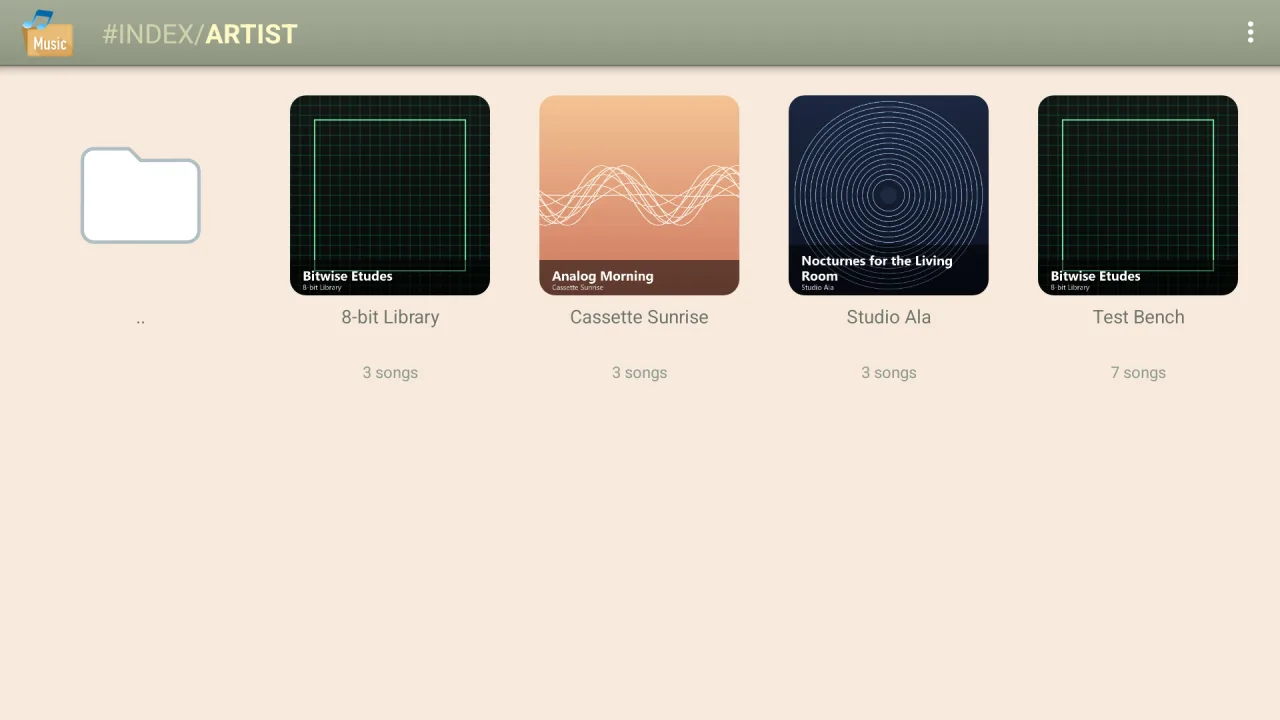
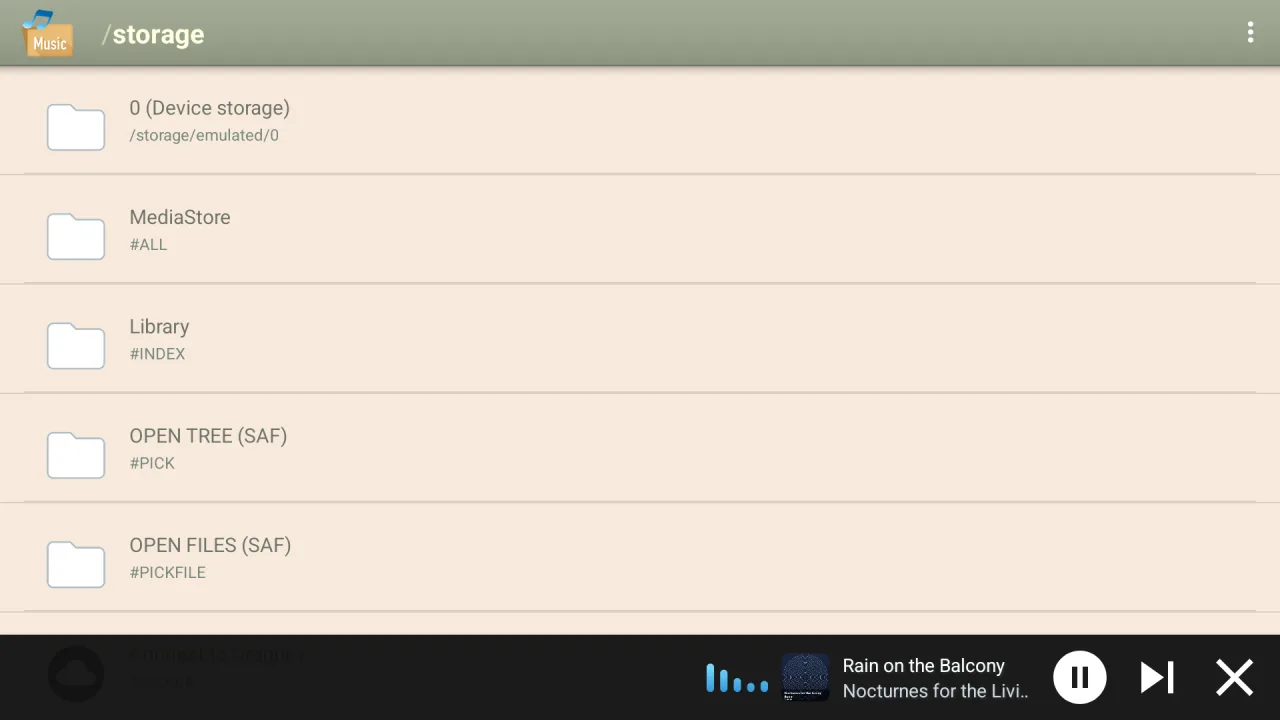
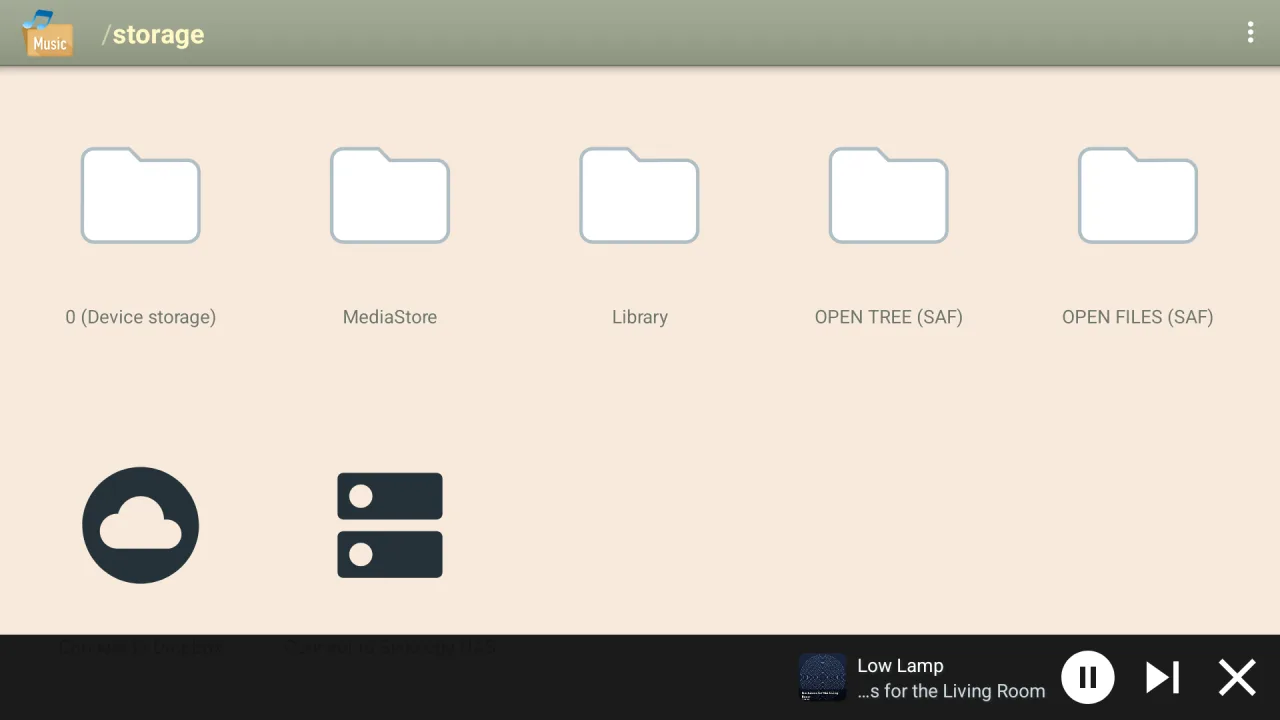
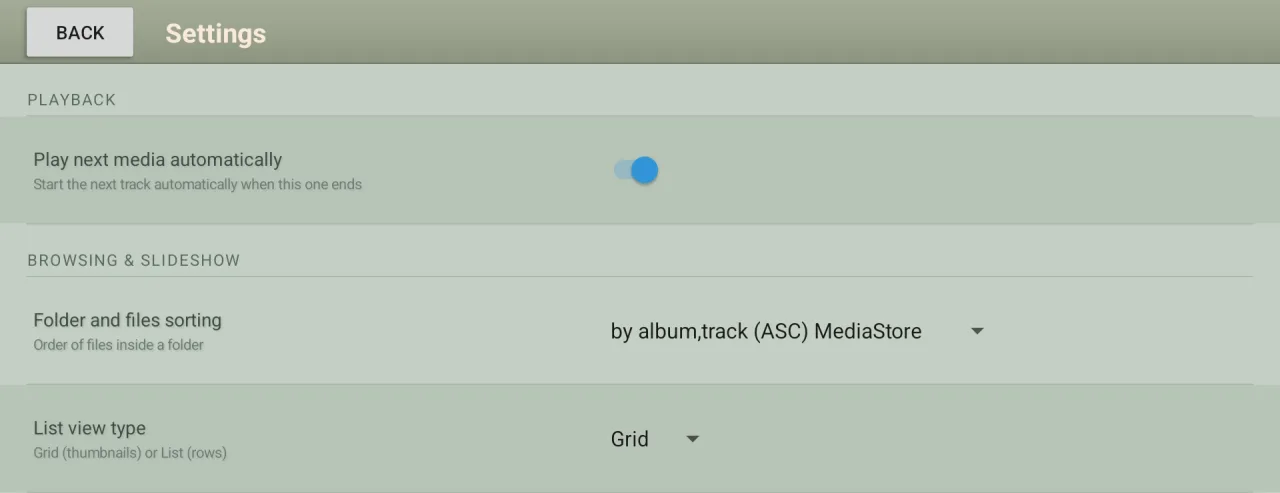
A grid of big album covers with the number of songs, or a list with names and paths. Switch in Settings.
The music player your TV never had.
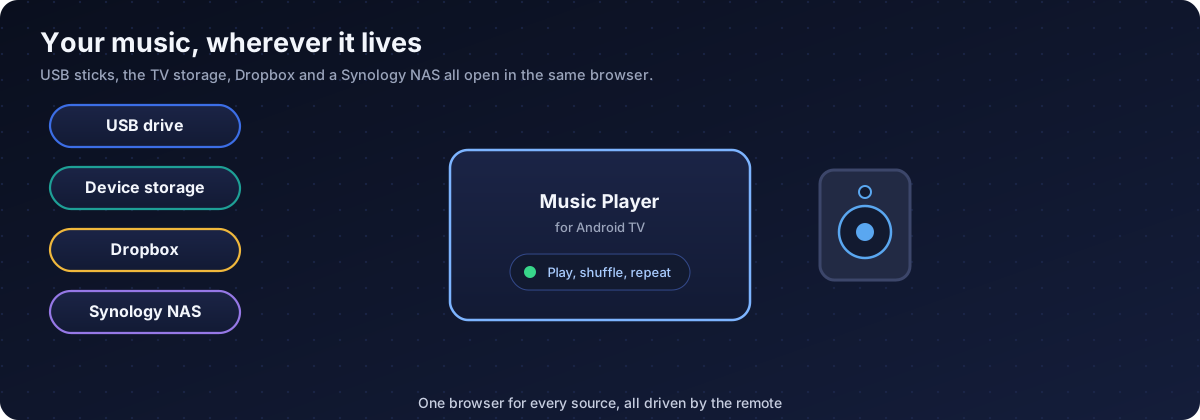
Android TV and Google TV come without a music player. Music Player for Android TV plays the songs on your USB drive, TV storage, Dropbox or Synology NAS, and it is built for the remote from the first screen: big covers, large type, lyrics, and music that keeps playing when you go back to browsing.
Music Player for Android TV is on Google Play. Get it from the store first, then follow any guide. Here is how to reach the store on your TV.
The Google Play Store has its own banner (tile) on the home screen. Open it.
There is no store tile. Press and hold the voice input button on the remote and say “open Google Play Store”.
In the store type “Music Player for Android TV”, open the app by Cloud Curry Studio, then get it from Google Play.
Not a phone player blown up onto a big screen.
Android TV and Google TV ship without a music player. This one plays what is on your USB stick, your TV storage or your NAS, with no computer and no casting.
Arrow keys, OK and Back are all you need. Focus frames are big and clear from the sofa, and nothing needs a mouse or a touch screen.
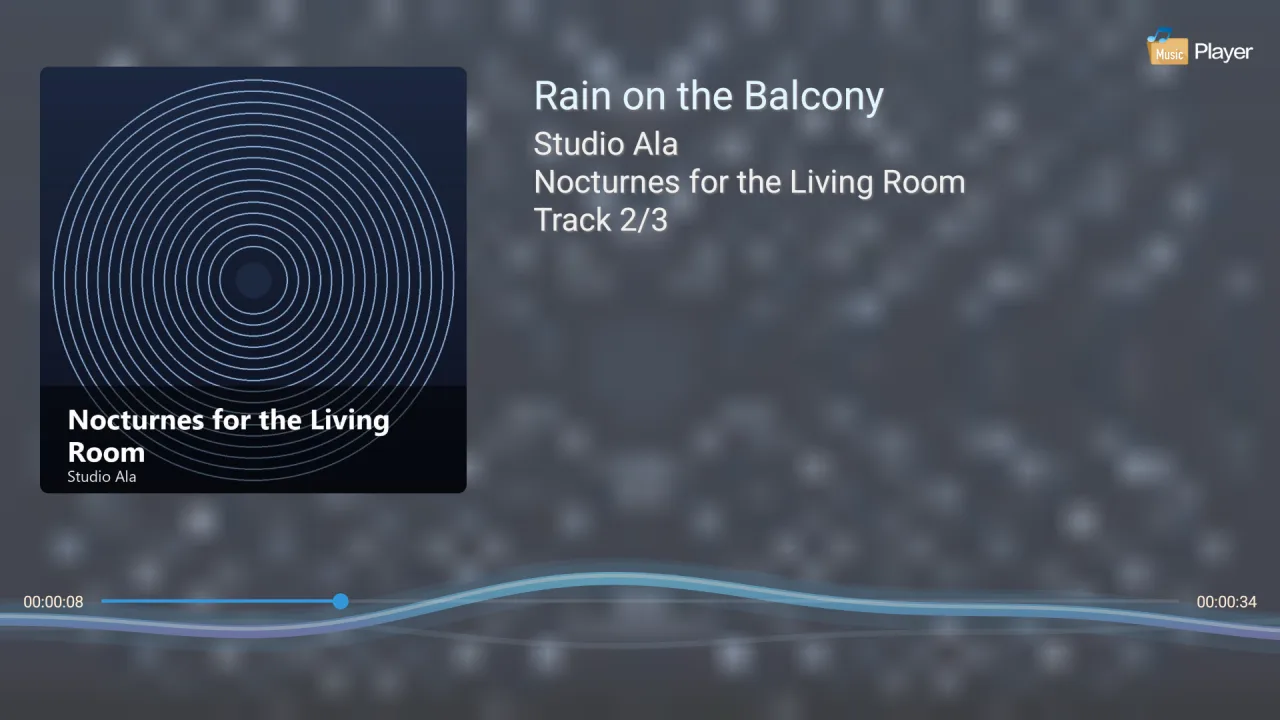
Large covers, big type and a full-screen player with title, artist, album, track number and lyrics.
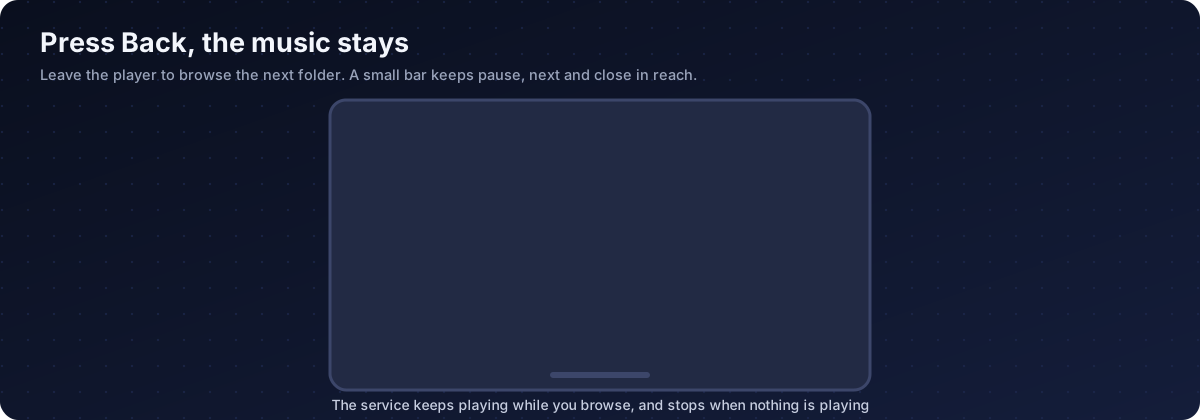
Press Back, browse, even go to the home screen. Playback runs in the background, with a mini bar and a system notification.
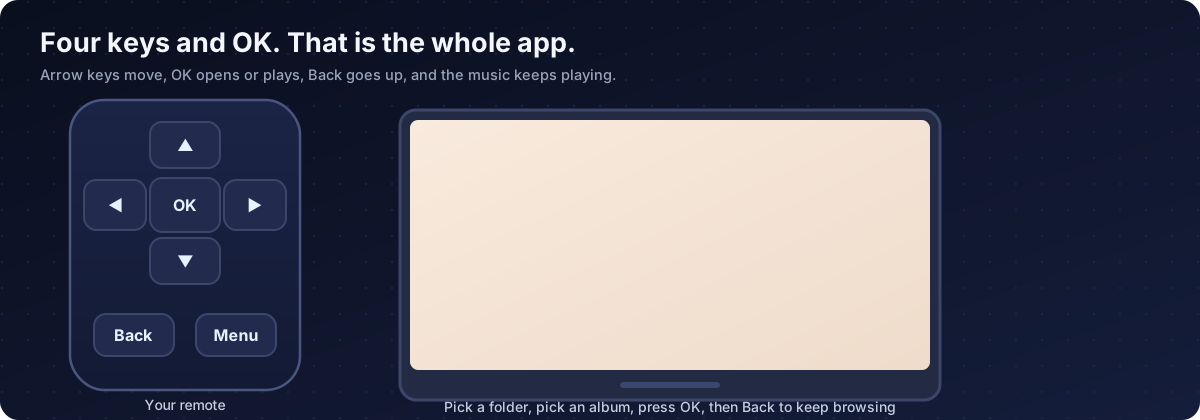
The whole app works with the arrow keys, OK, Back and Menu. These are the keys and what they do.
| Remote key | When browsing | In the player |
|---|---|---|
| Arrow keys | Move the focus frame between folders and songs | Show the controls if they are hidden |
| OK | Open a folder or play a song | Play or pause, or press the highlighted control |
| Back | Go up one folder, or leave the app at the top | Return to browsing. The music keeps playing |
| Menu | Open the menu: settings, search, hidden files, cache | Show or hide the control bar |
| Long press OK | Open the item menu, for example to build the index | - |
| Play, next, previous | - | Work from the remote media keys |
Every focus frame is large and has space around the content, so you can always see where you are from a few metres away.
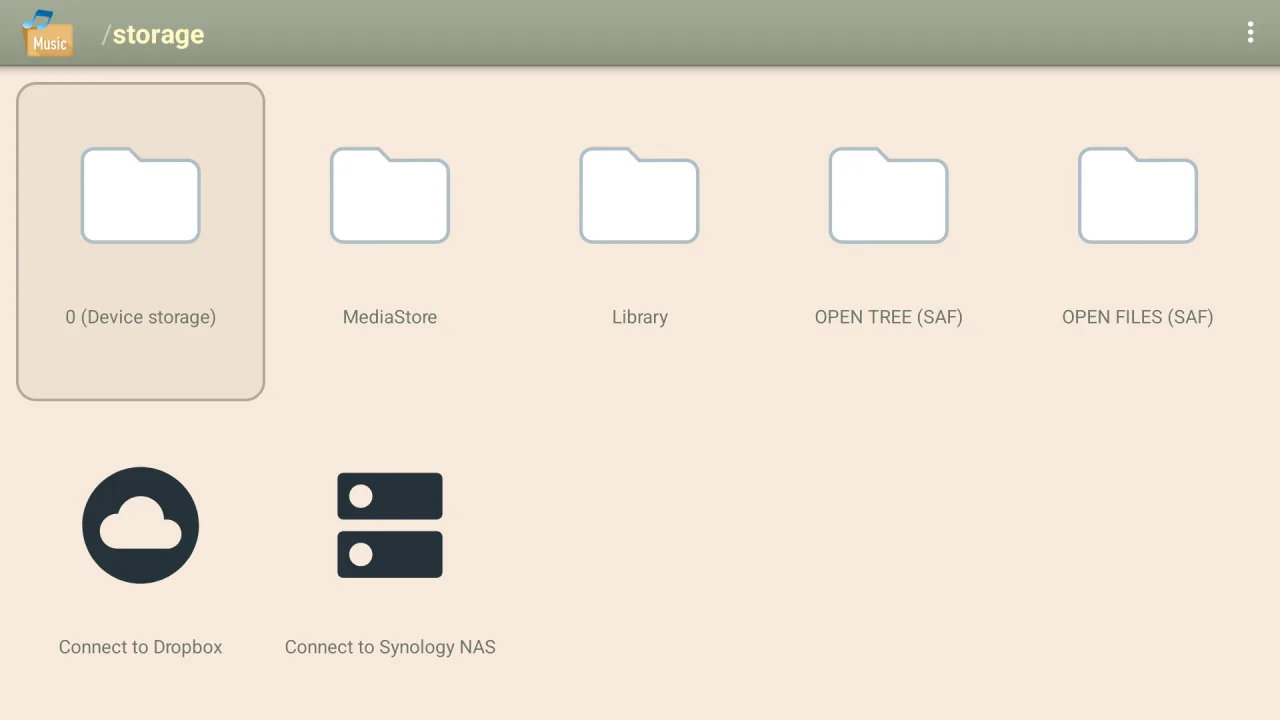
Start at the storage screen and open any source the same way.
Everything it does, in plain language.
A grid of big album covers with the number of songs, or a list with names and paths. Switch in Settings.
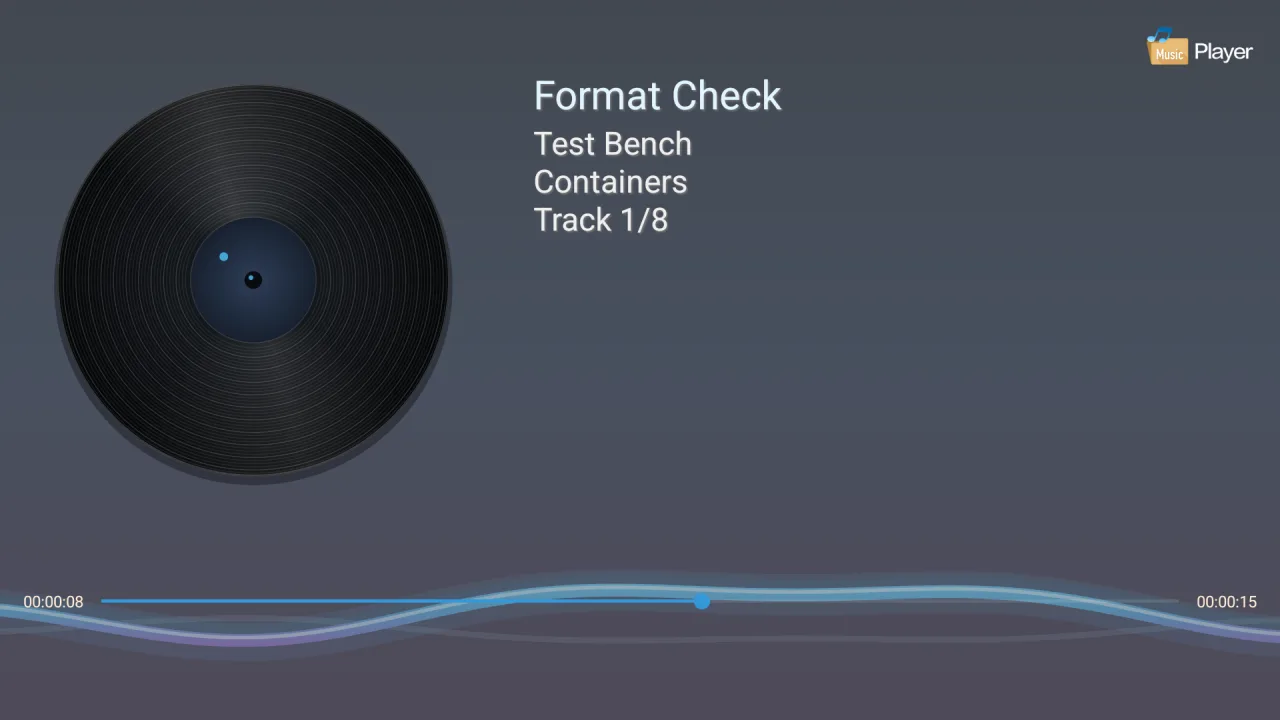
Cover, title, artist, album and track number in large type, a progress bar and a moving wave. The blurred cover fills the background.
A song without cover art gets a turning vinyl record instead of an empty square.
Put a .lrc file next to the song with the same name and the words follow along, two lines at a time.
Open the track list of the current folder and jump to any song. Mark the songs you love with a heart.
Shuffle the folder, repeat a song, or play at 1.0x, 1.5x or 2.0x.
Type part of a name and the folder narrows down. The on-screen keyboard appears by itself.
Build an index once and browse your music by artist, with covers read from the files.
Fourteen ways to sort: name, size, date, album, artist and year.
Optionally the TV reads out the title and album when the song changes, in the language you choose.
System folders that start with a dot are left out unless you ask to see them.
Device storage, USB drives and SD cards, the Android media library, Dropbox and Synology NAS.
Large title, artist, album and track number, a progress bar with a flowing wave, and lyrics when you have them.
Decoding is done by the system, so there are no extra libraries. These were tested.
| Type | Notes |
|---|---|
| MP3 | 320 kbps and variable bit rate |
| FLAC | Lossless, with embedded cover art |
| M4A / AAC | Common iTunes and phone formats |
| OGG / OGA / OPUS | Open formats |
| WAV | Uncompressed audio |
| 3GP | Plays, rarely useful |
| LRC | Lyrics with the same name as the song |
| M3U | Playlists appear as virtual folders |
It plays music only, not video. Searching works inside the current folder, not across the whole collection. Dropbox and Synology NAS are the supported cloud sources. The first visit to a very large folder is slower while covers and the index are prepared. Previous and next on headphone and notification buttons are limited, so use the on-screen controls.
All captured on Android TV at 1920 x 1080.
Get it from Google Play. On Android TV, open the Google Play Store banner on the home screen. On Google TV there is no store tile: press and hold the voice input button on the remote, say "open Google Play Store", then search the full name "Music Player for Android TV" and open the app by Cloud Curry Studio.
No. Android TV and Google TV have no music player of their own, so music on a USB drive or a NAS has nowhere good to play. Music Player for Android TV fills that gap and is made for the remote.
Plug in the drive. In the app open the start screen and choose OPEN TREE (SAF) once to give access to the drive. After that the folder is remembered and the music opens like any other folder.
Yes. The start screen has Connect to Dropbox and Connect to Synology NAS. For a NAS enter its address and account, then browse and play the folders directly.
Earlier versions could open Google Drive. Google treats access to Drive files as a restricted scope, and every app that asks for it must pass an annual security assessment (CASA, Tier 2) by an approved assessor, repeated every year. Assessors charge from several hundred to a few thousand dollars per year depending on the package, on top of the engineering work to prepare for it. In our opinion this is out of proportion in an era when AI-assisted code analysis can check whether an app is harmful quickly and cheaply, and a yearly paid assessment for a small app is hard to justify. For a small independent studio it is not sustainable for one feature, so we removed Google Drive. Dropbox and Synology NAS are still supported, and copying your music to a USB drive or a NAS works well as a replacement.
Yes. Press Back to return to browsing, or go to the home screen: playback continues in the background with a mini bar in the app and a notification. It stops by itself when nothing is playing.
MP3, FLAC, M4A and AAC, OGG and Opus, WAV and 3GP, with M3U playlists and LRC lyrics. Decoding uses the system, so what plays depends on your device.
Yes. Put a .lrc file with the same name next to the song and the player shows the current and next line.
The player shows a spinning vinyl record and a moving wave, so the screen never looks empty.
The app builds cover thumbnails and a tag index the first time, and shows "Preparing thumbnails". The next visit uses the cache and is fast. You can clear the cache from the menu.
Search works inside the folder you are in. For the whole collection, browse by artist in the Library after the index is built.
No. It is a music player. Video belongs in a video player.
Android 9 or newer on Android TV, Google TV and TV boxes. The same app also installs on phones, but this page is about the TV.
It connects to the internet only when you use Dropbox or a NAS, and it does not collect data in the background. See the privacy policy linked in the page footer.
Music Player for Android TV for Android TV and Google TV.